> For the complete documentation index, see [llms.txt](https://docs.innova-drilling.com/introduction/llms.txt). Markdown versions of documentation pages are available by appending `.md` to page URLs; this page is available as [Markdown](https://docs.innova-drilling.com/introduction/innova-engineering-how-to-guides/vantage-guides/data-bridge-importing-3rd-party-data.md).
# Data Bridge: Importing 3rd Party Data
## 1.0 - Introduction
To maximise the accessibility, and ultimately the value of your operational data, all information must be stored in a single database using a consistent format.
As different service companies use different systems, this data often needs to be converted and re-entered manually - a time-consuming process.
To streamline the process of conglomerating data from multiple sources into the Innova system, Innova now supports automatic importing of planning and operational data that are either attached to an email, or embedded in the subject line of an email. This feature is called Data Bridge.
Data Bridge supports importing files exported from the following:
* **Baker Hughes** (Well Architect / Cadence)
* **Schlumberger** (Drill Plan / Drill Ops)
* **Landmark** Compass
Additional files/data can also be automatically imported into the Innova system:
* Survey updates
* Image files
* Mud Reports
* Certified Surveys
This document explains how to automatically import these files into the **Innova Suite**.
## 2.0 – Prerequisite Requirements
Before importing files, you must have:
* An Innova Server Database
* Access to Innova Vantage
* Login credentials to Innova Vantage which have Admin permissions
## 3.0 – Email Setup
Before files or data can be imported via email, the sender’s email address must first be authorised within Innova Vantage.
1. Log in to [**Innova Vantage**](https://vantage.innova-drilling.com/well-list) using an **Admin** account
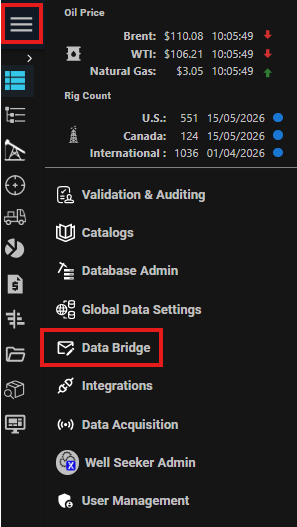
2. Click the **burger menu** (top left) and select **Data Bridge**
3. In the Data Bridge Settings dialog, click in the ’Add’ option to open a ‘+Add Data Bridge User’ dialog, where you can set email addresses that will be sending the files/data.When an email has been received by Data Bridge, a processing email will be sent to the **Reply To** email address added, followed by a completion/failure email to the **Reply To** email address.

4. For each email address, select the relevant import types to be authorized from the dropdown list.

5. The settings available are used to correctly interpret the imported data.
1. If the import type is **SURVEY, CADENCE, WELLARCHITECT, COMPASSEDM, OPENWELLS – CASING TALLY, DRILLPLAN**, or **DRILLOPS**
1. Ensure that the correct Depth Units are selected.
2. If the import type is any of the MUD REPORT options:
1. Select the appropriate Mud Units for the report.
2. Select the appropriate Date Format used within the report.
**Important:** If a file/data is sent from an unregistered email address, or the actions have been set incorrectly, then the import will fail.
## 4.0 – Baker Hughes
Baker Hughes data is split into two types — *planning* and *operations*.
**Important:**
* Import the **planning (Well Architect) file first**, otherwise the operational data import will fail.
* The API number must be entered in Well Architect before the export file is created. This is required for any well that Cadence data will be imported into, as the API number is used as the common well identifier between Well Architect and Cadence during the import process.
### 4.1 – Planning – Well Architect Files
Well Architect exports a single **.exp** file, containing well planning data (locations, CRS, elevations, targets, plans, offsets etc).
#### 4.1.1 – Importing a Well Architect File
You can import a Well Architect file in two ways:
**Option 1 – Via Innova Vantage:**
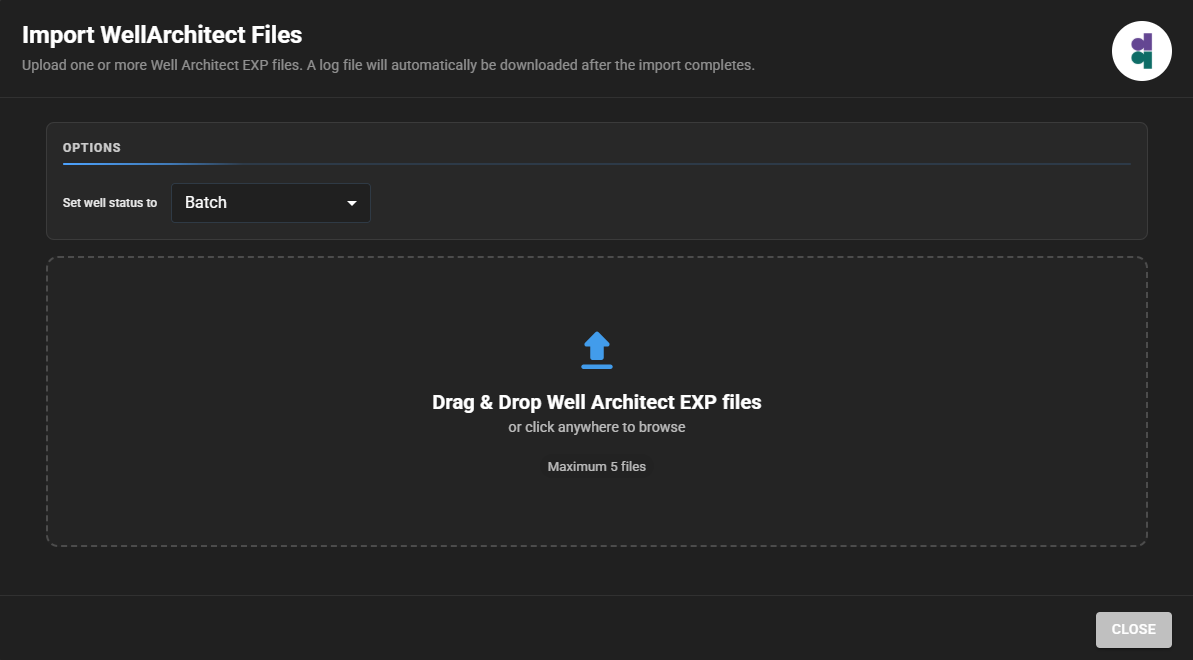
1. Go to the **Wells** tab on the Dashboard page.
2. Select **Import >** **Well Architect**

3. Select the .**exp** file → click **Import**
4. Under *Set Actual Well Status to*, choose a status to assign to all imported Actual Wells
**Option 2 – Via Email:**
1. Email the file to [**OrganizationName**@feed.innova-drilling.com](mailto:OrganizationName@feed.innova-drilling.com)
2. Replace **OrganizationName** with your organization’s name as shown in Vantage.
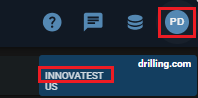
1. To find this: Open Vantage, hover over the user profile icon, and check the organisation name displayed under your email/login.
3. Your email address must be registered in Innova Vantage (**see Section 3.0: Email Setup**)
4. Email title must be: **Well Architect**
1. Wells will be pulled in with the **Well Status** set to **Active**.
2. Add the word **Historical** if submitting a completed well e.g. *Well Architect Historical*
3. This will automatically set the **Well Status** to **Complete** in the Innova system.
5. Attach one or more unzipped .**exp** files
 
### 4.2 – Operations – Cadence Files
Cadence exports operational data as a **single zipped folder**, typically containing:
* BHA / Cost / Daily Drilling / MWD / Parameter / Summary reports (.xml)
* Survey report (.csv)
* Optional Activity report (.csv) *(historical only)*
#### 4.2.1 – Importing a Cadence File
It is only possible to import Cadence files via email:
1. Email the zipped file to [**OrganizationName**@feed.innova-drilling.com](mailto:%20OrganizationName@feed.innova-drilling.com)
2. Replace **OrganizationName** with your organization’s name as shown in Vantage.
3. Your email address must be registered in Innova Vantage (**see Section 3.0: Email Setup**)
4. Before Cadence data can be imported, the corresponding Well Architect file for the well **must already have been imported.**
5. Email title must be: Cadence - API: api# *(**api# must match Well Architect file**)*
 
## 5.0 – Schlumberger
Schlumberger data is split into two types — *planning* and *operations*.
**Important:**
* Import the **planning (Drill Plan) file first**, otherwise the operational data import will fail.
* The API number must be entered in Drill Plan before the export file is created. This is required for any well that Drill Ops data will be imported into, as the API number is used as the common well identifier between Drill Plan and Drill Ops during the import process.
### 5.1 – Planning – Drill Plan Files
Drill Plan exports a **zipped folder** containing several files (various formats) with well planning data (locations, CRS, elevations, targets, plans, offsets).
#### 5.1.1 – Importing a Drill Plan File
You can import a Drill Plan files in two ways:
**Option 1 – Via Innova Vantage:**
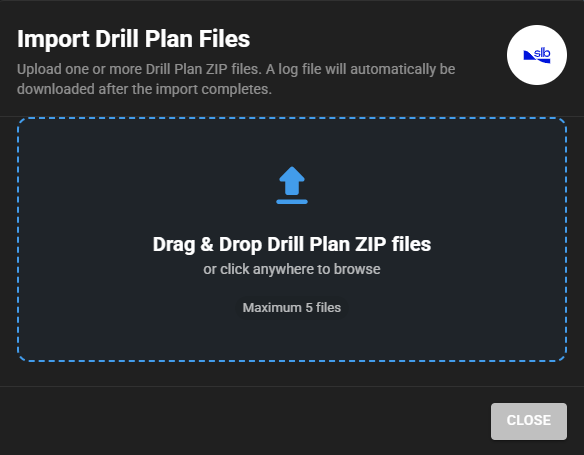
1. Go to the Dashboard page Wells tab.
2. Select **Import >** **Drill Plan**

3. Select the zipped file → click **Import**
**Option 2 – Via Email:**
1. Email the file to [**OrganizationName**@feed.innova-drilling.com](mailto:%20OrganizationName@feed.innova-drilling.com)
2. Replace **OrganizationName** with your organization’s name as shown in Vantage.
1. To find this: open Vantage, hover over the user profile icon, and check the organisation name displayed under your email/login.

3. Your email address must be registered in Innova Vantage (**see Section 3.0: Email Setup**)
4. Email title must be: **Drill Plan - API: api#**
1. Wells will be pulled in with the **Well Status** set to **Active**.
2. Add the word **Historical** if submitting a completed well e.g. *Drill Plan - API: api# Historical*
3. Adding Historical, will set the **Well Status** to **Complete** in the Innova system
5. Attach a single zipped file
 
### 5.2 – Operations – Drill Ops Files
Drill Ops exports multiple **unzipped** files:
* Daily Journal as .html
* Steering report as .csv
* Bha report as .csv
* Survey report as .csv
#### 5.2.1– Importing a Drill Ops File
It is only possible to import Drill Ops files via email:
1. Email all four unzipped files to [**OrganizationName**@feed.innova-drilling.com](mailto:%20OrganizationName@feed.innova-drilling.com)
1. You can add more than 4 files if you have them
2. Replace **OrganizationName** with your organization’s name as shown in Vantage.
3. Your email must be registered (**see** **Section 3.0: Email Setup**)
4. Before Drill Ops files can be imported, the corresponding Drill Plan file for the well **must already have been imported.**
5. Email title must be: **Drill Ops – API: api#** (api# must match the Drill Plan file)
 
## 6.0 - Landmark
Landmark’s Compass planning data can be imported.
### 6.1– Planning – Landmarks Compass EDM Files
Landmarks Compass exports a **single .edm** file.
#### 6.1.1 – Importing a Compass File (.edm)
You can import a Compass .edm file in two ways:
**Option 1 – Via Innova Vantage:**
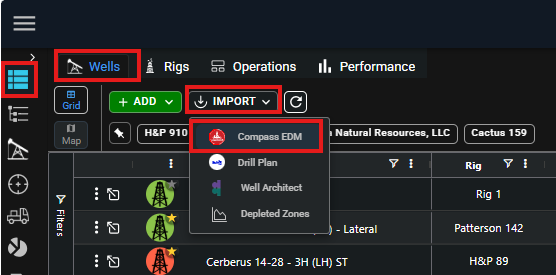
1. Go to the Dashboard page Wells tab.
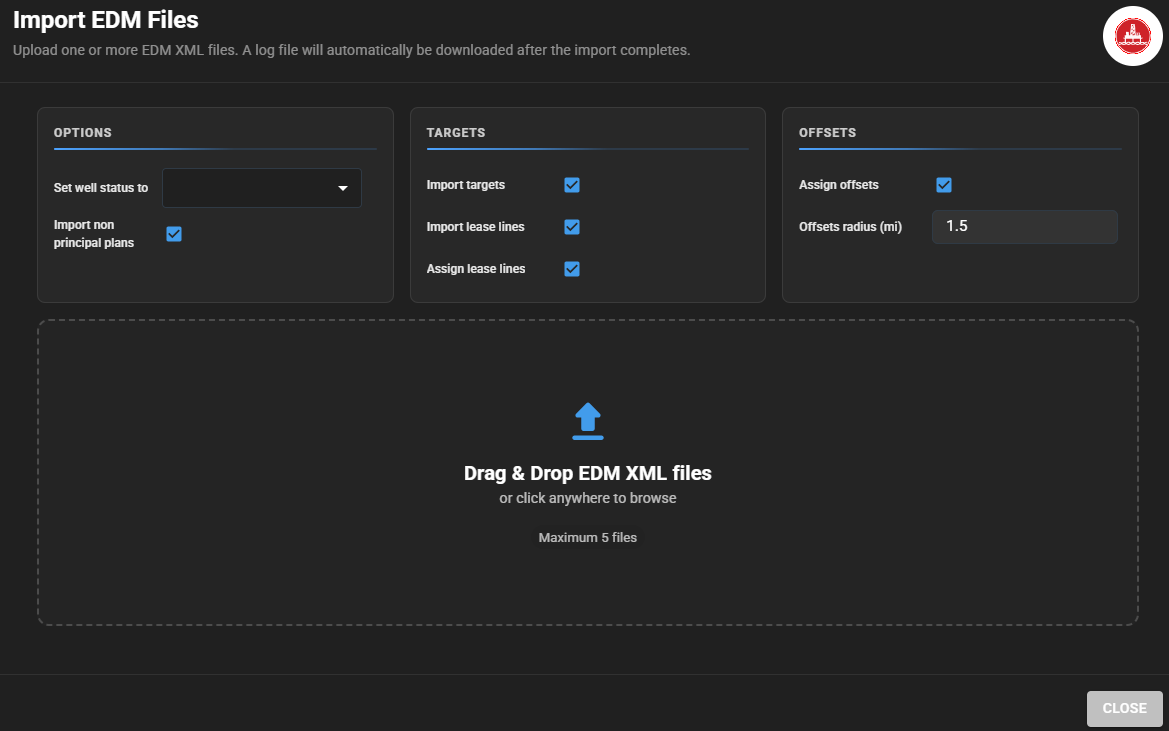
2. Select **Import >** **Compass EDM**
3. Select the .**edm** file
4. Select the import options you want
5. Under *Set Actual Well Status to*, choose a status to assign to all imported Actual Wells
6. Click **Import**
**Option 2 – Via Email**
1. Email the file to [**OrganizationName**@feed.innova-drilling.com](mailto:%20OrganizationName@feed.innova-drilling.com)
2. Replace **OrganizationName** with your organization’s name as shown in Vantage.
1. To find this: open Vantage, hover over the user profile icon, and check the organisation name displayed under your email/login.

3. Your email address must be registered (**Section 3.0: Email Setup**)
4. Email title must be: **EDM**
5. Attach one or more unzipped .edm files
 
#### – Importing a Compass File (.csv)
You can import a Compass .csv file by email.
1. Email the file to [**OrganizationName**@feed.innova-drilling.com](mailto:%20OrganizationName@feed.innova-drilling.com)
2. Replace **OrganizationName** with your organization’s name as shown in Vantage.
1. To find this: open Vantage, hover over the user profile icon, and check the organisation name displayed under your email/login.
3. Your email address must be registered (**Section 3.0: Email Setup**)
4. Email title must be: **EDM CSV** or **CSV EDM**
5. Attach one or more unzipped .csv files
 
## 7.0 – Surveys
Individual survey updates can be imported to a well. This is especially relevant when using the Innova Suite in a real time operations capacity.
1. Email sent to [**OrganizationName**@feed.innova-drilling.com](mailto:%20OrganizationName@feed.innova-drilling.com)
2. Replace **OrganizationName** with your organization’s name as shown in Vantage.
1. To find this: open Vantage, hover over the user profile icon, and check the organisation name displayed under your email/login.

3. Your email address must be registered (**Section 3.0: Email Setup**).
4. Email title must meet the following formatting criteria to be recognized as a survey email and successfully imported:
1. Includes the Well name, **EXACTLY** as it appears in the Innova system.
2. Includes the fields:
1. **MD:**
2. **INC:**
3. **AZI:**
3. As an example, the below email title is acceptable as it fulfils the above criteria
1. **Note**: The email title does not need to be in exactly the same format as below. As long as it contains the 4 key details in any order, then it should work.
FW: \[EXTERNAL] Survey – **Cerberus 14-28 - 3H (LH) - Lateral** - SURVEY **MD:** 153' **INC:** 0.07° **AZM:** 350.66° TVD: 153.00' VS: 0.09' DLS: 0.05
## 8.0 – Image Files
Image files can be imported and assigned to specific BHAs.
1. Email the files to [**OrganizationName**@feed.innova-drilling.com](mailto:%20OrganizationName@feed.innova-drilling.com)
2. Replace **OrganizationName** with your organization’s name as shown in Vantage.
1. To find this: open Vantage, hover over the user profile icon, and check the organisation name displayed under your email/login.

3. Your email address must be registered (**Section 3.0: Email Setup**).
4. Email title must meet the following formatting criteria to be recognized as an image import email and be successfully imported:
1. Includes the word **Image**
2. Includes the fields:
1. **BHA:**
2. **API:**
3. As an example, the below email title is acceptable as it fulfils the above criteria
**image api**:1234567890 **bha:4**
5. Attach one or more unzipped image files.
## 9.0 – Updating Well Status to Complete
In addition to the automatic update of the well status when the word *Historical* is included in the email title, as explained above, a well status can also be updated to **Complete** if the email title contains the word *Finals*.
1. Email a file to [**OrganizationName**@feed.innova-drilling.com](mailto:OrganizationName@feed.innova-drilling.com)
2. Replace **OrganizationName** with your organization’s name as shown in Vantage.
1. To find this: Open Vantage, hover over the user profile icon, and check the organisation name displayed under your email/login.

3. Your email address must be registered in Innova Vantage (**see Section 3.0: Email Setup**)
4. Email title must meet the following formatting criteria to be recognized as a completed well:
1. Includes the word **Finals**
2. Includes the API #
1. The API # needs to match an existing well in the Innova System.
3. As an example, the below email title is acceptable as it fulfils the above criteria
**Finals** | 113001333 | Innova Natural Resources, LLC | H\&P 426 | Cerberus 14-28 – 5H(AN) - Curve | **API: 42301376880000**
## 10.0 – Import Open Wells Casing Tally – Auto Generated Engineering Case
An OpenWells casing tally pdf file can be imported. This will be added as a new Drill String within the Innova system, and an automatic casing run engineering case will be created for that well.
1. Email a file to [**OrganizationName**@feed.innova-drilling.com](mailto:OrganizationName@feed.innova-drilling.com)
2. Replace **OrganizationName** with your organization’s name as shown in Vantage.
1. To find this: Open Vantage, hover over the user profile icon, and check the organisation name displayed under your email/login.

3. Your email address must be registered in Innova Vantage (**see Section 3.0: Email Setup**)
4. Email title must meet the following formatting criteria to be recognized as a completed well:
1. Includes the word **Casing Tally**
2. Includes the API #
1. The API # needs to match an existing well in the Innova System.
3. As an example, the below email title is acceptable as it fulfils the above criteria
**Casing Tally API: 42301376880000**
5. Attach one casing tally pdf file.
\
11.0 – Mud Reports
------------------
Mud reports can be imported via email and automatically used to create or update Daily Reports within the Innova Suite.
1. Email a file to [**OrganizationName**@feed.innova-drilling.com](mailto:OrganizationName@feed.innova-drilling.com)
2. Replace **OrganizationName** with your organization’s name as shown in Vantage.
1. To find this: Open Vantage, hover over the user profile icon, and check the organisation name displayed under your email/login.

3. Your email address must be registered in Innova Vantage (**see Section 3.0: Email Setup**)
4. The email subject line must contain one of the following supported mud report identifiers:
1. MUD REPORT AES DRILLING FLUIDS
2. MUD REPORT BASIN FLUIDS
3. MUD REPORT BUCKEYE
4. MUD REPORT MILLER ASSOCIATES
5. MUD REPORT NEWPARK FLUID SYSTEMS
5. As an example, the below email title is acceptable as it fulfils the above criteria:
**Mud Report Basin Fluids**
6. Attach the mud report PDF to the email.
1. Multiple mud reports can be processed from a single email.
2. Only supported mud report formats can be imported.
7. When a mud report is successfully processed, the system will extract the following information:
1. Well Name
2. Report Date
3. Rig
4. 600/300/200/6/3
5. PV
6. YP
7. Mud Weight
8. Chlorides
9. Oil Water Ratio
8. Imported mud data will be applied to the corresponding Daily Report:
1. If a Daily Report does not already exist for the report date, a new Daily Report will be created automatically.
2. If a Daily Report already exists for the report date, the existing report will be updated with the imported mud data.
{% hint style="warning" %}
**Note:** Currently supported mud report providers are AES Drilling Fluids, Baker, Baroid, Basin Fluids, Buckeye, Miller Associates, Miswaco, Newpark Fluid Systems and Valence. Reports from other providers may not be recognized or processed.
{% endhint %}
## 12.0 – Certified Survey
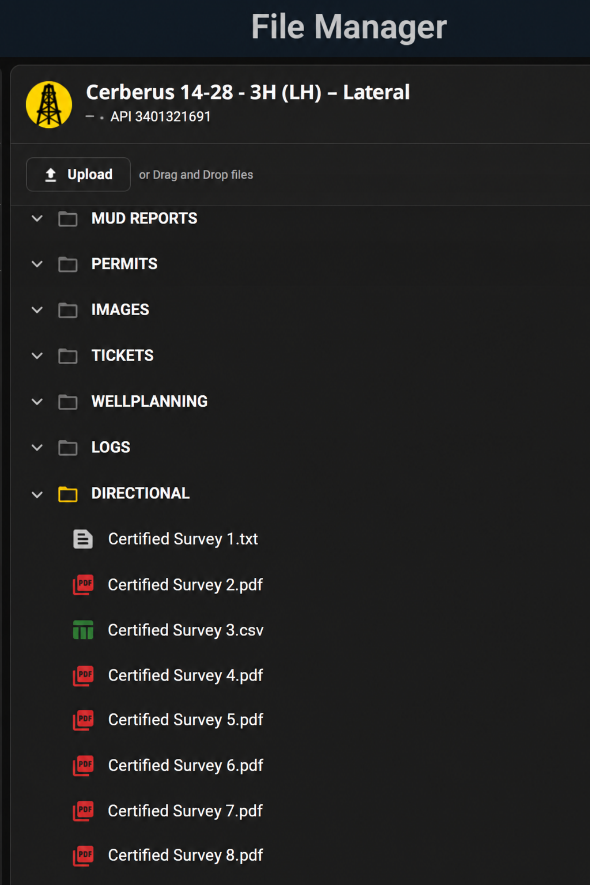
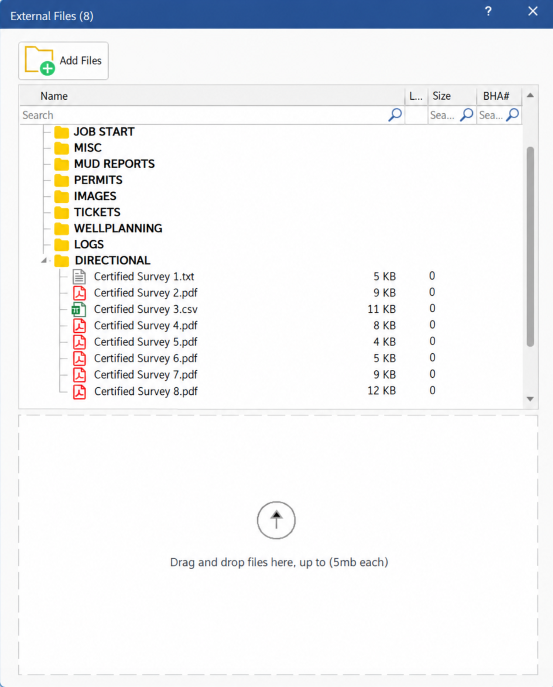
Certified Surveys can be imported to a well. Files imported will be stored inside a folder called Directional and can be accessed via External Files on Well Seeker or File Manager on Vantage.
Once certified surveys are imported, the well status will change to TD.
1. Email sent to [**OrganizationName**@feed.innova-drilling.com](mailto:%20OrganizationName@feed.innova-drilling.com)
2. Replace **OrganizationName** with your organization’s name as shown in Vantage.
1. To find this: open Vantage, hover over the user profile icon, and check the organisation name displayed under your email/login.

3. Your email address must be registered (**Section 3.0: Email Setup**).
4. Email title must meet the following formatting criteria to be recognized as a certified survey email and successfully imported:
1. Includes the Well name, **EXACTLY** as it appears in the Innova system.
2. Includes the fields:
1. **API #**
2. **Certified Surveys**
3. As an example, the below email title is acceptable as it fulfils the above criteria
1. **Note**: The email title does not need to be in exactly the same format as below. As long as it contains the 3 key details in any order, then it should work.
FW: \[EXTERNAL] **Cerberus 14-28 - 3H (LH) – Lateral**; **API#:1234567890**; **Certified Survey**
5. Attach one or more files (files can be zipped or unzipped).
---
# Agent Instructions
This documentation is published with GitBook. GitBook is the documentation platform designed so that both humans and AI agents can read, navigate, and reason over technical content effectively. Learn more at gitbook.com.
## Querying This Documentation
If you need additional information that is not directly available in this page, you can query the documentation by asking a question.
Perform an HTTP GET request on the following URL with the `ask` and `goal` query parameters:
```
GET https://docs.innova-drilling.com/introduction/innova-engineering-how-to-guides/vantage-guides/data-bridge-importing-3rd-party-data.md?ask=&goal=
```
`ask` is the immediate question: it should be specific, self-contained, and written in natural language.
`goal` is what the user is ultimately trying to achieve, the reason they need the answer. Sharing it helps GitBook give you a better, more relevant answer. A goal is most helpful when it describes the outcome the user wants rather than restating the question. For example, with `ask=how do I create an API token`, a goal like `automate deployments from our CI pipeline` lets GitBook tailor the answer to that use case.
The response will contain a direct answer to the question and relevant excerpts and sources from the documentation.
Use this mechanism when the answer is not explicitly present in the current page, you need clarification or additional context, or you want to retrieve related documentation sections.
 **Option 2 – Via Email:**
1. Email the file to [**OrganizationName**@feed.innova-drilling.com](mailto:OrganizationName@feed.innova-drilling.com)
2. Replace **OrganizationName** with your organization’s name as shown in Vantage.
1. To find this: Open Vantage, hover over the user profile icon, and check the organisation name displayed under your email/login.

3. Your email address must be registered in Innova Vantage (**see Section 3.0: Email Setup**)
4. Email title must be: **Well Architect**
1. Wells will be pulled in with the **Well Status** set to **Active**.
2. Add the word **Historical** if submitting a completed well e.g. *Well Architect Historical*
3. This will automatically set the **Well Status** to **Complete** in the Innova system.
5. Attach one or more unzipped .**exp** files
 
### 4.2 – Operations – Cadence Files
Cadence exports operational data as a **single zipped folder**, typically containing:
* BHA / Cost / Daily Drilling / MWD / Parameter / Summary reports (.xml)
* Survey report (.csv)
* Optional Activity report (.csv) *(historical only)*
#### 4.2.1 – Importing a Cadence File
It is only possible to import Cadence files via email:
1. Email the zipped file to [**OrganizationName**@feed.innova-drilling.com](mailto:%20OrganizationName@feed.innova-drilling.com)
2. Replace **OrganizationName** with your organization’s name as shown in Vantage.
3. Your email address must be registered in Innova Vantage (**see Section 3.0: Email Setup**)
4. Before Cadence data can be imported, the corresponding Well Architect file for the well **must already have been imported.**
5. Email title must be: Cadence - API: api# *(**api# must match Well Architect file**)*
 
## 5.0 – Schlumberger
Schlumberger data is split into two types — *planning* and *operations*.
**Important:**
* Import the **planning (Drill Plan) file first**, otherwise the operational data import will fail.
* The API number must be entered in Drill Plan before the export file is created. This is required for any well that Drill Ops data will be imported into, as the API number is used as the common well identifier between Drill Plan and Drill Ops during the import process.
### 5.1 – Planning – Drill Plan Files
Drill Plan exports a **zipped folder** containing several files (various formats) with well planning data (locations, CRS, elevations, targets, plans, offsets).
#### 5.1.1 – Importing a Drill Plan File
You can import a Drill Plan files in two ways:
**Option 1 – Via Innova Vantage:**
1. Go to the Dashboard page Wells tab.
2. Select **Import >** **Drill Plan**

3. Select the zipped file → click **Import**
**Option 2 – Via Email:**
1. Email the file to [**OrganizationName**@feed.innova-drilling.com](mailto:OrganizationName@feed.innova-drilling.com)
2. Replace **OrganizationName** with your organization’s name as shown in Vantage.
1. To find this: Open Vantage, hover over the user profile icon, and check the organisation name displayed under your email/login.

3. Your email address must be registered in Innova Vantage (**see Section 3.0: Email Setup**)
4. Email title must be: **Well Architect**
1. Wells will be pulled in with the **Well Status** set to **Active**.
2. Add the word **Historical** if submitting a completed well e.g. *Well Architect Historical*
3. This will automatically set the **Well Status** to **Complete** in the Innova system.
5. Attach one or more unzipped .**exp** files
 
### 4.2 – Operations – Cadence Files
Cadence exports operational data as a **single zipped folder**, typically containing:
* BHA / Cost / Daily Drilling / MWD / Parameter / Summary reports (.xml)
* Survey report (.csv)
* Optional Activity report (.csv) *(historical only)*
#### 4.2.1 – Importing a Cadence File
It is only possible to import Cadence files via email:
1. Email the zipped file to [**OrganizationName**@feed.innova-drilling.com](mailto:%20OrganizationName@feed.innova-drilling.com)
2. Replace **OrganizationName** with your organization’s name as shown in Vantage.
3. Your email address must be registered in Innova Vantage (**see Section 3.0: Email Setup**)
4. Before Cadence data can be imported, the corresponding Well Architect file for the well **must already have been imported.**
5. Email title must be: Cadence - API: api# *(**api# must match Well Architect file**)*
 
## 5.0 – Schlumberger
Schlumberger data is split into two types — *planning* and *operations*.
**Important:**
* Import the **planning (Drill Plan) file first**, otherwise the operational data import will fail.
* The API number must be entered in Drill Plan before the export file is created. This is required for any well that Drill Ops data will be imported into, as the API number is used as the common well identifier between Drill Plan and Drill Ops during the import process.
### 5.1 – Planning – Drill Plan Files
Drill Plan exports a **zipped folder** containing several files (various formats) with well planning data (locations, CRS, elevations, targets, plans, offsets).
#### 5.1.1 – Importing a Drill Plan File
You can import a Drill Plan files in two ways:
**Option 1 – Via Innova Vantage:**
1. Go to the Dashboard page Wells tab.
2. Select **Import >** **Drill Plan**

3. Select the zipped file → click **Import**
 **Option 2 – Via Email:**
1. Email the file to [**OrganizationName**@feed.innova-drilling.com](mailto:%20OrganizationName@feed.innova-drilling.com)
2. Replace **OrganizationName** with your organization’s name as shown in Vantage.
1. To find this: open Vantage, hover over the user profile icon, and check the organisation name displayed under your email/login.

3. Your email address must be registered in Innova Vantage (**see Section 3.0: Email Setup**)
4. Email title must be: **Drill Plan - API: api#**
1. Wells will be pulled in with the **Well Status** set to **Active**.
2. Add the word **Historical** if submitting a completed well e.g. *Drill Plan - API: api# Historical*
3. Adding Historical, will set the **Well Status** to **Complete** in the Innova system
5. Attach a single zipped file
 
### 5.2 – Operations – Drill Ops Files
Drill Ops exports multiple **unzipped** files:
* Daily Journal as .html
* Steering report as .csv
* Bha report as .csv
* Survey report as .csv
#### 5.2.1– Importing a Drill Ops File
It is only possible to import Drill Ops files via email:
1. Email all four unzipped files to [**OrganizationName**@feed.innova-drilling.com](mailto:%20OrganizationName@feed.innova-drilling.com)
1. You can add more than 4 files if you have them
2. Replace **OrganizationName** with your organization’s name as shown in Vantage.
3. Your email must be registered (**see** **Section 3.0: Email Setup**)
4. Before Drill Ops files can be imported, the corresponding Drill Plan file for the well **must already have been imported.**
5. Email title must be: **Drill Ops – API: api#** (api# must match the Drill Plan file)
 
## 6.0 - Landmark
Landmark’s Compass planning data can be imported.
### 6.1– Planning – Landmarks Compass EDM Files
Landmarks Compass exports a **single .edm** file.
#### 6.1.1 – Importing a Compass File (.edm)
You can import a Compass .edm file in two ways:
**Option 1 – Via Innova Vantage:**
1. Go to the Dashboard page Wells tab.
2. Select **Import >** **Compass EDM**
**Option 2 – Via Email:**
1. Email the file to [**OrganizationName**@feed.innova-drilling.com](mailto:%20OrganizationName@feed.innova-drilling.com)
2. Replace **OrganizationName** with your organization’s name as shown in Vantage.
1. To find this: open Vantage, hover over the user profile icon, and check the organisation name displayed under your email/login.

3. Your email address must be registered in Innova Vantage (**see Section 3.0: Email Setup**)
4. Email title must be: **Drill Plan - API: api#**
1. Wells will be pulled in with the **Well Status** set to **Active**.
2. Add the word **Historical** if submitting a completed well e.g. *Drill Plan - API: api# Historical*
3. Adding Historical, will set the **Well Status** to **Complete** in the Innova system
5. Attach a single zipped file
 
### 5.2 – Operations – Drill Ops Files
Drill Ops exports multiple **unzipped** files:
* Daily Journal as .html
* Steering report as .csv
* Bha report as .csv
* Survey report as .csv
#### 5.2.1– Importing a Drill Ops File
It is only possible to import Drill Ops files via email:
1. Email all four unzipped files to [**OrganizationName**@feed.innova-drilling.com](mailto:%20OrganizationName@feed.innova-drilling.com)
1. You can add more than 4 files if you have them
2. Replace **OrganizationName** with your organization’s name as shown in Vantage.
3. Your email must be registered (**see** **Section 3.0: Email Setup**)
4. Before Drill Ops files can be imported, the corresponding Drill Plan file for the well **must already have been imported.**
5. Email title must be: **Drill Ops – API: api#** (api# must match the Drill Plan file)
 
## 6.0 - Landmark
Landmark’s Compass planning data can be imported.
### 6.1– Planning – Landmarks Compass EDM Files
Landmarks Compass exports a **single .edm** file.
#### 6.1.1 – Importing a Compass File (.edm)
You can import a Compass .edm file in two ways:
**Option 1 – Via Innova Vantage:**
1. Go to the Dashboard page Wells tab.
2. Select **Import >** **Compass EDM**
 **Option 2 – Via Email**
1. Email the file to [**OrganizationName**@feed.innova-drilling.com](mailto:%20OrganizationName@feed.innova-drilling.com)
2. Replace **OrganizationName** with your organization’s name as shown in Vantage.
1. To find this: open Vantage, hover over the user profile icon, and check the organisation name displayed under your email/login.

3. Your email address must be registered (**Section 3.0: Email Setup**)
4. Email title must be: **EDM**
5. Attach one or more unzipped .edm files
 
#### – Importing a Compass File (.csv)
You can import a Compass .csv file by email.
1. Email the file to [**OrganizationName**@feed.innova-drilling.com](mailto:%20OrganizationName@feed.innova-drilling.com)
2. Replace **OrganizationName** with your organization’s name as shown in Vantage.
1. To find this: open Vantage, hover over the user profile icon, and check the organisation name displayed under your email/login.
**Option 2 – Via Email**
1. Email the file to [**OrganizationName**@feed.innova-drilling.com](mailto:%20OrganizationName@feed.innova-drilling.com)
2. Replace **OrganizationName** with your organization’s name as shown in Vantage.
1. To find this: open Vantage, hover over the user profile icon, and check the organisation name displayed under your email/login.

3. Your email address must be registered (**Section 3.0: Email Setup**)
4. Email title must be: **EDM**
5. Attach one or more unzipped .edm files
 
#### – Importing a Compass File (.csv)
You can import a Compass .csv file by email.
1. Email the file to [**OrganizationName**@feed.innova-drilling.com](mailto:%20OrganizationName@feed.innova-drilling.com)
2. Replace **OrganizationName** with your organization’s name as shown in Vantage.
1. To find this: open Vantage, hover over the user profile icon, and check the organisation name displayed under your email/login.