# Certified Survey Reports How To Guide
## 1.0 - Introduction
After drilling a well in Texas or North Dakota, there is a requirement to send a certified survey report to the relevant government department. Well Seeker Pro allows the user to quickly print a set of certified surveys along with the accompanying report which is setup with the correct formatting.
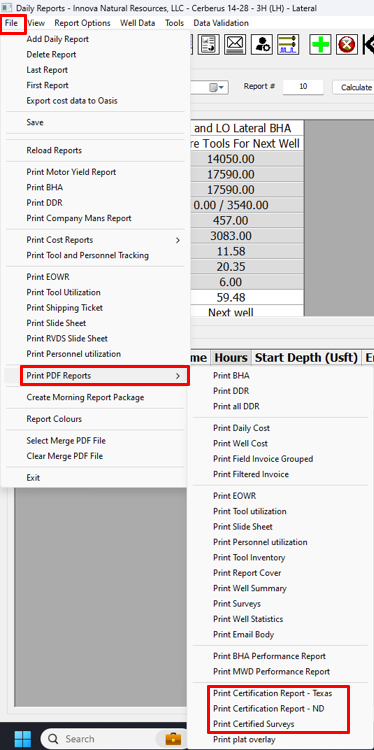
The feature is accessed through the **Daily Reports** dialog. To print the certified surveys open the **File** menu, select **Print PDF Reports** and then select **Print Certified Surveys.**
To print the certification reports open the **File** menu and select **Print PDF Reports**. Select **Print Certification Report – Texas** or **Print Certification Report – ND.**
The certified surveys and certification reports are populated using data located in various parts of the Well Seeker Pro database. The sections below explain where each element is sourced.
## 2.0 – Certification Report
The top of every page in the report contains the company’s logo and address.
**Logo –** Set using the **Secondary Logo** option in the **Operator Properties**, accessed via the Database Tree.
**Company Address and Details –** Your company’s details in the top right are set by opening the **Help** menu in the main Well Seeker interface and selecting **Company Details**.
### 2.1 – Page 1
After the recipient address the report contains some general information for the well:

**Operator –** Populated from the **Name** field in the **Operator Properties**, accessed via the Database Tree.
**Well Name –** Populated from the **Name** field in the **Actual Well Properties**, accessed via the Database Tree.
The following elements of the report are populated from the Well Data & Personnel dialog. In the **Daily Reports** window, open the **Well Data** menu and select **Well Data & Personnel**.
**Permit Number –** Permit Num.
**Survey –** Permit Survey.
**Abstract –** Permit Abstract.
**Field –** Target Formation.
**County & State –** Selected from the dropdown boxes in the **State/County** section.
**API Number** – API Job #.
**Company Name -** Open the **Help** menu in the main Well Seeker interface and select **Company Details**. The source for this element is the **Company Name** field.
**Operator Number –** Also in the **Company Details** dialog. The source for this element is the **Survey Operator #** field.
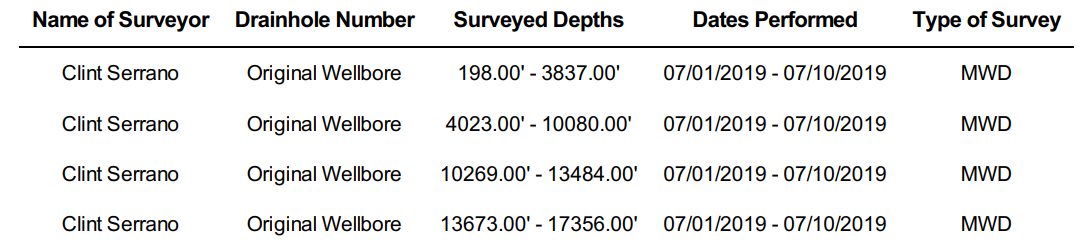
**Name of Surveyor –** In the **Daily Reports** window, open the **Well Data** menu and select **Well Data & Personnel**. The name of the surveyor is taken from the **Day MWD Engineer** field.
**Drainhole Number –** If the well starts at surface it will be described as ‘Original Wellbore’. If it is a sidetrack it will be described as a ‘sidetracked wellbore’.
**Surveyed Depths –** The shallowest and deepest value of each separate survey included in the survey program. It does not include the tie-on survey or the last survey. The program assumes the last survey is a projection.
**Dates Performed –** The date of the first and last daily report in the **Daily Reports** dialog. This will be the same for each line
**Type of Survey –** Populated based on the **Survey Tool** selected in the **Survey Properties** dialog. Gyro type surveys are not included in the list.
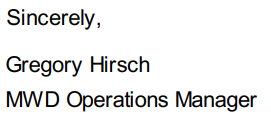
**MWD Operations Manager -** Open the **Help** menu in the main Well Seeker interface and select **Company Details**. The source for this element is the **MWD Ops Manager** field.
### 2.2 – Page 2

**Job Number –** Job # field in the **Well Data & Personnel** section.
**Survey Type –** Populated using the **Survey Tool** selected in the **Survey Properties** dialog. Gyro type surveys are not included in the list.
**Operating Company –** Populated using the **Name** field in the **Operator Properties**, accessed via the Database Tree.
**Well Name and Number –** Populated using the **Name** field in the **Actual Well Properties**, accessed via the Database Tree.
**Drainhole Number –** If the well starts at surface it will be described as ‘Original Wellbore’. If it is a sidetrack it will be described as a ‘sidetracked wellbore’.
**Location –** Selected from the dropdown boxes in the **State/County** section in the **Well Data & Personnel** section.
**API Number –** API Job # field in the **Well Data & Personnel** section.
**Tie In Depth –** The tie-in of the first survey of the well, set in the **Survey Properties** in the database tree.
**Surveyed Depths –** The first and penultimate survey in the actual wellbore of the well.
**Projected TD Survey –** Final survey in the actual wellbore of the well.
**Dates Performed –** The dates of the first and last daily report in the **Daily Reports** dialog.
**Company Name -** Open the **Help** menu in the main Well Seeker interface and select **Company Details**. The source for this element is the **Company Name** field.
**Magnetic Variation Services LLC** – This is standard text for this report and cannot be changed.
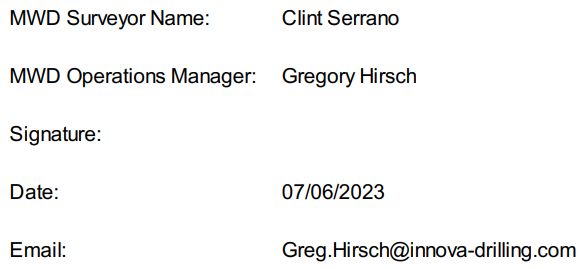
**MWD Surveyor Name –** In the **Daily Reports** window, open the **Well Data** menu and select **Well Data & Personnel**. The name of the surveyor is taken from the **Day MWD Engineer** field.
**MWD Operations Manager –** Open the **Help** menu in the main Well Seeker interface and select **Company Details**. The source for this element is the **MWD Ops Manager** field.
**Signature –** Intentionally left blank.
**Date –** The date the report was generated.
**Email -** Also in the **Company Details** dialog. The source for this element is the **Ops Manager Email** field.
## 3.0 – Certified Survey Listing
The Certified Survey Listing is a survey report that has each of its constituent survey runs split up into their own individual reports, to comply with local government reporting requirements. The survey program, accessible via the Actual Wellbore Properties, is what determines which reports are included.

To print the certified surveys open the **File** menu, select **Print PDF Reports** and then select **Print Certified Surveys.**
Each report comes with its own cover page.

The cover page contains the **Operator, Field, Well, Actual Well and Survey** names. These are taken from the Database Tree in the main Well Seeker user interface.
It also contains the **API Number,** which is set in the API Job # field in the **Well Data & Personnel** section, in the Daily Reports interface.
Above each survey listing are a number of header boxes:
The Field header is populated using data from the **Field Properties** dialog, accessed via the Database Tree.
The Well header is populated using data from the **Well Properties** dialog, accessed via the Database Tree.
The Wellbore and Survey Program headers are populated using data from the **Field Properties** dialog, accessed via the Database Tree.