> For the complete documentation index, see [llms.txt](https://docs.innova-drilling.com/introduction/llms.txt). Markdown versions of documentation pages are available by appending `.md` to page URLs; this page is available as [Markdown](https://docs.innova-drilling.com/introduction/innova-engineering-how-to-guides/well-seeker-x-guides/well-seeker-x-rig-states-guide.md).
# Well Seeker X: Rig States Guide
Introduces the user to the Rig States dialog, which is used in tandem with WITS to automatically populate the slide sheet.
## 1.0 - Introduction
During drilling operations, Well Seeker Pro has the ability to receive a WITS or WITSML feed from the rig site and use this data to automatically populate the Directional Driller’s slide sheet. To do this, Well Seeker X must use the WITS data to deduce the current operation on the rig – drilling, sliding, connection and so on – otherwise known as the **rig state**.
Well Seeker receives drilling parameters from the WITS/WITSML feed and compares them against user-defined thresholds. Depending on whether the incoming values are above or below the threshold, Well Seeker can infer what activity is currently happening on the rig. For example, if the string RPM is below the RPM threshold it can be inferred that the string is not rotating etc. Well Seeker then combines all of these parameters to deduce the current rig state.
The user can control this process by defining the drilling parameter thresholds in the **Rig States Dialog.** The purpose of this document is to introduce the user to the Rig States dialog in Well Seeker X, and detail the steps required to correctly setup and use it.
## 2.0 – Rig States Setup
Note that the Rig States dialog requires an incoming WITS or WITSML feed to function properly. For details on setting up a WITS/WITSML feed, see the following guide: [**WITS Setup & Remote Directional Drilling - Innova Drilling & Intervention (innova-drilling.com)**](https://docs.innova-drilling.com/introduction/well-seeker-pro-guides/wits-setup-and-remote-directional-drilling)**.**
To auto-populate the slide sheet, the following channels need to be received from the WITS/WITSML feed:
* Weight on Bit
* RPM
* Total GPM
* Bit Depth
* Hole Depth
* Hookload
* Block Position
* Standpipe Pressure
* ROP (Optional – for recording parameters only)
* Torque (Optional – for recording parameters only)
In addition, if the user wants to receive survey and toolface data, the following channels are required:
* Magnetic Toolface
* Gravity Toolface
* Survey Measured Depth
* Survey Inclination
* Survey Azimuth
The Rig States dialog can be configured before or after setting up the WITS/WITSML feed. To do this, follow the below instructions:
1. In the Slide Sheet window, open the **Rig States Settings** dialog by clicking on the  icon in the ribbon menu.
2. Configure the rig parameter **Thresholds.**
The threshold value acts as a switching point. Any value below the threshold is effectively off, while any value recorded above the threshold is on. It should be set low enough that there is a clear demarcation between each activity, but not to zero. This will stop erroneous WITS values from accidentally changing the activity.
**RPM:** If the incoming RPM value is below the threshold, the pipe is considered to be not rotating. If it is above, it is rotating. When drilling, this is used to decide if the string is sliding or rotary drilling. Recommended value is \~50% of the rotating RPM.
The RPM threshold uses a buffer, which can be configured in the **RPM Buffer Parameters** section. The software stores the number of RPM values entered in the *RPM Buffer Size* input, in the RPM Buffer. If at least *RPM Buffer Threshold* number of values are larger than the *RPM Threshold* then the rig state is Rotating. If not, it is sliding.
As an alternative to using the RPM Threshold, RPM Buffer Size and RPM Buffer Threshold, the user can toggle ON Advanced Slide Detect. See below for more details
**Pump Pressure:** If the incoming standpipe pressure value is above the threshold value, then the pumps are considered on. If it is below the threshold, the pumps are off. Recommend value is between 0 and 100 psi
**Hookload:** If the incoming hookload value is lower than the threshold, the string is considered in slips. If it is above, then it is out of slips. Recommended value is block weight + 50%.
**On Bottom Delta:** The program calculates the difference between the Bit Depth and the total Hole Depth. If this value is smaller than the On Bottom Delta, then the bit is considered on bottom. If it is larger, then the bit is off bottom. Recommended value is less than 1 foot or metre.
**Stall Pressure:** Determines how much pressure is required above the average standpipe pressure for a motor stall to be automatically recorded in the Motor Stalls record. This can be viewed by clicking on the **Motor Stalls** option in the Slide Sheet menu ribbon. Pressure and flow data used to detect stalls can be viewed in the **Stall Detection** section.
**Mag to Grav X/O:** Angle at which the MWD tool has been set to change from transmitting magnetic to gravity tool face values.
**Auto Thresholds:** When YES is selected, Well Seeker will adjust the RPM and Hookload thresholds values dynamically and prevent the user from editing those thresholds. If NO is selected then all thresholds are editable and static. If a block weight has been entered in the **Rig Names** dialog, the software will use *block weight x 1.5* as the starting hookload value.
**Advanced Slide Detect:** As an alternative to using the RPM Threshold, RPM Buffer Size and RPM Buffer Threshold, the user can toggle ON Advanced Slide Detect. In this mode, instead of inspecting the RPM, the software inspects the incoming torque values. If the torque values are oscillating in a sinusoidal pattern, the string is recognised as Sliding. If not, Rotating. Incoming torque values can be seen in the section below the Thresholds section.
This setting is advised to be set to NO by default. Set to YES where sliding intervals are not being detected, due to RPM data values not displaying oscillation variation i.e., flatlining for multiple data points.
**Block Weight:** The weight of the rig travelling block. If auto thresholds is turned on and block weight > 0 then the hookload threshold will be block weight x 1.5.
3. If necessary, configure the **RPM buffer**. RPM values from the WITS/WITSML feed can fluctuate, so in addition to the RPM Threshold, the Rig States dialog also uses the RPM Buffer to determine if you are rotating or sliding.
The **RPM buffer size** sets how many of the most recent RPM values to keep in the buffer, and the **RPM Buffer Threshold** sets how many values in the buffer need to be above the RPM threshold before Well Seeker considers the string to be rotating.
As an example, with an RPM Buffer Size of 9 and an RPM Buffer Threshold of 3 the below would be true.
* If there are 3 or fewer values in the RPM buffer that are > RPM Threshold then you are **sliding**.
* If there are 4 or more values in the RPM buffer that are > RPM threshold then you are **rotating**.
In most cases, these values can be left as the default.
4. Once the thresholds have been set up, **minimize** the Rig States dialog. **Do not close it.**
5. Once both the Rig States and the WITS/WITSML feed have been set up, you can click on the **Start** button on the toolbar to start automatically recording rotate and slide activity, as well as drilling parameters.\
The message **“Live Rig States”** will appear below the ribbon menu. You will **NOT** be able to manually edit the slide sheet while the slide sheet is auto-populating. To pause recording, click on the  **Stop** button. This will allow you to edit the slide sheet again.
The thresholds can be changed while the slide sheet is auto-populating. If you feel that the slide and rotate activity is not being accurately captured, try adjusting some of the thresholds.
## 3.0 – Monitoring Rig States
While receiving WITS data, the Rig States dialogue can be used to view the incoming drilling parameter data and the rig state inferred from that data. These will display regardless of whether auto-populate is turned on or off.
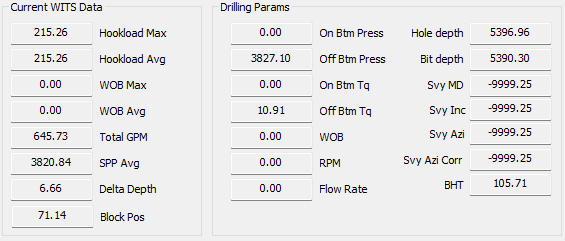
The **Current WITS Data** and **Drilling Params** sections display the data values taken from the WITS feed. They will display the most recently received values.
In the **Current Rig State** section, Well Seeker takes the values from the Current WITS Data and Drilling Params sections, and compares them to the user defined threshold values to deduce the activities displayed:

* **On Bottom Delta >> On/Off Bottom**
* **Pump Pressure >> Pumps On/Off**
* **Hookload Threshold >> In/Out of Slips**
These activities are combined with the direction of the travelling block to deduce the **RigState** output. The slide sheet can only record rotating or sliding activity, but the RigState output can deduce other activities, such as reaming in/out, tripping in/out and connection. See the Troubleshooting section below for the full list of activities.
If the WITS feed is also sending toolface data, this will be displayed in the **Sliding TF** section.

The **Timers** section displays the last time a Pumps On, In Slips, Off Bottom or Survey event was recorded. The Duration column records how long the event lasted.

## 4.0 – Troubleshooting
If the slide sheet is not auto-populating in the way you would expect, follow the below steps to troubleshoot the issue:
1. Check the **Current WITS Data** and **Drilling Params** sections. As a minimum, the following channels need to be received from the WITS/WITSML feed for the Rig States dialog to function:
* Weight on Bit
* RPM
* Total GPM
* Bit Depth
* Hole Depth
* Hookload
* Block Position
* Standpipe Pressure
If a channel is not receiving data, it will display a null value of **-9999.25**. If one or more channels are displaying this value, it could indicate that the WITS channels have not been mapped correctly. Consult with the rig and change the WITS mapping by going to **Tools >> WITS Mapping.** For more detailed information on WITS mapping, refer to the following guide: [**WITS Setup & Remote Directional Drilling - Innova Drilling & Intervention (innova-drilling.com)**](https://docs.innova-drilling.com/introduction/well-seeker-pro-guides/wits-setup-and-remote-directional-drilling)**.**
2. If **all** channels are not receiving data, this could indicate that the WITS feed is not being received at all. Make sure that the WITS or WITSML reader is reading. If it is, check that the message box is showing incoming messages. If not, there may be an issue with your connection.
Check the physical connection between your computer and the rig WITS system. If you are using serial WITS, note that you should be using a **null modem** cable and not a regular serial cable.
3. Observe the **Current Rig State** section while rig activity is happening. If the activities being displayed in the section do not match with the activities on the rig, this can indicate that your thresholds have not been set properly.

Each state displayed in the **RigState** field corresponds to a specific combination of threshold values and travelling block direction. The combination required for each is displayed in the table below.
If a cell is filled in **GREEN then the value is above the threshold**. If it is filled in **RED then it is below the threshold**. Cells filled in grey can be either above or below.
If the combination of thresholds and block speed does not match with one of the rig states listed here, the displayed rig state will be **UNKOWN**.
### 4.1 – Contacting Innova
If having worked through all of the trouble shooting steps detailed above, you are still having issues, you can contact Innova support for assistance. When contacting Innova, to allow us to provide the most efficient support, please follow the below steps:
1. **Create a debugging file:** In the main Well Seeker window, select **Help** tab on ribbon menu and select **Email Dabug.** If Outlook is your default email client, this will automatically create an email with .zip file containing a copy of the current database, a copy of your setup file and a txt document containing system information.
1. Clearly state the name of the well and Operator you are working in.
Check the [**Report an Issue**](https://docs.innova-drilling.com/introduction/innova-engineering-how-to-guides/well-seeker-x-guides/well-seeker-x-reporting-an-issue#debugging-file) guide if you need more information.
2. **Create a log file:** In the Slide Sheet window, toggle on **Error Logging**. This will create a log file that captures incoming rig parameter data and logs any errors. Start reading with the WITS feed and open the Rig States dialog, and let them run for some time to collect some data in the log file. This should ideally be done whilst performing the next step.
1. **Record a screen capture of your Slide Sheet and Rig States dialog**: In the main Well Seeker window, select the **Help** tab on ribbon menu and select **Start Screen Capture.** This will begin recording a video of your screen. If you are using version **3.0.2.8** or later, the tool will also record audio along with the screen capture. Display your slide sheet and Rig States dialog on your screen, similar to the screenshot below, and begin auto-populating your slide sheet. Try to capture the issue occurring. When you are ready to stop recording, go back to the **Help** menu and select **Stop Screen Capture**.
4. Open the **Help** menu again and select **Open Screen Capture**. This will open the **Debug** folder. The log file **rigStateLog.txt** and the screen capture **screenCapture.mp4** are located here.
5. Attach the debugging file, log file and screen capture file to an email, and send it to .
* Include a detailed description of your issue.
6. Innova support will get in contact with you to provide assistance.
---
# Agent Instructions
This documentation is published with GitBook. GitBook is the documentation platform designed so that both humans and AI agents can read, navigate, and reason over technical content effectively. Learn more at gitbook.com.
## Querying This Documentation
If you need additional information that is not directly available in this page, you can query the documentation by asking a question.
Perform an HTTP GET request on the following URL with the `ask` and `goal` query parameters:
```
GET https://docs.innova-drilling.com/introduction/innova-engineering-how-to-guides/well-seeker-x-guides/well-seeker-x-rig-states-guide.md?ask=&goal=
```
`ask` is the immediate question: it should be specific, self-contained, and written in natural language.
`goal` is what the user is ultimately trying to achieve, the reason they need the answer. Sharing it helps GitBook give you a better, more relevant answer. A goal is most helpful when it describes the outcome the user wants rather than restating the question. For example, with `ask=how do I create an API token`, a goal like `automate deployments from our CI pipeline` lets GitBook tailor the answer to that use case.
The response will contain a direct answer to the question and relevant excerpts and sources from the documentation.
Use this mechanism when the answer is not explicitly present in the current page, you need clarification or additional context, or you want to retrieve related documentation sections.


 2. If **all** channels are not receiving data, this could indicate that the WITS feed is not being received at all. Make sure that the WITS or WITSML reader is reading. If it is, check that the message box is showing incoming messages. If not, there may be an issue with your connection.


