
 | Active |  | Engineering |  | Upcoming |
 | Batch |  | Standby |  | Verified |
 | Complete or Finished |  | Suspended |  | N/A - Wells with this status will not appear unless ‘Show Offsets’ is on |
 | EOW Ready |  | TD | ||
 | EOW Sent |  | Transferred |
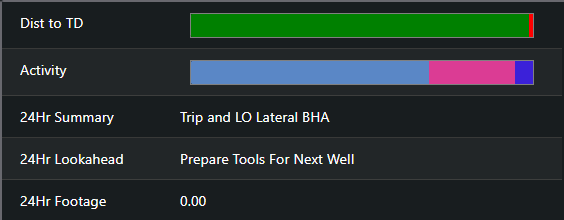
 2. **Distance to TD and 24Hr Summary (Top Right) -** The Distance to TD compares the recorded measured depth against the TD measured depth in the principal plan. Hover over the green section to display the distance drilled, and the red section to display the distance remaining. Below the Distance to TD is the 24Hr Summary and the 24Hr Lookahead. These are taken from the most recent daily report for the well.
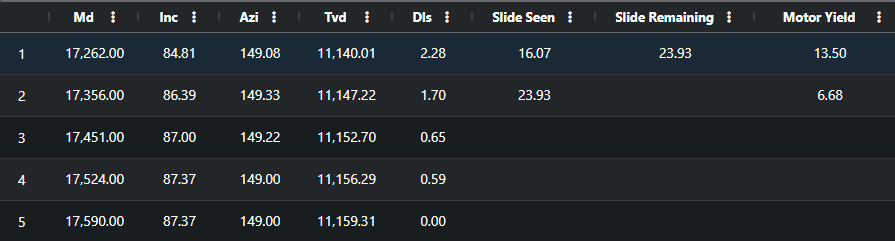
 3. **Survey Sheet (Bottom Left) -** Displays the five most recent surveys for the well. If slide sheet data is available, this will also display the slide seen, slide remaining and motor yield over the survey interval.
 4. **Personnel (Bottom Right) -** Displays the names of the DD and MWD field personnel. This is taken from the Personnel Data section of the most recent daily report for the well.

**Plan v Actual:** Creates a Plan v Actual wall plot in PDF format. If a custom Plan v Actual plot has not been assigned to the well, Vantage will use the default layout. For more information on creating and assigning a custom PvA plot see the [**Plan v Actual Wall Plot Guide**](https://docs.innova-drilling.com/introduction/innova-engineering-how-to-guides/well-seeker-x-guides/plan-v-actual-wall-plot-guide).
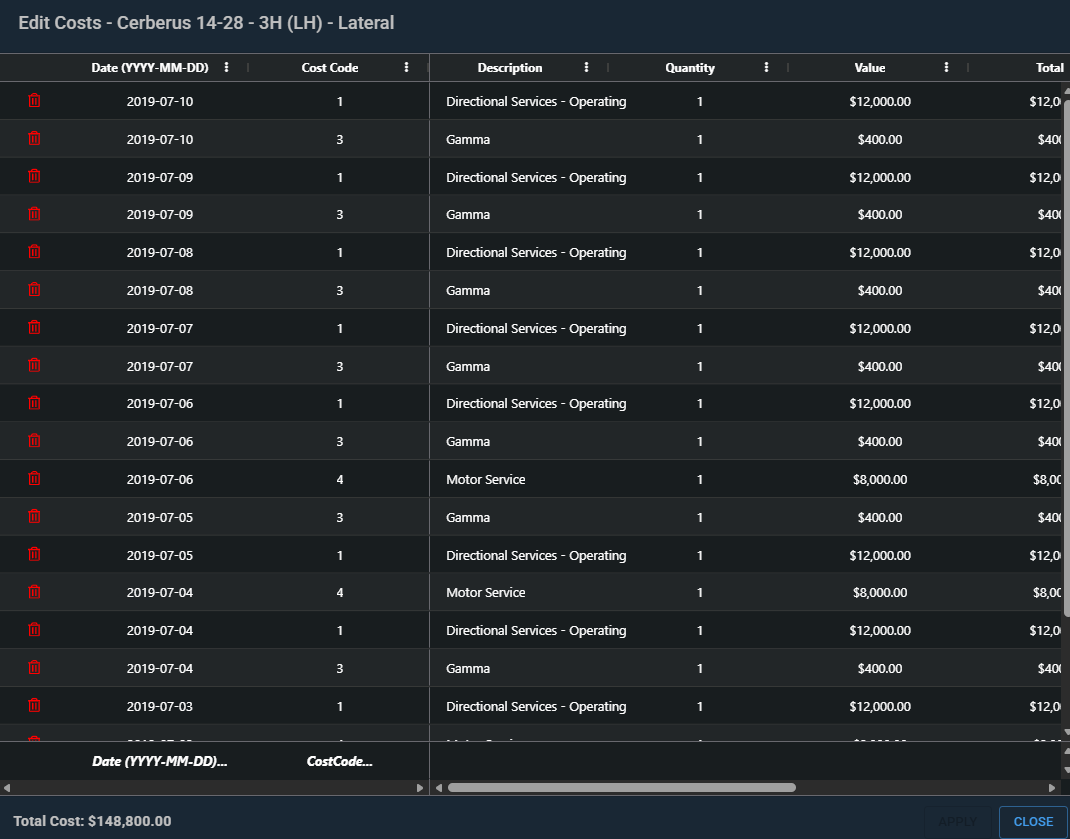
**Edit Costs:** Displays a grid of all daily costs associated with the well, taken from the **Costs** well view page (**section** **7.9**). The user can edit any field in the grid by double clicking on it. They can add a new cost using the row at the bottom – select a date and a cost code to automatically add the row, then fill in the other data once it is in the grid. A cost can be deleted by clicking on the red bin icon on it’s row.
4. **Personnel (Bottom Right) -** Displays the names of the DD and MWD field personnel. This is taken from the Personnel Data section of the most recent daily report for the well.

**Plan v Actual:** Creates a Plan v Actual wall plot in PDF format. If a custom Plan v Actual plot has not been assigned to the well, Vantage will use the default layout. For more information on creating and assigning a custom PvA plot see the [**Plan v Actual Wall Plot Guide**](https://docs.innova-drilling.com/introduction/innova-engineering-how-to-guides/well-seeker-x-guides/plan-v-actual-wall-plot-guide).
**Edit Costs:** Displays a grid of all daily costs associated with the well, taken from the **Costs** well view page (**section** **7.9**). The user can edit any field in the grid by double clicking on it. They can add a new cost using the row at the bottom – select a date and a cost code to automatically add the row, then fill in the other data once it is in the grid. A cost can be deleted by clicking on the red bin icon on it’s row.
 **Import EDR and Job Data:** Allows the user import electronic data reader (EDR) data in .csv format for the well. This data can also be used to generate daily activity and slide sheet data. The process for this is covered in **section 5.1.4 – Add Instant Well**.
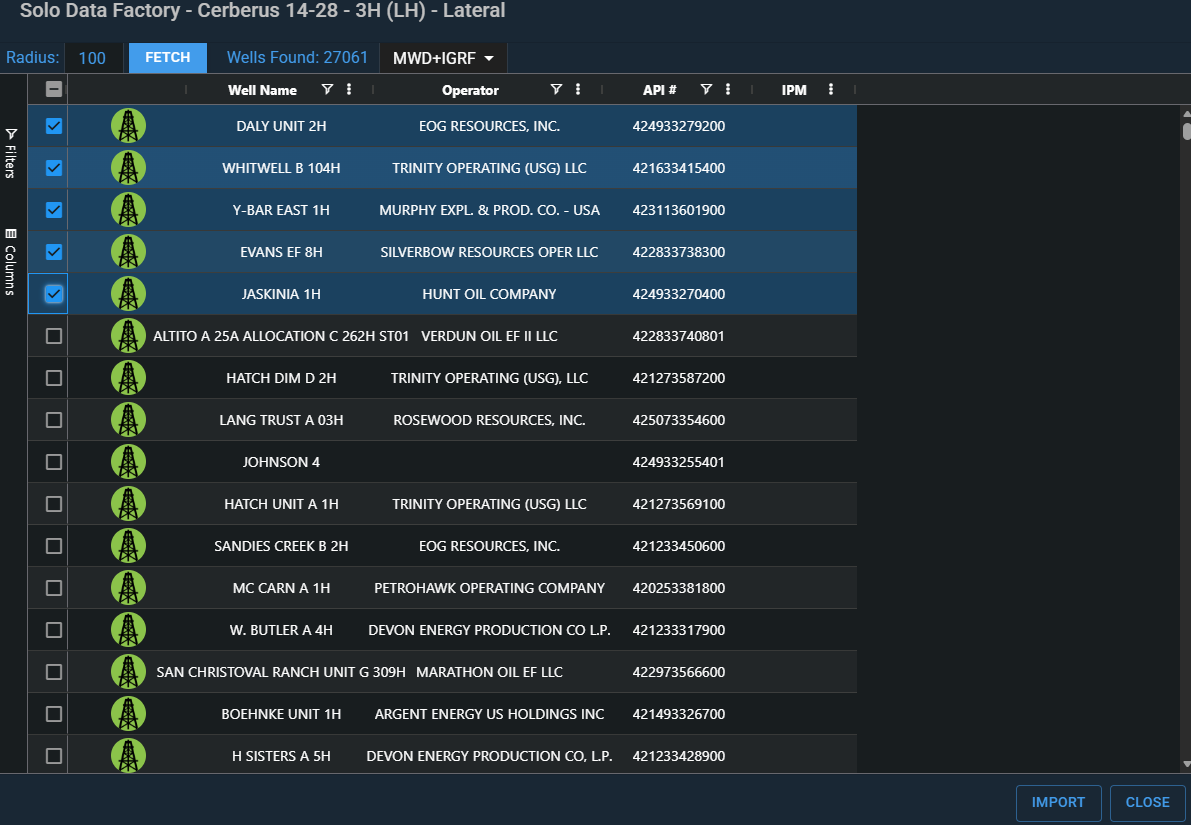
**Solo Data Factory:** Requires a ROGII integration set up (see **section 4.6**). Opens the Solo Data Factory grid. This grid allows the user to search for nearby wells in the Solo database and import them as offsets. In the Radius box, enter the radius in miles you wish to search around the surface location of the well and click on **Fetch**. The Wells Found counter will show how many wells have been discovered, and the grid will populate. To import wells, click on the checkbox beside each well and then click on **Import** in the bottom right.
**Import EDR and Job Data:** Allows the user import electronic data reader (EDR) data in .csv format for the well. This data can also be used to generate daily activity and slide sheet data. The process for this is covered in **section 5.1.4 – Add Instant Well**.
**Solo Data Factory:** Requires a ROGII integration set up (see **section 4.6**). Opens the Solo Data Factory grid. This grid allows the user to search for nearby wells in the Solo database and import them as offsets. In the Radius box, enter the radius in miles you wish to search around the surface location of the well and click on **Fetch**. The Wells Found counter will show how many wells have been discovered, and the grid will populate. To import wells, click on the checkbox beside each well and then click on **Import** in the bottom right.
 **Replicate well to home org:** This option is only available if you organisation has been granted access to view another organisation’s wells in your Dashboard, via the Database Access page (**section 4.9.4**). Using this option on a well from another organisation will create a copy of the well, with all of its associated data, in your organisation’s database. The new well will have your organisation listed in the Organisation column.
**Data Config:** Opens the Data Configuration dialog for the well. See **section 5.5**.
## 5.1.4 - Add Instant Well
This function allows the user to quickly add a new actual well to the remote server database. Follow the steps to create the well. Step 1 – Enter Well Details is the only required step, the others can be skipped and their data added later, if desired:
1. **Enter Well Details:** Enter the Object Explorer levels of the new well.
1. **Object Names:** This section is where the operator, field, facility and well level names are selected. Clicking in the operator, field or facility boxes will display a dropdown of all existing names at the selected level. This allows the user to assign the well to an existing operator/field/facility. Note to see the dropdown for a level, the level above it must already be selected.
1. Alternatively, the user can manually enter new names for these levels. A new name must be entered at the Well level.
2. **Well Location:** Enter the surface location as a decimal latitude and decimal longitude.
3. **Rig Details:** The **Rig** dropdown can be used to select an existing rig stored in the Rigs page (see **section 4.4.2**), or the user can enter a new rig name. When the well is created, the new name will be added to the rigs page. Enter the rotary table elevation above mean sea level in the **RTE -> MSL** box.
4. **Job Data:** Enter the Job number for the new well. The Vertical Section Azimuth can optionally be entered here as well. Select either US, Canada or Rest of World from the Region dropdown. If US is selected, the State and County fields will appear. If Canada is selected, the Province field will appear.
2. **EDR Data:** This step allows the user to import drilling parameter data from an electronic data reader (EDR), if they have it available. Drag a .csv file containing the data into the top area to preview the data. Double click on the fields in the second row of the table to reassign the data type in each column, if required.
**Replicate well to home org:** This option is only available if you organisation has been granted access to view another organisation’s wells in your Dashboard, via the Database Access page (**section 4.9.4**). Using this option on a well from another organisation will create a copy of the well, with all of its associated data, in your organisation’s database. The new well will have your organisation listed in the Organisation column.
**Data Config:** Opens the Data Configuration dialog for the well. See **section 5.5**.
## 5.1.4 - Add Instant Well
This function allows the user to quickly add a new actual well to the remote server database. Follow the steps to create the well. Step 1 – Enter Well Details is the only required step, the others can be skipped and their data added later, if desired:
1. **Enter Well Details:** Enter the Object Explorer levels of the new well.
1. **Object Names:** This section is where the operator, field, facility and well level names are selected. Clicking in the operator, field or facility boxes will display a dropdown of all existing names at the selected level. This allows the user to assign the well to an existing operator/field/facility. Note to see the dropdown for a level, the level above it must already be selected.
1. Alternatively, the user can manually enter new names for these levels. A new name must be entered at the Well level.
2. **Well Location:** Enter the surface location as a decimal latitude and decimal longitude.
3. **Rig Details:** The **Rig** dropdown can be used to select an existing rig stored in the Rigs page (see **section 4.4.2**), or the user can enter a new rig name. When the well is created, the new name will be added to the rigs page. Enter the rotary table elevation above mean sea level in the **RTE -> MSL** box.
4. **Job Data:** Enter the Job number for the new well. The Vertical Section Azimuth can optionally be entered here as well. Select either US, Canada or Rest of World from the Region dropdown. If US is selected, the State and County fields will appear. If Canada is selected, the Province field will appear.
2. **EDR Data:** This step allows the user to import drilling parameter data from an electronic data reader (EDR), if they have it available. Drag a .csv file containing the data into the top area to preview the data. Double click on the fields in the second row of the table to reassign the data type in each column, if required.
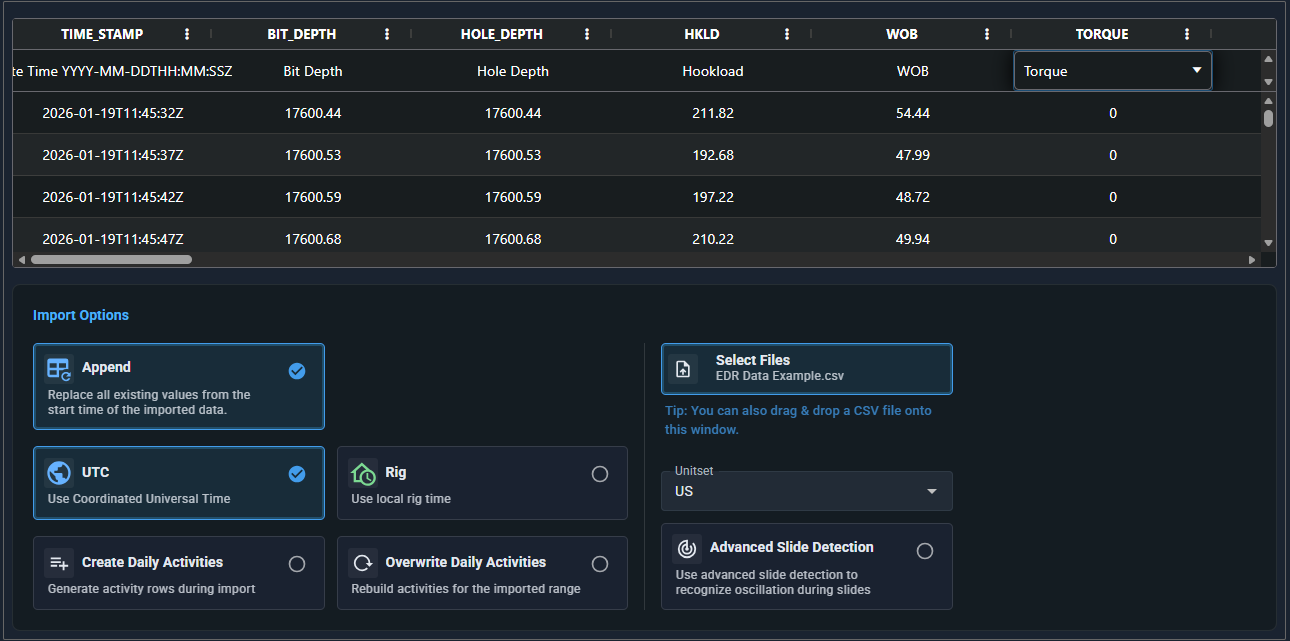 Use the options below the table to customise the import:
**Append:** Toggle this on to overwrite any existing EDR data that exists in the same time range as the imported data.
**UTC/Rig:** If the TIME STAMP column is recorded in Coordinated Universal Time, select **UTC**. If it is recorded in the local rig time, select **Rig**.
**Create Daily Activities:** Toggle this option on to use the EDR data to automatically generate daily activities for the Daily Reports page.
**Overwrite Daily Activities:** Toggle this option on to overwrite existing daily activity data with data generated from the EDR. Requires the above option to be toggled on.
**Unit Set:** Choose the unit set that the data was recorded in.
**Advanced Slide Detection:** Uses torque values instead of RPM to distinguish between rotary and slide drilling. Toggle this on if sliding intervals are not being detected, due to RPM data values not displaying oscillation variation i.e., flatlining for multiple data points.
3. **BHA Details**: Use this section to create the BHAs used in this well. This allows Vantage to build the slide sheet for each BHA and assign parameters. If the Create Daily Activities option was toggled on in the previous step, this will also allow Vantage to assign pickup/laydown codes and drilling activity to the correct BHA in the Daily Reports page.
4. **Phase Details:** Use this section to define the start and end times of each phase. This allows Vantage to correctly match the phase to drilling activity in the Daily Reports page, and to parameter data for KPI analysis.
## 5.1.5 - Import
The import function allows the user to import well data from the third party programs Compass, Drill Plan and Well Architect. It also allows the user to apply depleted zone data to multiple wells:
**Compass EDM:** Click on **Select Files** to select the desired Compass export files. Configure the below options then click on **Import**.
* **Import Survey Tools:** This will import any magnetic error models (IPM) contained in the export file and add them to the error models for your server database. See **section 4.4.6**.
* **Import Targets:** Imports any targets contained in the export file and assigns them to their associated wells/plans. Note that Compass export files can contain a lot of targets.
* **Import All Plans:** If this option is toggled off, only principal plans will be imported.
* **Import Lease Lines:** Imports any lease lines contained in the export file.
* **Assign Lease Lines:** If the above option is toggled on, then toggling this option on will assign the imported lease lines to their associated wells/plans.
* **Assign Offsets:** Enter a radius in the **Assign Offsets Radius** field. For each imported well, Vantage will find wells within the assigned radius and assign them as offsets. This is based on the surface location of each well.
* **Set Actual Well Status:** Choose a status from the dropdown menu. All imported actual wells will be assigned this status.
**Drill Plan:** Click on **Select Files** to select the desired files, then click on **Import.**
**Well Architect:** Click on **Select Files** to select the desired Well Architect files. Once selected, use the dropdown choose the well status that you want assigned to the imported wells. Then click on **Import.**
**Depleted Zones:** To import depleted zone data, it must be contained in an Excel or CSV file, and arranged in the below format:

Click on the **Choose File** option and select the data file. Then click on import to apply.
---
# Agent Instructions
This documentation is published with GitBook. GitBook is the documentation platform designed so that both humans and AI agents can read, navigate, and reason over technical content effectively. Learn more at gitbook.com.
## Querying This Documentation
If you need additional information that is not directly available in this page, you can query the documentation by asking a question.
Perform an HTTP GET request on the following URL with the `ask` and `goal` query parameters:
```
GET https://docs.innova-drilling.com/introduction/innova-engineering-manual/innova-vantage-manual/5.0-dashboard/5.1-wells.md?ask=
Use the options below the table to customise the import:
**Append:** Toggle this on to overwrite any existing EDR data that exists in the same time range as the imported data.
**UTC/Rig:** If the TIME STAMP column is recorded in Coordinated Universal Time, select **UTC**. If it is recorded in the local rig time, select **Rig**.
**Create Daily Activities:** Toggle this option on to use the EDR data to automatically generate daily activities for the Daily Reports page.
**Overwrite Daily Activities:** Toggle this option on to overwrite existing daily activity data with data generated from the EDR. Requires the above option to be toggled on.
**Unit Set:** Choose the unit set that the data was recorded in.
**Advanced Slide Detection:** Uses torque values instead of RPM to distinguish between rotary and slide drilling. Toggle this on if sliding intervals are not being detected, due to RPM data values not displaying oscillation variation i.e., flatlining for multiple data points.
3. **BHA Details**: Use this section to create the BHAs used in this well. This allows Vantage to build the slide sheet for each BHA and assign parameters. If the Create Daily Activities option was toggled on in the previous step, this will also allow Vantage to assign pickup/laydown codes and drilling activity to the correct BHA in the Daily Reports page.
4. **Phase Details:** Use this section to define the start and end times of each phase. This allows Vantage to correctly match the phase to drilling activity in the Daily Reports page, and to parameter data for KPI analysis.
## 5.1.5 - Import
The import function allows the user to import well data from the third party programs Compass, Drill Plan and Well Architect. It also allows the user to apply depleted zone data to multiple wells:
**Compass EDM:** Click on **Select Files** to select the desired Compass export files. Configure the below options then click on **Import**.
* **Import Survey Tools:** This will import any magnetic error models (IPM) contained in the export file and add them to the error models for your server database. See **section 4.4.6**.
* **Import Targets:** Imports any targets contained in the export file and assigns them to their associated wells/plans. Note that Compass export files can contain a lot of targets.
* **Import All Plans:** If this option is toggled off, only principal plans will be imported.
* **Import Lease Lines:** Imports any lease lines contained in the export file.
* **Assign Lease Lines:** If the above option is toggled on, then toggling this option on will assign the imported lease lines to their associated wells/plans.
* **Assign Offsets:** Enter a radius in the **Assign Offsets Radius** field. For each imported well, Vantage will find wells within the assigned radius and assign them as offsets. This is based on the surface location of each well.
* **Set Actual Well Status:** Choose a status from the dropdown menu. All imported actual wells will be assigned this status.
**Drill Plan:** Click on **Select Files** to select the desired files, then click on **Import.**
**Well Architect:** Click on **Select Files** to select the desired Well Architect files. Once selected, use the dropdown choose the well status that you want assigned to the imported wells. Then click on **Import.**
**Depleted Zones:** To import depleted zone data, it must be contained in an Excel or CSV file, and arranged in the below format:

Click on the **Choose File** option and select the data file. Then click on import to apply.
---
# Agent Instructions
This documentation is published with GitBook. GitBook is the documentation platform designed so that both humans and AI agents can read, navigate, and reason over technical content effectively. Learn more at gitbook.com.
## Querying This Documentation
If you need additional information that is not directly available in this page, you can query the documentation by asking a question.
Perform an HTTP GET request on the following URL with the `ask` and `goal` query parameters:
```
GET https://docs.innova-drilling.com/introduction/innova-engineering-manual/innova-vantage-manual/5.0-dashboard/5.1-wells.md?ask=