> For the complete documentation index, see [llms.txt](https://docs.innova-drilling.com/introduction/llms.txt). Markdown versions of documentation pages are available by appending `.md` to page URLs; this page is available as [Markdown](https://docs.innova-drilling.com/introduction/innova-engineering-manual/innova-vantage-manual/5.0-dashboard/5.5-data-configuration.md).
# 5.5 - Data Configuration
The Data Config page allows the user to control which sources are used to provide all of the data for the selected well. Data for a single well can be taken from multiple sources, if required. The user should select the desired source for each section in the Data Sources section. Vantage will attempt to automatically link the well to each chosen source, but if required the user can use the options in menu ribbon to manually set up the link.
The user can also select a source for the EDR in the EDR section, and then define the rig state thresholds for the well in the Rig States section.
The default configuration for new a well can be set in the Data Config Defaults page (**section 4.7.4**). Many of these sources require a third party integration to be set up for your organization. For more information

## 5.5.1 - Data Config Menu Ribbon
The data config menu ribbon contains various functions for controlling the Data Config dialog. This menu is dynamic, and the functions available will change depending on the selections made in the Data Sources and EDR sections of the dialog.

**Save Changes:** Saves any changes made by the user to the Data Config setup.
**EDR Start/Stop:** Starts or stops recording for the EDR (Electronic Data Reader). Note that the EDR should start recording automatically if it detects incoming data, and will stop automatically if not updates are received within 48 hours.
**Upload File:** Allows the user to update the ERD by uploading a .csv file. Click on **Select Files** to select a file and load it into the table. Use the top row of the table reassign the columns to the correct field, if necessary. Toggle **Time in UTC** on if the Time Stamp field is in UTC time, or leave it off if it is in local rig time. Choose overwrite as the **Import Mode** to remove any existing data in the same time range as the imported data, or fill to combine new and existing data. Finally, click on **Import.**

**Download Data:** Exports a copy of the EDR data for the well to a .csv. The user will receive a message notifying them that the export has been queued. The user will be able to monitor the export process on the File History page (**section 4.7.3**). Note that for large amounts of data, this can take some time. Once the export has completed, they will receive an email containing a link allowing them to download the .csv file, similar to the screenshot below. The file will also be available for download at any time via the File History page.
**Reprocess Data:** After uploading EDR data, or making a change to the Rig States settings, the user should use this option to reprocess the data and assign the correct rig states (rotating, sliding, tripping, etc).
**Archive Data:** The data is downloaded and stored as a .csv file on Innova’s cloud storage system. The status of the archiving process can be monitored on the File History page (**section 4.7.3**). Note that for large amounts of data, this this can take some time. Once archiving is complete, the user will receive an email where they can download the data, as if they had exported it. The data can also be viewed, downloaded and restored at any time via the File History page.
**WITSML Config:** Available if WITSML has been selected for the EDR or the Surveys data source. This dialog is used to configure the WITSML feed. Choose the track and the log using the tree on the left – this will populate the WITSML Selection area to the right. In the WITSML Mapping section, use the dropdown boxes to map each WITSML channel to the correct Vantage internal mnemonics. Click on Save to save your changes. **Note: To use this dialog, you must set up your WITSML servers with the correct credentials in the WITSML Servers page** (**section 4.7.1**).

**Fetch Surveys (WITSML):** Available if WITSML has been selected for the EDR or the Surveys data source. After the WITSML feed has been set up using the WITSML Config option, the user can this option to download the surveys for the well and add them to your survey listing. This is a way of updating the survey listing if the WITSML feed is temporarily lost for some reason.
**Fetch Surveys (Survey Correction Provider):** Available if Survey Correction Provider has been selected as the Surveys data source, and is used to establish the link between the well on your database and the provider, if automatic connection has failed. Select the desired provider from the list.
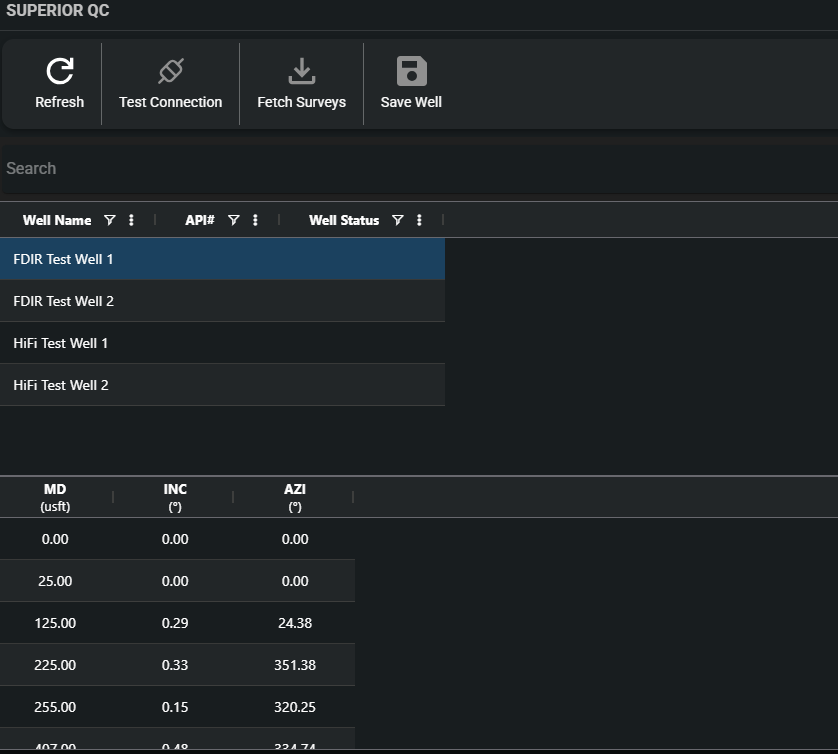 In the dialog that appears, use **Test Connection** to check the connection to the survey provider. Use the search bar, or the Well Name, API and Well Status column filters to find the correct well. Select it and click on **Fetch Surveys** to load the surveys into the lower table. Confirm that the survey list is correct, and then select **Save Well** or **Apply** to establish the link.
**NOV Welldata:** Available if NOV Welldata has been selected as the Surveys or EDR data source, and is used to establish the link between the well on your database and the well on the NOV database, if automatic connection has failed.
In the dialog that appears, use **Test Connection** to check the connection to the survey provider. Use the search bar, or the Well Name, API and Well Status column filters to find the correct well. Select it and click on **Fetch Surveys** to load the surveys into the lower table. Confirm that the survey list is correct, and then select **Save Well** or **Apply** to establish the link.
**NOV Welldata:** Available if NOV Welldata has been selected as the Surveys or EDR data source, and is used to establish the link between the well on your database and the well on the NOV database, if automatic connection has failed.
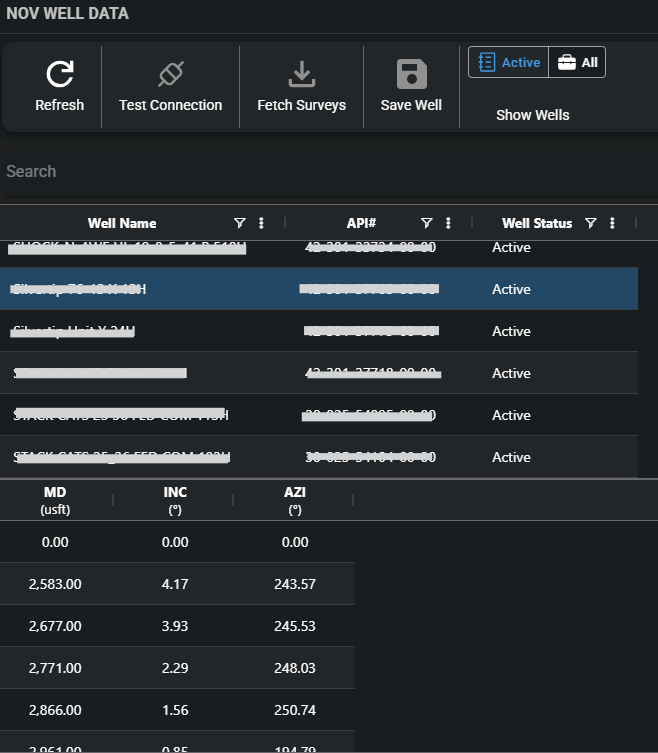 In the dialog that appears, use **Test Connection** to check the connection to the survey provider. Use the search bar, or the Well Name, API and Well Status column filters to find the correct well. The Active/All buttons can be used to quickly filter the Well Status column. Select the correct well and click on **Fetch Surveys** to load the surveys into the lower table. Confirm that the survey list is correct, and then select **Save Well** or **Apply** to establish the link.
**NOV Welldata - Import Historical EDR Data:** Available if NOV Welldata has been selected as the Surveys or EDR data source. This option will import EDR data from the Welldata server. Note that it will overwrite any existing data, and before doing so, the user should double check that the correct well has been sourced. The user should use the **Reprocess Data** option after importing.
**Starsteer:** Available if Starsteer has been selected as a data source for Formations or Target Lines, and is used to re-establish the link between the well in your database and the well in the Solo Cloud database, if required. Use the column filters or the search bar to find the correct well in the table. Select it by clicking on the checkbox, and then click on **Select**.
**Peleton (WellView):** Available if WellView has been selected as a data source, and is used to re-establish the link between the well in your database and the well in the Peloton database. Use the column filters or the search bar to find the correct well in the table. Select it by clicking on the checkbox, and then click on **Select**.

**Quorum (WellEz):** Available if WellEz has been selected as a data source, and is used to re-establish the link between the well in your database and the well in the WellEz database. Use the column filters or the search bar to find the correct well in the table. Select it by clicking on the checkbox, and then click on **Select**.
In the dialog that appears, use **Test Connection** to check the connection to the survey provider. Use the search bar, or the Well Name, API and Well Status column filters to find the correct well. The Active/All buttons can be used to quickly filter the Well Status column. Select the correct well and click on **Fetch Surveys** to load the surveys into the lower table. Confirm that the survey list is correct, and then select **Save Well** or **Apply** to establish the link.
**NOV Welldata - Import Historical EDR Data:** Available if NOV Welldata has been selected as the Surveys or EDR data source. This option will import EDR data from the Welldata server. Note that it will overwrite any existing data, and before doing so, the user should double check that the correct well has been sourced. The user should use the **Reprocess Data** option after importing.
**Starsteer:** Available if Starsteer has been selected as a data source for Formations or Target Lines, and is used to re-establish the link between the well in your database and the well in the Solo Cloud database, if required. Use the column filters or the search bar to find the correct well in the table. Select it by clicking on the checkbox, and then click on **Select**.
**Peleton (WellView):** Available if WellView has been selected as a data source, and is used to re-establish the link between the well in your database and the well in the Peloton database. Use the column filters or the search bar to find the correct well in the table. Select it by clicking on the checkbox, and then click on **Select**.

**Quorum (WellEz):** Available if WellEz has been selected as a data source, and is used to re-establish the link between the well in your database and the well in the WellEz database. Use the column filters or the search bar to find the correct well in the table. Select it by clicking on the checkbox, and then click on **Select**.
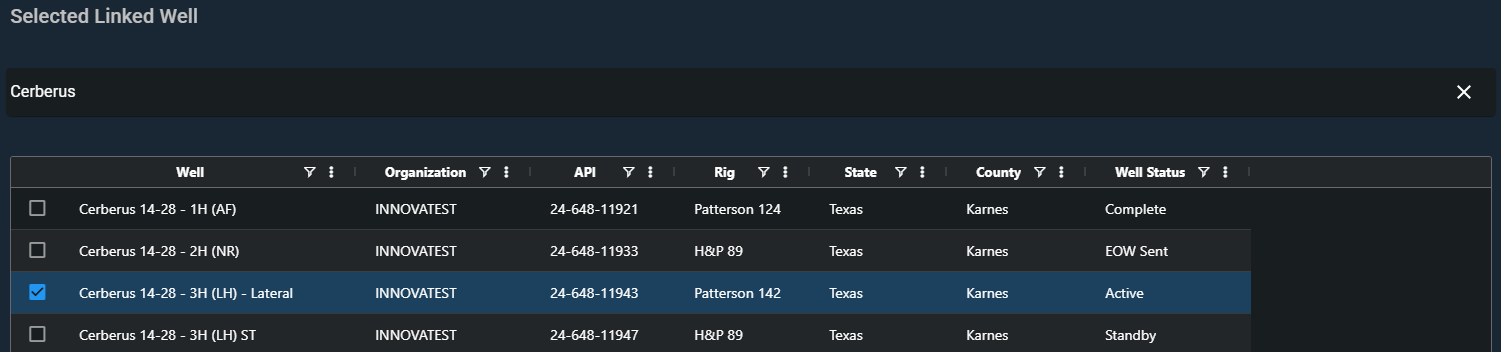
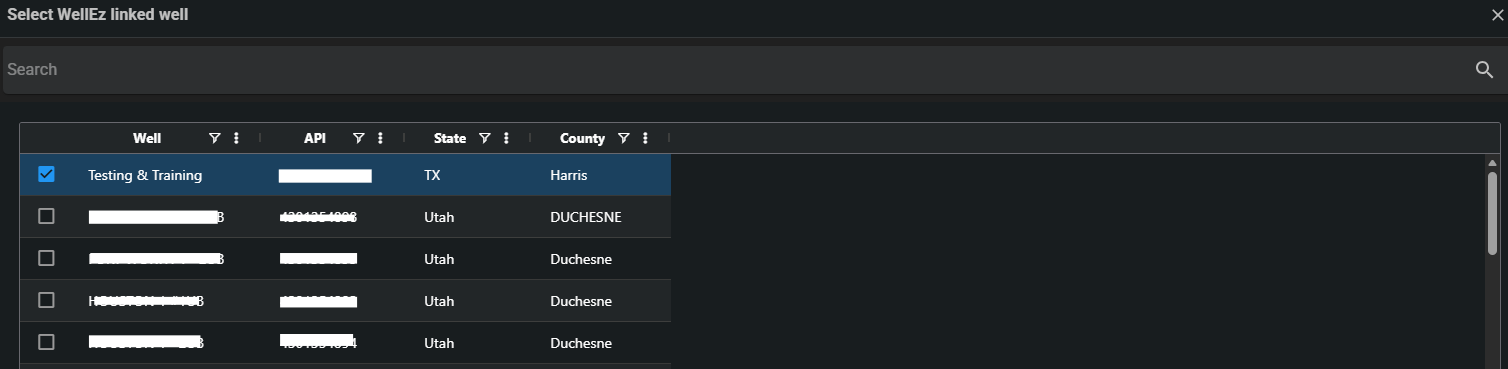 **Link Well (DD Provider):** Available if DD Provider has been selected as a data source, and is used to re-establish the link between the well in your Innova database and the well in the other organisation’s Innova database. Use the column filters or the search bar to find the correct well in the table. Select it by clicking on the checkbox, and then click on **Select**.
 **Sync Reporting Data:** Available if DD Provider has been selected as a data source. This option will download reporting data (BHA, Daily Reports, Slide Sheets & Costs) from the source well to yours. It will only download data for areas where DD Provider has been selected as a source. This is a way of forcing an update in the case that automatic updates fail for some reason.
**Sync Offsets:** This option downloads the offset settings from the source well and applies them to the well in your organisation’s database.
**Clear EDR Data:** This option will delete all EDR data for the well.
**Apply Defaults:** Applies the default settings Data Config settings, as defined in the Data Config Defaults page (**section 4.7.4**).
## 5.5.2 - Data Source Selection
These two sections are where the user selects the data source for each section of well data, and for the EDR. In the Data Sources section, use the dropdown boxes to select the desired source for each component of the well data. Data sources are described in the section below.
In the EDR section, use the EDR Source dropdown to choose the data source for the EDR. In addition to the source, the user must specify the units of the incoming data in the EDR Units dropdown. The update rate is every 5 seconds by default, but this can be modified by entering a value in the Update Rate field.
The other fields are filled automatically. After setting up the source and the rig states, the user should click the **EDR Start** option in the menu ribbon to start recording.
Selecting a data source other than Well Seeker will cause and additional section to appear at the bottom of the dialog. This section will describe the details of the source that is being used. If the link to the source is broken, this section will be blank. Use the options in the menu ribbon to manually re-establish the link.

## 5.5.3 - Rig States
If the user wishes to record EDR data, or use that data as the source for Daily Reports and Slide Sheets, it is essential that they define the rig state thresholds in the Rig Sates section. Vantage deduces the current rig state (drilling, connection, trip in/out, etc) by comparing the incoming data against the defined thresholds.

**RPM**: If the incoming RPM value is below the threshold, the pipe is considered to be not rotating. If it is above, it is rotating. When drilling, this is used to decide if the string is sliding or rotary drilling. Recommended value is \~50% of the rotating RPM.
The RPM threshold uses a buffer. The Vantage stores the number of RPM values entered in **the RPM Buffer Size** input, in the RPM Buffer. If at least **RPM Buffer Threshold** number of values are larger than the RPM Threshold then the rig state is Rotating. If not, it is sliding.
As an alternative to using the RPM Threshold, RPM Buffer Size and RPM Buffer Threshold, the user can toggle ON **Advanced Slide Detect**. See below for more details.
If **Dynamic Thresholds** is toggled on, this field cannot be edited and is automatically set by Vantage.
**Pressure**: If the incoming standpipe pressure value is above the threshold value, then the pumps are considered on. If it is below the threshold, the pumps are off. Recommend value is between 0 and 100 psi.
**Hookload**: If the incoming hookload value is lower than the threshold, the string is considered in slips. If it is above, then it is out of slips. Recommended value is block weight + 50%.
If **Dynamic Thresholds** is toggled on, this field cannot be edited and is automatically set by Vantage.
**On Bottom**: The program calculates the difference between the Bit Depth and the total Hole Depth. If this value is smaller than the On Bottom Threshold, then the bit is considered on bottom. If it is larger, then the bit is off bottom. Recommended value is less than 1 foot or metre.
**Motor Stall Pressure**: Determines how much pressure is required above the average standpipe pressure for a motor stall to be recorded.
**Dynamic Thresholds**: When YES is selected, Vantage will use the incoming data to adjust the RPM and Hookload thresholds values dynamically and prevent the user from editing those thresholds. If NO is selected then all thresholds are editable and static.
**Advanced Slide Detect**: As an alternative to using the RPM Threshold, RPM Buffer Size and RPM Buffer Threshold, the user can toggle ON Advanced Slide Detect. In this mode, instead of inspecting the RPM, the software inspects the incoming torque values. If the torque values are oscillating in a sinusoidal pattern, the string is recognised as Sliding. If not, Rotating. Incoming torque values can be seen in the section below the Thresholds section.
This setting is advised to be set to NO by default. Set to YES where sliding intervals are not being detected, due to RPM data values not displaying oscillation variation i.e., flatlining for multiple data points.
## 5.5.4 - Data Sources
This section defines the various sources that can be selected in the EDR and Data Sources sections.
When a source other than Well Seeker is selected, an additional section will appear lower down in the Data Config dialog, displaying the details of the linked well in the selected source. If this is blank, follow the instructions for the source type to re-establish the link.
**Well Seeker:** Can be used for all data sources. When set to Well Seeker, the data source will take it’s data from Well Seeker updates, pushed from the rig site using the [Real Time Data Exchange](https://docs.innova-drilling.com/introduction/innova-engineering-manual/well-seeker-x-manual/8.0-menu-ribbons/8.2-home/8.2.3-data-exchange) or the [Data Synchronization](https://docs.innova-drilling.com/introduction/technical-notes/well-seeker-pro-technical-notes/data-synchronization-feature-update) feature.
The Well Seeker source does require any additional setup in the Data Config dialog.
**DD Provider:** Available for all sources except for Formations, Target Lines & EDR. This selection will only work if the well has been created using the **Replicate well to home org** option (see **section 5.1.3**). When this source type is used, changes to the well on the other organisation’s database will automatically be pushed to the well in your organisation’s database.
The well that is being used as the source is displayed in the DD Provider Linked Well section. Vantage will attempt to automatically match the well in the other organisation’s database to yours using the API number. If this fails, you can manually select it using the **Link Well** option in the menu ribbon.

**WellView:** Available for BHA, Daily Reports and Costs. Requires a Peloton integration to be set up in the Integrations page (**section 4.6**). Pulls data from a linked Peloton WellView database. Vantage will attempt to automatically link the correct well using the API number. If this fails, you can manually select it using the **Peloton** option in the menu ribbon.

**WellEz:** Available for BHA, Daily Reports and Costs. Requires a Quorum integration to be set up in the Integrations page (**section 4.6**). Pulls operations reporting data from a linked Quorum WellEz cloud database. Vantage will attempt to automatically link the correct well using the API number. If this fails, you can manually select it using the **Quorum** option in the menu ribbon.

**StarSteer:** Available for Formations and Target Lines. Requires a ROGII Solo Cloud integration to be set up in the Integrations page (**section 4.6**). Pulls formation and target line data from a linked StarSteer geosteering database. Vantage will attempt to automatically link the correct well using the API number. If this fails, you can manually select it using the **StarSteer** option in the menu ribbon.
**Auto from EDR Data:** Available for Daily Reports and Slide Sheets. This data source will use the drilling parameter data incoming from the EDR to automatically record the well’s slide sheets and daily activities. For this data source type to work correctly, the EDR must be running and receiving data. The Rig States section must also be correctly set up in order to accurately deduce the rig state.
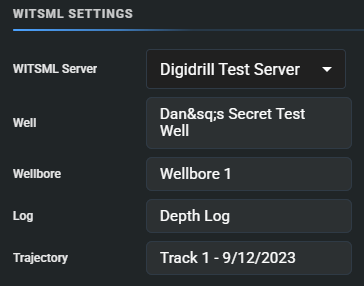
**WITSML:** Available for Surveys and the EDR. This data source requires at least one WITSML server to be set up, with valid credentials, to be set up in the WITSML Servers page (**section 4.7.1**). This data source pulls WITS data and survey data from the selected WITSML server. In the **WITSML Settings** section that appears lower down in the Data Config dialog, use the dropdown to select the correct WITSML server. Then use the **WITSML** option in the menu ribbon to configure the feed.
**Sync Reporting Data:** Available if DD Provider has been selected as a data source. This option will download reporting data (BHA, Daily Reports, Slide Sheets & Costs) from the source well to yours. It will only download data for areas where DD Provider has been selected as a source. This is a way of forcing an update in the case that automatic updates fail for some reason.
**Sync Offsets:** This option downloads the offset settings from the source well and applies them to the well in your organisation’s database.
**Clear EDR Data:** This option will delete all EDR data for the well.
**Apply Defaults:** Applies the default settings Data Config settings, as defined in the Data Config Defaults page (**section 4.7.4**).
## 5.5.2 - Data Source Selection
These two sections are where the user selects the data source for each section of well data, and for the EDR. In the Data Sources section, use the dropdown boxes to select the desired source for each component of the well data. Data sources are described in the section below.
In the EDR section, use the EDR Source dropdown to choose the data source for the EDR. In addition to the source, the user must specify the units of the incoming data in the EDR Units dropdown. The update rate is every 5 seconds by default, but this can be modified by entering a value in the Update Rate field.
The other fields are filled automatically. After setting up the source and the rig states, the user should click the **EDR Start** option in the menu ribbon to start recording.
Selecting a data source other than Well Seeker will cause and additional section to appear at the bottom of the dialog. This section will describe the details of the source that is being used. If the link to the source is broken, this section will be blank. Use the options in the menu ribbon to manually re-establish the link.

## 5.5.3 - Rig States
If the user wishes to record EDR data, or use that data as the source for Daily Reports and Slide Sheets, it is essential that they define the rig state thresholds in the Rig Sates section. Vantage deduces the current rig state (drilling, connection, trip in/out, etc) by comparing the incoming data against the defined thresholds.

**RPM**: If the incoming RPM value is below the threshold, the pipe is considered to be not rotating. If it is above, it is rotating. When drilling, this is used to decide if the string is sliding or rotary drilling. Recommended value is \~50% of the rotating RPM.
The RPM threshold uses a buffer. The Vantage stores the number of RPM values entered in **the RPM Buffer Size** input, in the RPM Buffer. If at least **RPM Buffer Threshold** number of values are larger than the RPM Threshold then the rig state is Rotating. If not, it is sliding.
As an alternative to using the RPM Threshold, RPM Buffer Size and RPM Buffer Threshold, the user can toggle ON **Advanced Slide Detect**. See below for more details.
If **Dynamic Thresholds** is toggled on, this field cannot be edited and is automatically set by Vantage.
**Pressure**: If the incoming standpipe pressure value is above the threshold value, then the pumps are considered on. If it is below the threshold, the pumps are off. Recommend value is between 0 and 100 psi.
**Hookload**: If the incoming hookload value is lower than the threshold, the string is considered in slips. If it is above, then it is out of slips. Recommended value is block weight + 50%.
If **Dynamic Thresholds** is toggled on, this field cannot be edited and is automatically set by Vantage.
**On Bottom**: The program calculates the difference between the Bit Depth and the total Hole Depth. If this value is smaller than the On Bottom Threshold, then the bit is considered on bottom. If it is larger, then the bit is off bottom. Recommended value is less than 1 foot or metre.
**Motor Stall Pressure**: Determines how much pressure is required above the average standpipe pressure for a motor stall to be recorded.
**Dynamic Thresholds**: When YES is selected, Vantage will use the incoming data to adjust the RPM and Hookload thresholds values dynamically and prevent the user from editing those thresholds. If NO is selected then all thresholds are editable and static.
**Advanced Slide Detect**: As an alternative to using the RPM Threshold, RPM Buffer Size and RPM Buffer Threshold, the user can toggle ON Advanced Slide Detect. In this mode, instead of inspecting the RPM, the software inspects the incoming torque values. If the torque values are oscillating in a sinusoidal pattern, the string is recognised as Sliding. If not, Rotating. Incoming torque values can be seen in the section below the Thresholds section.
This setting is advised to be set to NO by default. Set to YES where sliding intervals are not being detected, due to RPM data values not displaying oscillation variation i.e., flatlining for multiple data points.
## 5.5.4 - Data Sources
This section defines the various sources that can be selected in the EDR and Data Sources sections.
When a source other than Well Seeker is selected, an additional section will appear lower down in the Data Config dialog, displaying the details of the linked well in the selected source. If this is blank, follow the instructions for the source type to re-establish the link.
**Well Seeker:** Can be used for all data sources. When set to Well Seeker, the data source will take it’s data from Well Seeker updates, pushed from the rig site using the [Real Time Data Exchange](https://docs.innova-drilling.com/introduction/innova-engineering-manual/well-seeker-x-manual/8.0-menu-ribbons/8.2-home/8.2.3-data-exchange) or the [Data Synchronization](https://docs.innova-drilling.com/introduction/technical-notes/well-seeker-pro-technical-notes/data-synchronization-feature-update) feature.
The Well Seeker source does require any additional setup in the Data Config dialog.
**DD Provider:** Available for all sources except for Formations, Target Lines & EDR. This selection will only work if the well has been created using the **Replicate well to home org** option (see **section 5.1.3**). When this source type is used, changes to the well on the other organisation’s database will automatically be pushed to the well in your organisation’s database.
The well that is being used as the source is displayed in the DD Provider Linked Well section. Vantage will attempt to automatically match the well in the other organisation’s database to yours using the API number. If this fails, you can manually select it using the **Link Well** option in the menu ribbon.

**WellView:** Available for BHA, Daily Reports and Costs. Requires a Peloton integration to be set up in the Integrations page (**section 4.6**). Pulls data from a linked Peloton WellView database. Vantage will attempt to automatically link the correct well using the API number. If this fails, you can manually select it using the **Peloton** option in the menu ribbon.

**WellEz:** Available for BHA, Daily Reports and Costs. Requires a Quorum integration to be set up in the Integrations page (**section 4.6**). Pulls operations reporting data from a linked Quorum WellEz cloud database. Vantage will attempt to automatically link the correct well using the API number. If this fails, you can manually select it using the **Quorum** option in the menu ribbon.

**StarSteer:** Available for Formations and Target Lines. Requires a ROGII Solo Cloud integration to be set up in the Integrations page (**section 4.6**). Pulls formation and target line data from a linked StarSteer geosteering database. Vantage will attempt to automatically link the correct well using the API number. If this fails, you can manually select it using the **StarSteer** option in the menu ribbon.
**Auto from EDR Data:** Available for Daily Reports and Slide Sheets. This data source will use the drilling parameter data incoming from the EDR to automatically record the well’s slide sheets and daily activities. For this data source type to work correctly, the EDR must be running and receiving data. The Rig States section must also be correctly set up in order to accurately deduce the rig state.
**WITSML:** Available for Surveys and the EDR. This data source requires at least one WITSML server to be set up, with valid credentials, to be set up in the WITSML Servers page (**section 4.7.1**). This data source pulls WITS data and survey data from the selected WITSML server. In the **WITSML Settings** section that appears lower down in the Data Config dialog, use the dropdown to select the correct WITSML server. Then use the **WITSML** option in the menu ribbon to configure the feed.
 **NOV Welldata:** Available for Surveys and the EDR. Requires a NOV Welldata integration to be set up in the Integrations page (**section 4.6**). This data source pulls EDR and survey data from a linked NOV Welldata EDR cloud database. Vantage will attempt to automatically link the correct well using the API number. If this fails, you can manually select it using the **NOV Welldata** option in the menu ribbon to link the correct well.

**ZoneVu:** Available for Formations only. Requires a ZoneVu integration to be set up in the Integrations page (**section 4.6**). Pulls formation and target line data from a linked ZoneVu geosteering database. Vantage will attempt to automatically link the correct well using the API number. If this fails, you can manually select it using the **ZoneVu** option in the menu ribbon to link the correct well.

**Survey Correction Provider:** Available for Surveys only. Requires at least one integration to be set up for one of the available survey correction providers - NOV Welldata integration to be set up in the Integrations page (**section 4.6**).

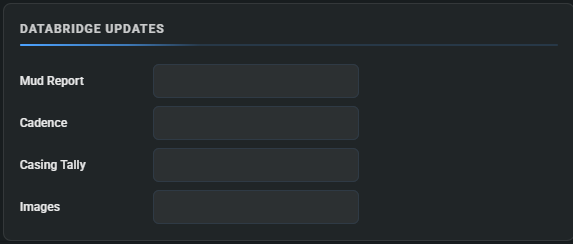
**Data Bridge:** Available for Well Plans. Regardless of whether Data Bridge is selected or not, the Data Bridge Updates section is always displays, and shows when data for this well was last uploaded using the Data Bridge feature. For more information, see Innova’s guides to [**Importing Third Party Data**](https://docs.innova-drilling.com/introduction/innova-engineering-how-to-guides/vantage-guides/importing-third-party-data).
**NOV Welldata:** Available for Surveys and the EDR. Requires a NOV Welldata integration to be set up in the Integrations page (**section 4.6**). This data source pulls EDR and survey data from a linked NOV Welldata EDR cloud database. Vantage will attempt to automatically link the correct well using the API number. If this fails, you can manually select it using the **NOV Welldata** option in the menu ribbon to link the correct well.

**ZoneVu:** Available for Formations only. Requires a ZoneVu integration to be set up in the Integrations page (**section 4.6**). Pulls formation and target line data from a linked ZoneVu geosteering database. Vantage will attempt to automatically link the correct well using the API number. If this fails, you can manually select it using the **ZoneVu** option in the menu ribbon to link the correct well.

**Survey Correction Provider:** Available for Surveys only. Requires at least one integration to be set up for one of the available survey correction providers - NOV Welldata integration to be set up in the Integrations page (**section 4.6**).

**Data Bridge:** Available for Well Plans. Regardless of whether Data Bridge is selected or not, the Data Bridge Updates section is always displays, and shows when data for this well was last uploaded using the Data Bridge feature. For more information, see Innova’s guides to [**Importing Third Party Data**](https://docs.innova-drilling.com/introduction/innova-engineering-how-to-guides/vantage-guides/importing-third-party-data).
 ---
# Agent Instructions
This documentation is published with GitBook. GitBook is the documentation platform designed so that both humans and AI agents can read, navigate, and reason over technical content effectively. Learn more at gitbook.com.
## Querying This Documentation
If you need additional information that is not directly available in this page, you can query the documentation by asking a question.
Perform an HTTP GET request on the following URL with the `ask` and `goal` query parameters:
```
GET https://docs.innova-drilling.com/introduction/innova-engineering-manual/innova-vantage-manual/5.0-dashboard/5.5-data-configuration.md?ask=&goal=
```
`ask` is the immediate question: it should be specific, self-contained, and written in natural language.
`goal` is what the user is ultimately trying to achieve, the reason they need the answer. Sharing it helps GitBook give you a better, more relevant answer. A goal is most helpful when it describes the outcome the user wants rather than restating the question. For example, with `ask=how do I create an API token`, a goal like `automate deployments from our CI pipeline` lets GitBook tailor the answer to that use case.
The response will contain a direct answer to the question and relevant excerpts and sources from the documentation.
Use this mechanism when the answer is not explicitly present in the current page, you need clarification or additional context, or you want to retrieve related documentation sections.
---
# Agent Instructions
This documentation is published with GitBook. GitBook is the documentation platform designed so that both humans and AI agents can read, navigate, and reason over technical content effectively. Learn more at gitbook.com.
## Querying This Documentation
If you need additional information that is not directly available in this page, you can query the documentation by asking a question.
Perform an HTTP GET request on the following URL with the `ask` and `goal` query parameters:
```
GET https://docs.innova-drilling.com/introduction/innova-engineering-manual/innova-vantage-manual/5.0-dashboard/5.5-data-configuration.md?ask=&goal=
```
`ask` is the immediate question: it should be specific, self-contained, and written in natural language.
`goal` is what the user is ultimately trying to achieve, the reason they need the answer. Sharing it helps GitBook give you a better, more relevant answer. A goal is most helpful when it describes the outcome the user wants rather than restating the question. For example, with `ask=how do I create an API token`, a goal like `automate deployments from our CI pipeline` lets GitBook tailor the answer to that use case.
The response will contain a direct answer to the question and relevant excerpts and sources from the documentation.
Use this mechanism when the answer is not explicitly present in the current page, you need clarification or additional context, or you want to retrieve related documentation sections.