> For the complete documentation index, see [llms.txt](https://docs.innova-drilling.com/introduction/llms.txt). Markdown versions of documentation pages are available by appending `.md` to page URLs; this page is available as [Markdown](https://docs.innova-drilling.com/introduction/innova-engineering-manual/well-seeker-x-manual/11.0-reporting/11.10-pipe-tally.md).
# 11.10 - Pipe Tally
This option is available to select from **Actual Well** level or below, or inside the [Daily Report](/introduction/innova-engineering-manual/well-seeker-x-manual/11.0-reporting/11.5-daily-reporting.md) dialog. The user can enter multiple pipe tallies for each well by using the add button. The different tallies are accessed via the dropdown menu at the top left of the dialog.
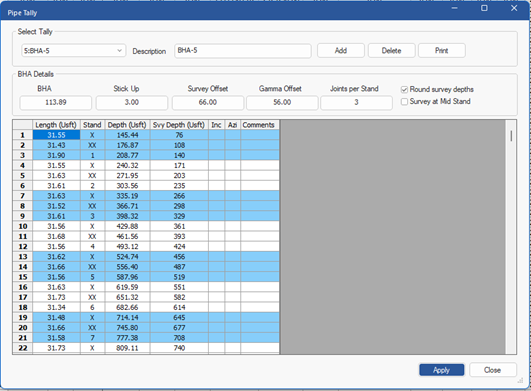
Figure 307: Pipe Tally dialog
**Description:** Add a unique description for each tally.
**Add:** Add a new Tally.
**Delete:** Delete an existing Tally.
**Print:** Print currently selected tally to Excel.
**BHA:** Total length of the appropriate BHA. The length will be added to the total length of drill pipe to calculate the bit Depth.
**Stick Up:** The length of pipe below the joint left sticking out above the rotary table when making connections. It is subtracted from the bit depth (along with the Survey Offset) to calculate the Survey Depth.
**Survey Offset:** Distance from bit to MWD sensor. It is subtracted from the bit Depth (along with the Stick Up) to calculate the Survey Depth.
**Gamma Offset:** Distance from bit to gamma sensor. This value is just for reference and does not affect the survey depth.
**Joints Per Stand:** How many joints are in a stand. This will be rig specific and will usually range from 1 to 3.
**Round survey depths:** This option can be checked to round the surveys depth.
**Survey at Mid Stand:** This can be checked if surveys are being taken in the middle of the stand instead of at the bottom. The Survey Depth Column will change to reflect this.
**Length:** User should enter individual joint lengths here
**Stand:** This column is populated automatically based on the value entered in the joints per stand cell
**Depth:** This column is populated automatically and is the cumulative depth of the joints up to that point and the BHA Length.
**Svy Depth:** This column is populated automatically and shows the survey depth at the bottom of each single. If Survey at Mid Stand is checked, the survey depth for middle single will change to the middle of the single instead of the bottom.
**Inc:** User can add the survey inclination in the relevant cell
**Azi:** User can add the survey azimuth in the relevant cell
**Comments:** User can add an appropriate comment in the relevant cell if required.
---
# Agent Instructions
This documentation is published with GitBook. GitBook is the documentation platform designed so that both humans and AI agents can read, navigate, and reason over technical content effectively. Learn more at gitbook.com.
## Querying This Documentation
If you need additional information that is not directly available in this page, you can query the documentation by asking a question.
Perform an HTTP GET request on the following URL with the `ask` and `goal` query parameters:
```
GET https://docs.innova-drilling.com/introduction/innova-engineering-manual/well-seeker-x-manual/11.0-reporting/11.10-pipe-tally.md?ask=&goal=
```
`ask` is the immediate question: it should be specific, self-contained, and written in natural language.
`goal` is what the user is ultimately trying to achieve, the reason they need the answer. Sharing it helps GitBook give you a better, more relevant answer. A goal is most helpful when it describes the outcome the user wants rather than restating the question. For example, with `ask=how do I create an API token`, a goal like `automate deployments from our CI pipeline` lets GitBook tailor the answer to that use case.
The response will contain a direct answer to the question and relevant excerpts and sources from the documentation.
Use this mechanism when the answer is not explicitly present in the current page, you need clarification or additional context, or you want to retrieve related documentation sections.