> For the complete documentation index, see [llms.txt](https://docs.innova-drilling.com/introduction/llms.txt). Markdown versions of documentation pages are available by appending `.md` to page URLs; this page is available as [Markdown](https://docs.innova-drilling.com/introduction/innova-engineering-manual/well-seeker-x-manual/11.0-reporting/11.13-daily-activity-editor.md).
# 11.13 - Daily Activity Editor
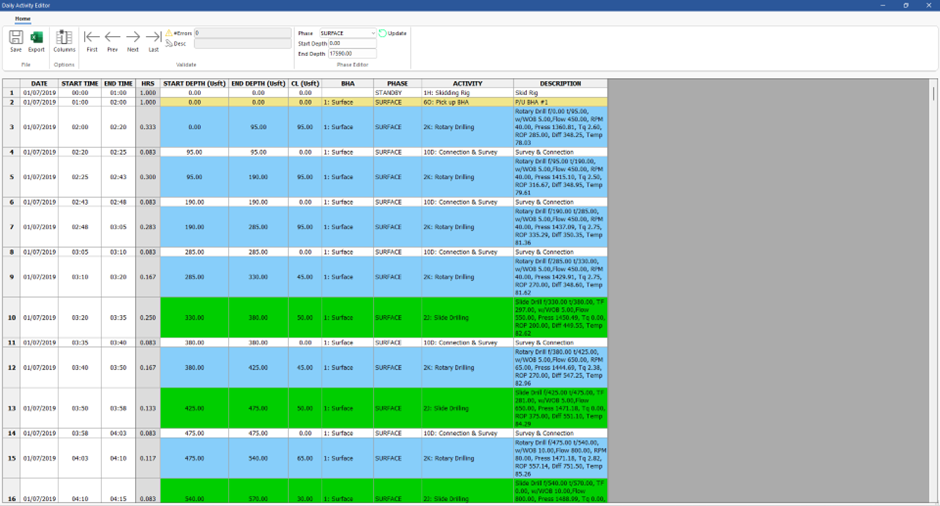
This dialog is only available from the context menu when right-clicking on an **Actual Well** the Object Explorer. The Daily Activity Editor allows the user to view all the daily activities for the selected actual well in one chronological table, and identify continuity errors for timings, BHA selection and phase. The user can make edits to the activities in the table the same way they would in the [Daily Reporting](https://docs.innova-drilling.com/introduction/innova-engineering-manual/well-seeker-x-manual/11.0-reporting/pages/de7d73fcaad5d1c4bd689b0199b661723382225e#id-11.5.1.5-ddr-daily-activity) window.
**Note that the user has more freedom to edit the activities here than in the Daily Reports window, which also makes it easier to corrupt your activity data. Use caution when making changes.**
Figure 333: Daily Activity Editor dialog
**Save:** Saves any modifications made in the editor.
**Export:** Print the Daily Activity in a excel format.
**Columns:** Opens the Survey Columns dialog, where the user can select the columns available to display.
The **Validation** section of the top menu shows the errors found, along with a description. The user can use the controls to quickly navigate to each error. **Start Time/Depth** and **End Time/Depth** cells will be highlighted in red if the end time/depth do not match with the start time/depth of row below. Cells in the **BHA** and **Phase** columns will also be highlighted in red if the BHA/phase is different to the ones above and below. This is usually an indicator that the user has filled in the wrong BHA/phase by mistake. The BHA column will also be highlighted if the BHA is missing a **6O** or **6P** activity code.
**Phase Editor:** This section allows the user to select a phase from the dropdown, enter a start and end depth, and click Update. All phase codes within the specified range will be updated to the selected phase.
---
# Agent Instructions
This documentation is published with GitBook. GitBook is the documentation platform designed so that both humans and AI agents can read, navigate, and reason over technical content effectively. Learn more at gitbook.com.
## Querying This Documentation
If you need additional information that is not directly available in this page, you can query the documentation by asking a question.
Perform an HTTP GET request on the following URL with the `ask` and `goal` query parameters:
```
GET https://docs.innova-drilling.com/introduction/innova-engineering-manual/well-seeker-x-manual/11.0-reporting/11.13-daily-activity-editor.md?ask=&goal=
```
`ask` is the immediate question: it should be specific, self-contained, and written in natural language.
`goal` is what the user is ultimately trying to achieve, the reason they need the answer. Sharing it helps GitBook give you a better, more relevant answer. A goal is most helpful when it describes the outcome the user wants rather than restating the question. For example, with `ask=how do I create an API token`, a goal like `automate deployments from our CI pipeline` lets GitBook tailor the answer to that use case.
The response will contain a direct answer to the question and relevant excerpts and sources from the documentation.
Use this mechanism when the answer is not explicitly present in the current page, you need clarification or additional context, or you want to retrieve related documentation sections.