> For the complete documentation index, see [llms.txt](https://docs.innova-drilling.com/introduction/llms.txt). Markdown versions of documentation pages are available by appending `.md` to page URLs; this page is available as [Markdown](https://docs.innova-drilling.com/introduction/innova-engineering-manual/well-seeker-x-manual/8.0-menu-ribbons/8.2-home/8.2.6-charts.md).
# 8.2.6 - Charts
The Charts section allows the user to display a plot for the plan, wellbore or survey currently displayed in the main viewing area. For more details on the available charts, see [**section 9.0 – Charts**](/introduction/innova-engineering-manual/well-seeker-x-manual/9.0-charts.md).
### **8.2.6.1 - Standard Charts**
**3D Chart:** A 3D representation of all the well/wells.
**Plan View:** Top down plot showing a bird’s eye view of the well / wells
**Section View:** A slice at the reference well’s vertical section azimuth
### **8.2.6.2 - Anti-Collision Charts**
**Separation Factor:** Shows separation factor vs measured depth; requires at least one offset well to be selected.
**Travelling Cylinder:** A specialised polar plot used for anti-collision; requires at least one offset well to be selected.
**Ladder:** Shows the centre-to-centre distance vs measured depth; requires at least one offset well to be selected.
**Spider:** Similar to a plan view except “TVD slices” can be produced whereby only the current well bore sections which have a TVD greater than or equal to the current value are displayed. This plot is used to help with anti-collision. Using the “+” and “-“ keys changes the current TVD slice. This can also be done from the chart properties menu.
### **8.2.6.3 - Comparison Charts**
**Dogleg Comparison:** Shows dogleg vs measured depth.
**Azimuth Comparison:** Shows azimuth vs measured depth.
**Inc Comparison:** Shows inclination vs measured depth.
### **8.2.6.4 - Select Offsets**
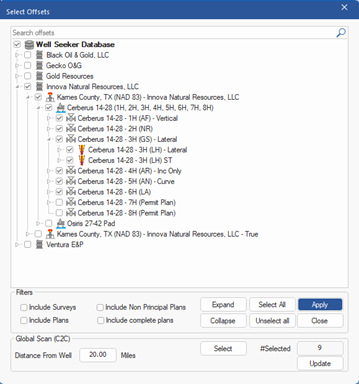
The offset selector is available if a wellbore, survey, plan or chart is open in the main viewing area. The well being viewed when the offset selector is opened is defined as the **reference well**. The selector allows the user to select one or more **offsets**, which can then be displayed on a plot or used in anti-collision scans. Only wells referenced to the **same CRS** as the reference well are available to select here.
Figure 128: Offset Selector
The offset selector dialog displays a tree which will represent all the selectable wells. Check the checkbox beside a plan, survey or wellbore to add it as an offset. The user can also check objects at higher levels in the tree – this will select all plans, surveys and wellbores under the selected level.
The filter at the bottom of the dialog allows the user to select the following filter options:
* **Include Surveys:** The Actual Wellbore is always available to select; however, this option also allows the user to select individual surveys below the actual wellbore level.
* **Include Non-Principal Plans:** When this option is selected the user can choose to offset any non-principal plans. This option is turned on as a default.
* **Include Plans:** When this option is selected the user can choose to offset any principal plans. This option is turned on as a default.
* **Include complete plans:** In the Plan Properties window, the user can mark a plan as ‘complete’, meaning that it will be hidden from the tree by default. Toggle this option on to view completed plans.
If any of the filters are removed, the user can click on the **Update** button to automatically deselect any applicable surveys or plans.
**Global Scan (C2C)** is another filtering method which allows the user to select a radius from the reference well surface location. Any offset wells within this radius will be automatically selected when the user clicks Select.
Click on **Apply** to save your changes.
### **8.2.6.5 - Show offsets**
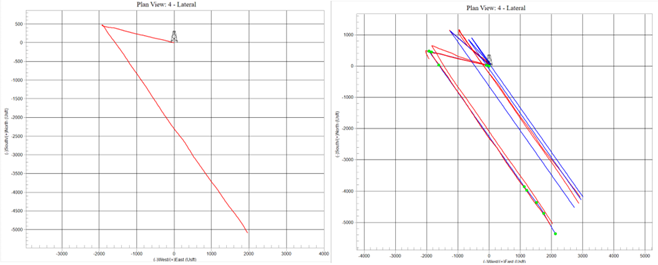
When viewing a chart in the main viewing area, the user can toggle this option to display or hide offsets on the chart:
Figure 129: Plan View chart with offsets off (left) and on (right)
### **8.2.6.6 - Chart Properties**
When viewing a chart in the main viewing area, this option displays the Chart Properties dialog, which allows the user to customize the currently displayed chart. See [**section 9.11 – Chart Properties Dialog**](/introduction/innova-engineering-manual/well-seeker-x-manual/9.0-charts/9.11-chart-properties.md) for more details.
Some properties can also be changed on Chart Properties ribbon menu that is also available when viewing a chart. See [**section 8.9 - Chart Properties**](/introduction/innova-engineering-manual/well-seeker-x-manual/8.0-menu-ribbons/8.9-chart-properties-ribbon.md). Some defaults for the chart properties can be set in the Defaults menu ribbon. See section [**8.8 – Defaults**](/introduction/innova-engineering-manual/well-seeker-x-manual/8.0-menu-ribbons/8.8-chart-defaults.md).
---
# Agent Instructions
This documentation is published with GitBook. GitBook is the documentation platform designed so that both humans and AI agents can read, navigate, and reason over technical content effectively. Learn more at gitbook.com.
## Querying This Documentation
If you need additional information that is not directly available in this page, you can query the documentation by asking a question.
Perform an HTTP GET request on the following URL with the `ask` and `goal` query parameters:
```
GET https://docs.innova-drilling.com/introduction/innova-engineering-manual/well-seeker-x-manual/8.0-menu-ribbons/8.2-home/8.2.6-charts.md?ask=&goal=
```
`ask` is the immediate question: it should be specific, self-contained, and written in natural language.
`goal` is what the user is ultimately trying to achieve, the reason they need the answer. Sharing it helps GitBook give you a better, more relevant answer. A goal is most helpful when it describes the outcome the user wants rather than restating the question. For example, with `ask=how do I create an API token`, a goal like `automate deployments from our CI pipeline` lets GitBook tailor the answer to that use case.
The response will contain a direct answer to the question and relevant excerpts and sources from the documentation.
Use this mechanism when the answer is not explicitly present in the current page, you need clarification or additional context, or you want to retrieve related documentation sections.