8.6.2 - ROGII
The ROGII section controls Well Seeker X’s integration with ROGII’s StarSteer geosteering software.
8.6.2.1 - Target Lines
This feature is only accessible when viewing a survey. The Target Lines tool provide a quick way to access the target lines provided by the Solo Cloud tool with a simpler workflow. Before using the Target Lines tool, ensure that the correct API Job # has been entered into the Job Data dialog (section 11.1)

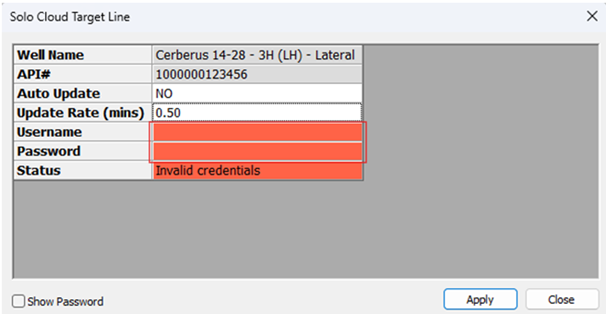
Input valid Username and Password credentials for the relevant Solo Cloud server and select Apply. These credentials should be obtained from your Solo Cloud provider. Once entered, the Username and Password will be saved and used for all surveys present below the Actual Well.
If the credentials are incorrect the Status will display Credentials error: Invalid login or password. If the credentials are correct and Well Seeker finds a well with a matching API# in Solo Cloud, then the Status will display OK. If the credentials are correct and Well Seeker finds more than one well with a matching API# in Solo Cloud, then the Status will display Wells error: multiple wells found.
In the above situation, where Solo Cloud has a single API number associated with multiple wells, when the user hits Apply, the Select Wells dialog will open. The user should check the Select checkbox of the relevant well and then select OK. Once a well has been selected, the status will update to OK.
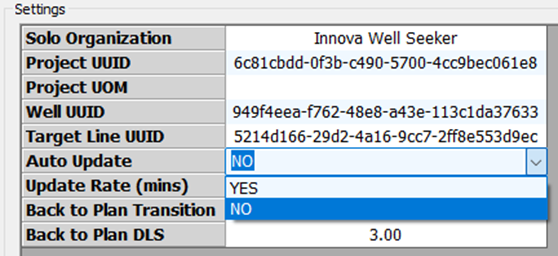
Chose the Auto Update setting. Select YES or NO.
YES: When a Target Line is starred, or an existing starred target line is adjusted in Solo Cloud, the Well Seeker user will receive a pop up message within the Well Seeker interface, informing the user of the existence of the new target line and offering the user the choice of creating a new plan within Well Seeker. If the user selects to create a new plan, the plan will be automatically generated and selected as the principal plan. The new plan will also be added to the offset selector and will appear in any plots which are open. Once YES has been selected, the user can close the Solo Cloud dialog and continue operations. There is no requirement to access this dialog again. Even if Well Seeker is closed and reopened, any time this survey is opened, Well Seeker will be looking for target line changes.
NO: The user selects to turn the feature off for this well.
8.6.2.2 - Solo Cloud
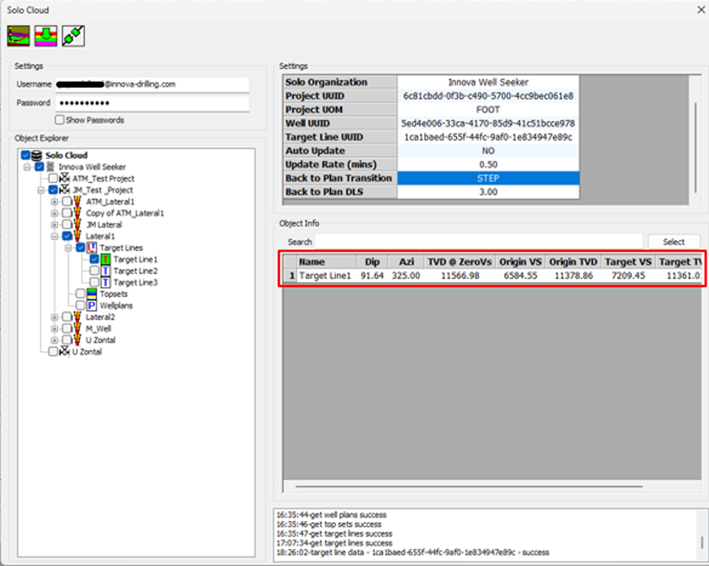
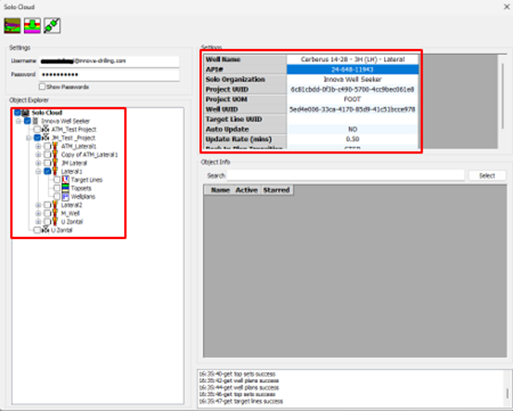
This feature is only accessible when viewing a survey. In the Object Explorer section, your organization name should display below Solo Cloud. If it does not, check you are using the correct license. Input valid Username and Password credentials for the relevant Solo Cloud server, then click on the
Connect button in the toolbar. These credentials should be obtained from your Solo Cloud provider. Once entered, the Username and Password will be saved and used for all surveys present below the Actual Well.

Check and then expand the relevant Organization, Well and Actual Well item in the Object Explorer. As you select items in the Object Explorer, the Settings dialog will update accordingly.
Choose the Auto Update setting. Select YES or NO:
YES: When a new starred Target Line is added to the Solo Cloud database, or an existing starred line is changed in some way, the Well Seeker user will receive a pop up message within the Well Seeker interface, informing the user of the existence of the new target line and offering the user the choice of creating a new plan within Well Seeker. If the user selects to create a new plan, the plan will be automatically generated in Well Seeker and selected as the principal plan. This new plan will also be pushed to Solo Cloud. If the user chooses not to create a new well plan, nothing will change. If the user selects YES, set the frequency of updates in minutes using the Update Rate (mins) field.
NO: The user picks the target line and creates an offset plan manually from the Solo Cloud dialog.

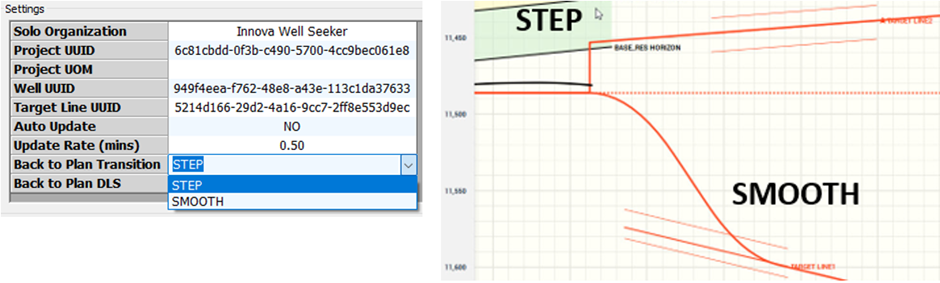
In the Back to Plan Transition field choose either STEP or SMOOTH. When the user creates a new offset plan in Well Seeker, it will be pushed back to Solo Cloud. This setting decides if the transition between the old plan and the new will be a step change, or a smooth transition. If SMOOTH is chosen, set the dogleg severity in the Back to Plan DLS field. Note that the smooth transition will only be displayed in Solo Cloud (below right). In Well Seeker, the transition is displayed as a step regardless of what is chosen here.

Check and expand the Target Lines level and select the relevant target line. Target lines that are currently Starred within Solo Cloud will display with a green T icon next to them. This is to indicate the most recent target line. The Object Info section will display the target line data when selected.

Click the
Create offset plan icon. The offset plan will then be automatically created and will be accessible in the Well Seeker database. Close the Solo Cloud dialog. Note that when Auto Update is selected, the user will only need to manually create the first target line, after that a dialog will pop up on the screen any time a change in target line is detected.
When added to the database tree, the name of the offset plan will contain the name of the target line, the date and time it was added to Well Seeker, and whether it is using a STEP or SMOOTH transition (even when named smooth, it will always be stepped in Well Seeker). The new offset plan will be automatically pushed to Solo Cloud and set as the principal plan in Well Seeker.
How the user should then proceed depends on whether they chose YES or NO for the Auto Update setting:
Selecting YES:
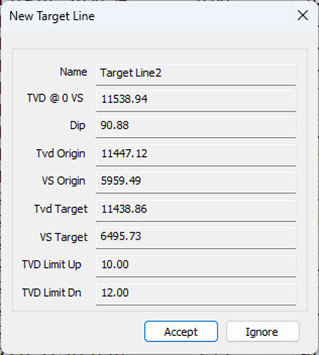
If a new target line is created and starred, or the current starred target line is changed in any way (including target thickness) in Solo Cloud, the Well Seeker Pro user will receive a popup message, describing the new target. If the user clicks on Ignore, no change will be made in Well Seeker. If they click on Accept, a new offset plan will be created in the database tree, and will be set as the principal plan for the well. It will also be automatically selected as an offset well so if a chart is open it will show up immediately.

Selecting NO:
The user will not automatically receive an update if any changes are made in the Solo Cloud database. They should periodically re-open the Solo Cloud dialog to check if any updates have been added to their project.
If a change has been made, the user should repeat steps 7 and 8 to create a new offset plan in their Well Seeker database tree.
Note: Well Seeker creates a new plan for EVERY target line change detected, even if this is just a change in an existing target line e.g. thickness.
8.6.2.3 - Data Factory
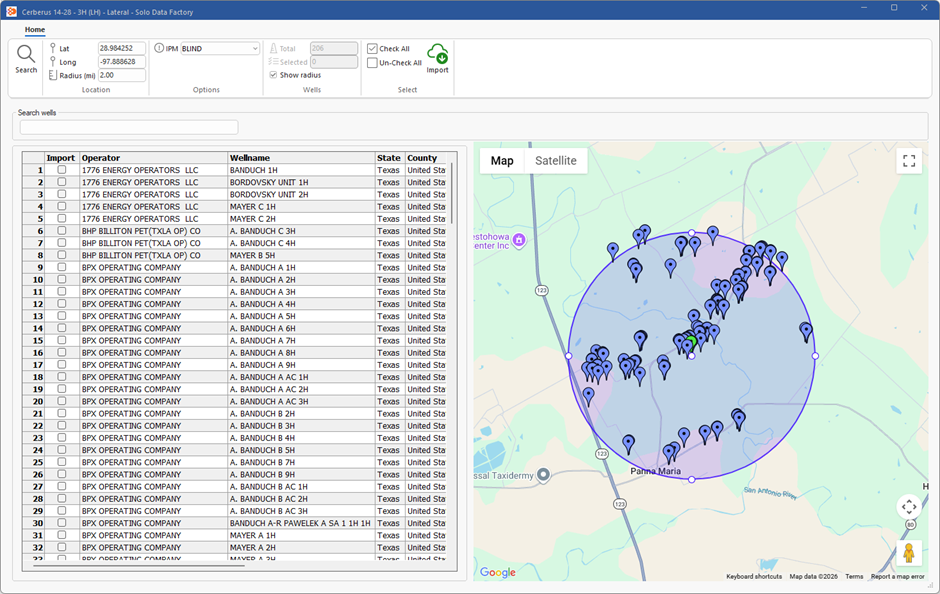
This feature is available at Actual Well level and below. The Data Factory allows the user to look up offsets that are within a specified distance from the selected well, and download their survey data to the Well Seeker database.
Note: This feature requires credentials, provided by ROGII, to be entered in the Integrations section of your company’s Innova Vantage environment.

When first opened, the dialog will display the search area on the map. The centre of the search area will be the surface location of the selected well. The centre can be moved by left-clicking and dragging the middle point of the circle. It’s radius can be changed by left clicking and dragging the points around the outside of the circle. These can also be manually changed by entering values into the Location section of the ribbon. The search area can be hidden by toggling the Show Radius option.
Offset wells detected inside the search area are displayed in the table on the left. The results can be filtered by survey tool IPM using the IPM dropdown box in the ribbon. They can also be filtered by name in the Search Wells field.
Check the Import check box beside each desired well to select it, and then click on Import in the ribbon to download the offset survey data to your database.
Last updated
Was this helpful?