> For the complete documentation index, see [llms.txt](https://docs.innova-drilling.com/introduction/llms.txt). Markdown versions of documentation pages are available by appending `.md` to page URLs; this page is available as [Markdown](https://docs.innova-drilling.com/introduction/innova-engineering-manual/well-seeker-x-manual/9.0-charts.md).
# 9.0 - Charts
Charts allow the user to display a graphical representation of the trajectory for a plan, survey or wellbore. A chart can be opened by selecting one of the options in the **Charts** section of the **Home** ribbon. These options are only available if a plan, survey, actual wellbore or planned wellbore is open in the main viewing area.
The plan/survey/wellbore that was open in the main viewing area when the chart was opened is known as the **reference well**.

There are 11 charts available in Well Seeker X. Click on the links below to view the page for each chart type:
* [**Section View**](/introduction/innova-engineering-manual/well-seeker-x-manual/9.0-charts/9.1-section-view-chart.md)
* [**Plan View**](/introduction/innova-engineering-manual/well-seeker-x-manual/9.0-charts/9.2-plan-view-chart.md)
* [**3D View**](/introduction/innova-engineering-manual/well-seeker-x-manual/9.0-charts/9.3-3d-chart.md)
* [**Travelling Cylinder**](/introduction/innova-engineering-manual/well-seeker-x-manual/9.0-charts/9.4-travelling-cylinder-plot.md)
* [**Ladder**](/introduction/innova-engineering-manual/well-seeker-x-manual/9.0-charts/9.5-ladder-plot.md)
* [**Separation Factor**](/introduction/innova-engineering-manual/well-seeker-x-manual/9.0-charts/9.6-separation-factor-plot.md)
* [**Spider**](/introduction/innova-engineering-manual/well-seeker-x-manual/9.0-charts/9.7-spider-plot.md)
* [**Azimuth Comparison**](/introduction/innova-engineering-manual/well-seeker-x-manual/9.0-charts/9.8-azimuth-comparison.md)
* [**Inclination Comparison**](/introduction/innova-engineering-manual/well-seeker-x-manual/9.0-charts/9.9-inclination-comparison.md)
* [**Dogleg Comparison**](/introduction/innova-engineering-manual/well-seeker-x-manual/9.0-charts/9.10-dogleg-comparison.md)
* [**Live View**](/introduction/innova-engineering-manual/well-seeker-x-manual/9.0-charts/9.11-chart-properties.md)
### **Select Offsets**
As well as the reference data the charts can also display offset well data. In order to select which wells, surveys or plans are classed as offset well data the user must use the **Select Offsets** dialog. This dialog can be opened by clicking the **Select Offsets** option, either in the Charts section of the Home ribbon, or the General section of the Chart Properties ribbon. Once selected the user can toggle the offset data on and off by selecting the **Show** **Offsets**on**Home**ribbon or toggling on **Offsets**on the Chart Properties ribbon. For more information regarding the offset selector see [**Section 8.2.6.4 – Select Offsets**](https://docs.innova-drilling.com/introduction/innova-engineering-manual/well-seeker-x-manual/pages/1HDTQknQjCUsIlOMdXKW#id-8.2.6.4-select-offsets)**.**
### **Chart Properties**
Double clicking on a chart will open the **Chart Properties** dialog. This dialog provides options for customising that chart. See [**section 9.11 – Chart Properties**](/introduction/innova-engineering-manual/well-seeker-x-manual/9.0-charts/9.11-chart-properties.md) for more information. Additionally, when viewing a chart, the **Chart Properties** **ribbon** also becomes available. This provides quick access to some of the options from the Chart Properties dialog.
The [**Chart Defaults** ](/introduction/innova-engineering-manual/well-seeker-x-manual/8.0-menu-ribbons/8.8-chart-defaults.md)ribbon can be used to set the default appearance for a chart.
### **Context Menu**
Right clicking anywhere on the chart area brings up the chart context menu. The options on this menu will differ depending on the chart.

**Export Dialog:** Allows the user to Export the chart as an image. The user has 3 options:
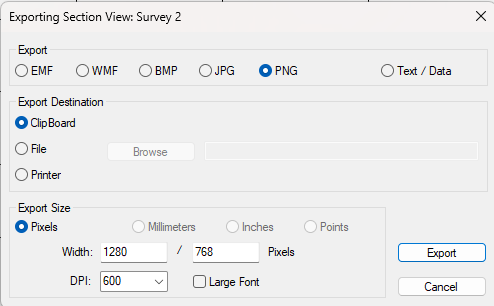 * **Clipboard**: Click on **Export** to send the chart to the clipboard, allowing it to be pasted as an image into another document.
* **File**: Saves the chart as an image file. Select the image file type from the section at the top. Click on **Browse** to choose where to save the file on your PC. Click on **Export** to save the file.
* **Printer**: Sends the chart to your default printer. Choose the size of the image in the **Export Size** section and the click on **Export** to print.
**Center on survey:** Only available in a **3D Plot**. Changes the view to a ‘fly down sphere’ cantered on the deepest survey in the reference well. The keyboard arrow keys can be used to move up and down the well.
**Show closest approach:** Only available in a **3D Plot.** The plot will show the centre-to-centre distance to the nearest offset well.
**Orientate to North:** Only available in a **3D Plot**. Orientates the 3D chart so that north on the chart is pointing straight up with reference to the screen.
**North Ref Distances:** Only available in a **3D Plot.** When toggled off, the show closest approach option will display distances with reference to the highside of the reference well. When toggled on, distances will be measured with reference to north.
**Go to bottom of well:** Only available in a **3D Plot.** When centre on survey is turned on, this will cause the fly down sphere to go to the deepest survey in the well.
**Go to top of well:** Only available in a **3D Plot**. When centre on survey is turned on, this will cause the fly down sphere to go to the surface of the well.
**X Axis on Top:** Moves the X-axis from the bottom to the top
**Y Axis on Right:** Moves the Y-axis from the left to the right.
**Additional X Axis:** Adds an additional X-axis.
**Additional Y Axis:** Adds an additional Y-axis.
**Add custom label:** Opens the Label Properties dialog, allowing the user to add a custom text label to the chart. The dialog can be re-opened for an existing label by double clicking on it. A label and it’s point marker can be moved by left clicking and dragging on it.
* **Clipboard**: Click on **Export** to send the chart to the clipboard, allowing it to be pasted as an image into another document.
* **File**: Saves the chart as an image file. Select the image file type from the section at the top. Click on **Browse** to choose where to save the file on your PC. Click on **Export** to save the file.
* **Printer**: Sends the chart to your default printer. Choose the size of the image in the **Export Size** section and the click on **Export** to print.
**Center on survey:** Only available in a **3D Plot**. Changes the view to a ‘fly down sphere’ cantered on the deepest survey in the reference well. The keyboard arrow keys can be used to move up and down the well.
**Show closest approach:** Only available in a **3D Plot.** The plot will show the centre-to-centre distance to the nearest offset well.
**Orientate to North:** Only available in a **3D Plot**. Orientates the 3D chart so that north on the chart is pointing straight up with reference to the screen.
**North Ref Distances:** Only available in a **3D Plot.** When toggled off, the show closest approach option will display distances with reference to the highside of the reference well. When toggled on, distances will be measured with reference to north.
**Go to bottom of well:** Only available in a **3D Plot.** When centre on survey is turned on, this will cause the fly down sphere to go to the deepest survey in the well.
**Go to top of well:** Only available in a **3D Plot**. When centre on survey is turned on, this will cause the fly down sphere to go to the surface of the well.
**X Axis on Top:** Moves the X-axis from the bottom to the top
**Y Axis on Right:** Moves the Y-axis from the left to the right.
**Additional X Axis:** Adds an additional X-axis.
**Additional Y Axis:** Adds an additional Y-axis.
**Add custom label:** Opens the Label Properties dialog, allowing the user to add a custom text label to the chart. The dialog can be re-opened for an existing label by double clicking on it. A label and it’s point marker can be moved by left clicking and dragging on it.
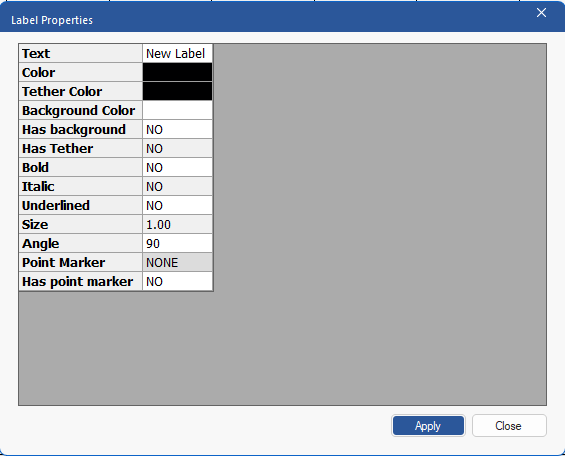 * **Text:** Enter the text for the label to display.
* **Colour:** The colour of the text.
* **Has Tether/Tether Colour:** Enables a tether/sets the colour of the tether. A tether draws a line from the label to the point marker.
* **Has Background/Background Colour:** Adds a background to the label/sets the colour of the background.
* **Bold/Italic/Underlined:** Adds formatting to the label text.
* **Size/Angle:** Sets the size/orientation of the label text.
* **Has Point Marker/Point Marker:** Makes the point marker visible/sets it’s shape.
---
# Agent Instructions
This documentation is published with GitBook. GitBook is the documentation platform designed so that both humans and AI agents can read, navigate, and reason over technical content effectively. Learn more at gitbook.com.
## Querying This Documentation
If you need additional information that is not directly available in this page, you can query the documentation by asking a question.
Perform an HTTP GET request on the following URL with the `ask` and `goal` query parameters:
```
GET https://docs.innova-drilling.com/introduction/innova-engineering-manual/well-seeker-x-manual/9.0-charts.md?ask=&goal=
```
`ask` is the immediate question: it should be specific, self-contained, and written in natural language.
`goal` is what the user is ultimately trying to achieve, the reason they need the answer. Sharing it helps GitBook give you a better, more relevant answer. A goal is most helpful when it describes the outcome the user wants rather than restating the question. For example, with `ask=how do I create an API token`, a goal like `automate deployments from our CI pipeline` lets GitBook tailor the answer to that use case.
The response will contain a direct answer to the question and relevant excerpts and sources from the documentation.
Use this mechanism when the answer is not explicitly present in the current page, you need clarification or additional context, or you want to retrieve related documentation sections.
* **Text:** Enter the text for the label to display.
* **Colour:** The colour of the text.
* **Has Tether/Tether Colour:** Enables a tether/sets the colour of the tether. A tether draws a line from the label to the point marker.
* **Has Background/Background Colour:** Adds a background to the label/sets the colour of the background.
* **Bold/Italic/Underlined:** Adds formatting to the label text.
* **Size/Angle:** Sets the size/orientation of the label text.
* **Has Point Marker/Point Marker:** Makes the point marker visible/sets it’s shape.
---
# Agent Instructions
This documentation is published with GitBook. GitBook is the documentation platform designed so that both humans and AI agents can read, navigate, and reason over technical content effectively. Learn more at gitbook.com.
## Querying This Documentation
If you need additional information that is not directly available in this page, you can query the documentation by asking a question.
Perform an HTTP GET request on the following URL with the `ask` and `goal` query parameters:
```
GET https://docs.innova-drilling.com/introduction/innova-engineering-manual/well-seeker-x-manual/9.0-charts.md?ask=&goal=
```
`ask` is the immediate question: it should be specific, self-contained, and written in natural language.
`goal` is what the user is ultimately trying to achieve, the reason they need the answer. Sharing it helps GitBook give you a better, more relevant answer. A goal is most helpful when it describes the outcome the user wants rather than restating the question. For example, with `ask=how do I create an API token`, a goal like `automate deployments from our CI pipeline` lets GitBook tailor the answer to that use case.
The response will contain a direct answer to the question and relevant excerpts and sources from the documentation.
Use this mechanism when the answer is not explicitly present in the current page, you need clarification or additional context, or you want to retrieve related documentation sections.