> For the complete documentation index, see [llms.txt](https://docs.innova-drilling.com/introduction/llms.txt). Markdown versions of documentation pages are available by appending `.md` to page URLs; this page is available as [Markdown](https://docs.innova-drilling.com/introduction/innova-engineering-manual/well-seeker-x-manual/9.0-charts/9.3-3d-chart.md).
# 9.3 - 3D Chart
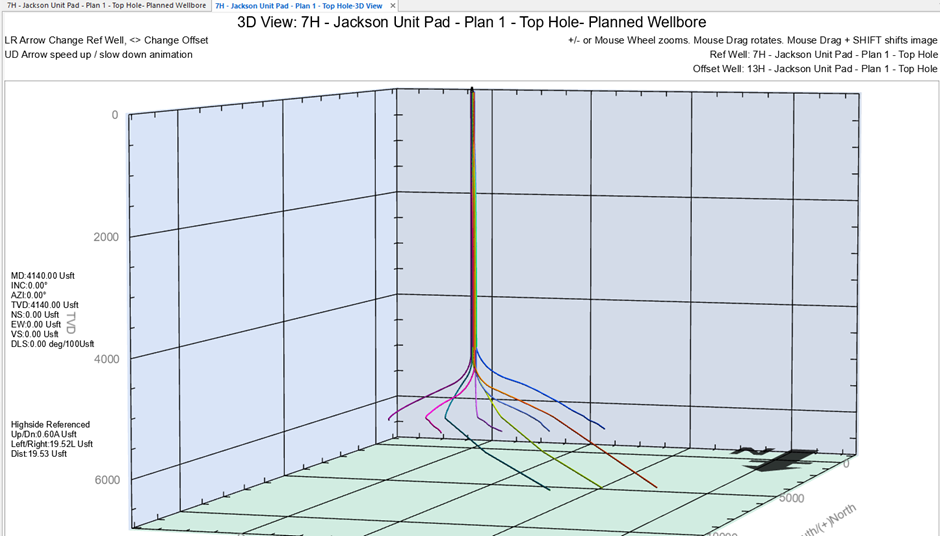
Displays a 3D representation of the well path, plotting North/South vs East/West vs TVD.
Figure 221: 3D Chart
The chart can be rotated and panned around the centre point using the mouse with the left mouse button depressed. The centre point can be adjusted by holding **Shift** and using the mouse with the left mouse button depressed if the option ‘Center on survey’ is not toggled on.
The plot is zoomed in and out using the **+** and **–** keys or by scrolling the mouse wheel.
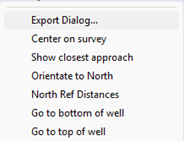
The 3D chart has a different right click chart menu to the other charts.
Figure 222: 3D Chart Context menu
The **Center on survey** option will zoom and centre the 3D plot on the reference well when selected. I also allow the user to manually move along the wellbore points using the **↑** and **↓** keys. In this state the chart displays the reference well point coordinates data and the up/down, left/right and centre to centre distance in relation to the currently selected offset well. The **North Ref Distances** option will toggle this distance between high side reference and north reference. The offset well can be individually toggled through all the currently displayed offset wells using the **<** and **>** keys.
If necessary, the **←** and **→** arrow keys can be used to toggle the displayed reference well to any of the currently displayed offset wells. This allows the user to change the reference well without having to come out of the chart, open a different well and then open a new chart.
Figure 223: 3D Chart – Centre on survey & Show closest approach.
When **Centre on survey** is selected the **Show closest approach** option can also be selected, displaying a line between the reference and offset well and labelled with centre-to-centre distance between them at that point in the reference well.
The **Go to bottom of well** and **Go to top of well** will send centre the view at the bottom or top of the well, respectively.
---
# Agent Instructions
This documentation is published with GitBook. GitBook is the documentation platform designed so that both humans and AI agents can read, navigate, and reason over technical content effectively. Learn more at gitbook.com.
## Querying This Documentation
If you need additional information that is not directly available in this page, you can query the documentation by asking a question.
Perform an HTTP GET request on the following URL with the `ask` and `goal` query parameters:
```
GET https://docs.innova-drilling.com/introduction/innova-engineering-manual/well-seeker-x-manual/9.0-charts/9.3-3d-chart.md?ask=&goal=
```
`ask` is the immediate question: it should be specific, self-contained, and written in natural language.
`goal` is what the user is ultimately trying to achieve, the reason they need the answer. Sharing it helps GitBook give you a better, more relevant answer. A goal is most helpful when it describes the outcome the user wants rather than restating the question. For example, with `ask=how do I create an API token`, a goal like `automate deployments from our CI pipeline` lets GitBook tailor the answer to that use case.
The response will contain a direct answer to the question and relevant excerpts and sources from the documentation.
Use this mechanism when the answer is not explicitly present in the current page, you need clarification or additional context, or you want to retrieve related documentation sections.