> For the complete documentation index, see [llms.txt](https://docs.innova-drilling.com/introduction/llms.txt). Markdown versions of documentation pages are available by appending `.md` to page URLs; this page is available as [Markdown](https://docs.innova-drilling.com/introduction/technical-notes/low-priority/troubleshooting-differences-in-anti-collision-results.md).
# Troubleshooting Differences in Anti-Collision Results
TA028-WS
## Description
Users can sometimes find that Well Seeker produces different anti-collision results, when compared to other well planning software. To analyse this discrepancy, the user must ensure that both programs have exactly the same setup and inputs, so that they can be sure they are comparing like-for-like results.
This document details the procedures that the user should follow to double check that the setup and inputs they are using to generate the anti-collision results in Well Seeker match those of the program they are comparing against.
## Procedure
The steps below should be repeated for the reference well/plan and any offset wells/plans that exhibit a difference in anti-collision results between the software packages.
### 1) Centre-to-Centre Measurements
Before comparing ellipse of uncertainty or separation factor results, it is important to compare the centre-to-centre distance results between the two programs. If these are different, they will create a discrepancy in the anti-collision results even if the ellipse of uncertainty calculations are identical.
If there is a difference in the centre-to-centre results it indicates that the wellbores are not exactly the same in both programs. Double check the following for your reference well and each of the relevant offsets:
1. **Survey / Well Plan bottom line**
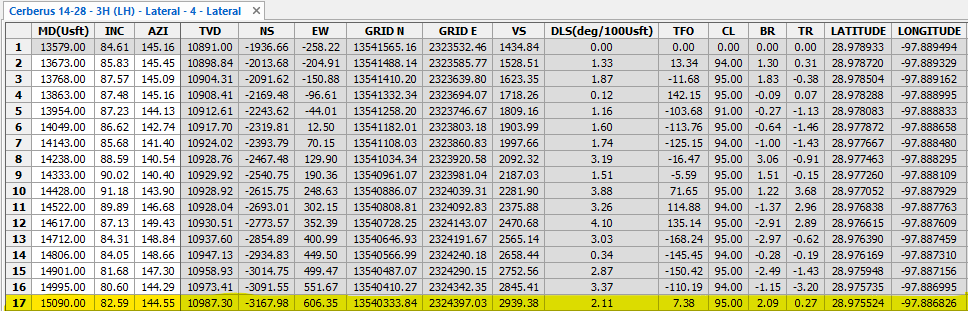
A good initial check is to look at the bottom line of the relevant plan and surveys, and check if these match what you have in the other program.
Discrepancies in the TVD, local (NS / EW) coordinates and the DLS can indicate that there may be some level of inconsistency with the survey / plan points between the programs. Differences in the grid north and east values or the latitude and longitude values may in addition, point to an issue with the surface location.
2. **Surface location**
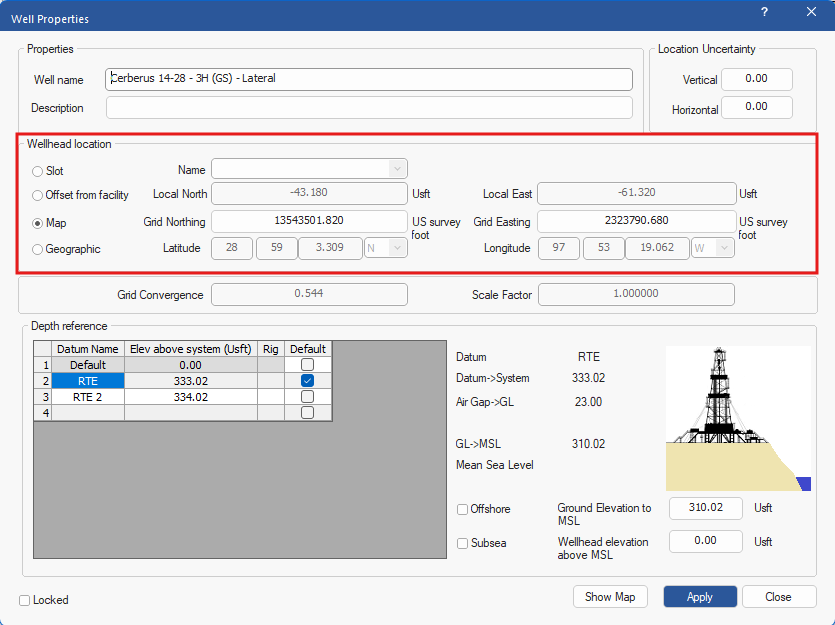
The surface location of the well is defined in the **Well Properties** window in the Wellhead Location section. It can be defined as an absolute location using grid northing/easting or latitude/longitude, or it can be defined as a distance (north/east) offset from the facility.
3. **Survey program**
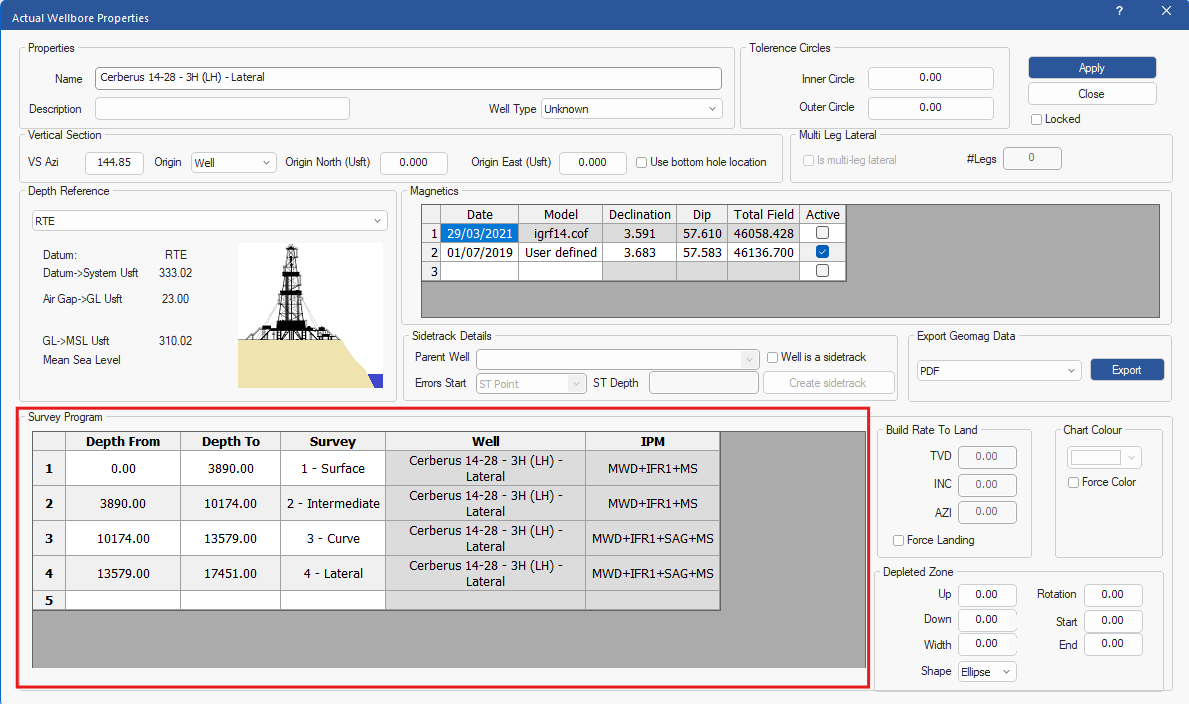
The survey program is defined in the **Actual Wellbore/Plan Properties** window. Ensure that the survey program in Well Seeker matches exactly with what is being used in the program you are comparing against.
4. **Survey tie-on points**
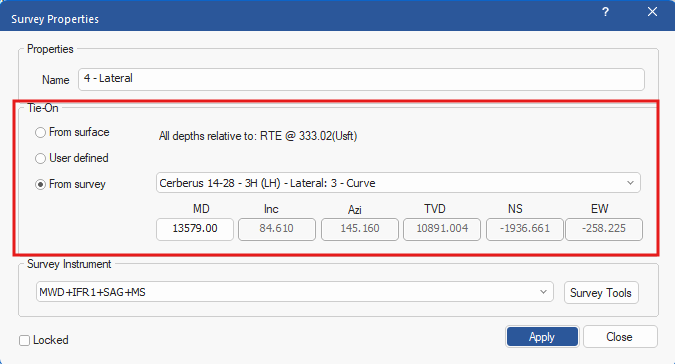
As well as the survey program, check that the tie-on points for all surveys is correct and matches with the tie-on points in the other program. The tie-on point for each survey is defined in the **Survey Properties** window.
5. **Surveys / Plans**
Finally, ensure that the reference wellbore and offset wellbores have been constructed using exactly the same surveys / planning points. If the survey / planned points are different, or if the number of surveys is different, this will affect both the well path itself and the calculation of the error ellipses.
### 2) Anti-Collision Settings
If you have confirmed that you are getting the same centre-to-centre distance values, but the rest of the anti-collision outputs are not matching, then you now need to compare the inputs that affect the error ellipse calculations.
The first thing you should compare is the anti-collision calculation settings. In Well Seeker, most anti-collision settings are defined in the **Operator Properties** window.
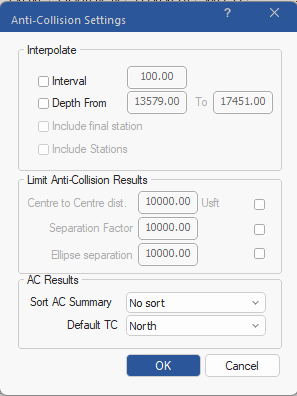
There are additional anti-collision settings that can be accessed from the **Home** menu (**Home – Real Time - Settings**)

### 3) Facility / Well Location Uncertainty
The Facility and Well Properties dialog’s both contain location uncertainty inputs which have an effect on the size of the ellipse of uncertainty calculation and therefore the anti-collision. Check that the values entered here match what is being used in the other program.
 
### 4) Magnetics Data
Check that you are using the same magnetics data in both programs. Open the **Actual Wellbore/Plan Properties** window for your actual well/plan. In the Magnetics section, the **Declination, Dip** and **Total Field** values must match exactly with the values entered in the other program. If you have multiple rows in the Magnetics section, the one marked as **Active** is the one being used in the error ellipse calculation.

### 5) Survey Tool Error Models (IPMs)
In the **Actual Wellbore/Plan Properties** window, check that your actual well/plan is using the same survey tool error models in both Well Seeker and the other program. These error models are also known as IPMs (Instrument Performance Models). To check your IPMs in Well Seeker, check the IPM column in the survey program section of the Actual Wellbore/Plan Properties window.
You can change your IPMs for a well plan in the Plan Properties window, but for actual wells you need to change the IPMs for each survey individually via the Survey Properties window.

### 6) Error Model (IPM) Terms
If both programs are using the same IPMs i.e. they have the same name, check that the error terms contained in each IPM match. It is possible for two IPMs to have the same name, but contain different error terms. To view the IPMs in Well Seeker, open the **Tools** menu and select **Survey Tools**. For each IPM used, check that it matches exactly with the error model used in the other program. This is often the reason for the differences being seen.

Note that the .ipm files used in Well Seeker are compatible with Landmarks Compass. If a Compass edm file was used to import any of the well data into Well Seeker, then the user has the option to also import the ipm files (**Home –Import EDM–Settings**), ensuring that these match between programs.

The following document details some additional points the user should be aware of: [Compass IPM Issues](https://docs.innova-drilling.com/introduction/well-seeker-pro-guides/compass-ipm-issues)
You can quickly locate the physical **.ipm** files by clicking on the **Open IPM Folder** icon in the toolbar of the Survey Tool Editor.

### 7) BGGM Error Estimates
The [BGGM Error Estimate integration](https://docs.innova-drilling.com/introduction/technical-notes/low-priority/survey-tool-bgs-integration) is a feature that was added to Well Seeker in version 2.2.0.0.

Available via the survey tool editor, when turned on, this integration allows for real time updates to some of the values in the selected magnetic survey tools Instrument Performance Models (IPM’s). Depending on the selected IPM models, this option will have a direct influence on the error ellipse output and in turn the anti-collision results. Check if this is switched on and if so try turning it off.
### 8) Compass Diagnostic File
If the program you are comparing the anti-collision results against is Compass, and you have confirmed that the two programs are matching in the above steps, but the anti-collision results are still not tying in, then the next step is to supply Innova with a Compass Diagnostic file. This file contains all the information required to investigate the issue. To generate a compass diagnostic file, follow the below instructions:
**Select a reference well and ONE offset. Troubleshooting these issues is easier when we are only dealing with 2 wells. Sending reports that include data for lots of wells makes this process much more challenging so please limit this to just a reference well and a single offset.**
1. When in Compass, open the Survey tools dialog

2. Select to Enable the “Default Diagnostic” box
3. Open the **Reference** survey or plan, and then run an error ellipse report
* Don’t worry about the report, you can just close it once it has been generated.
4. Come back to the survey tool dialog and select Open to open the diagnostic file folder.
5. The generated file will be named ***se1.txt***
* Every time you create a new file, the number will increase by one, so copy the most recent file.
6. Now repeat steps 3 - 5 for the **Offset** survey or plan
### 9) Comparing Diagnostic Files
If the centre-to-centre distances and the inputs described in the previous sections match, but the anti-collision results are still different, compare the Compass Diagnostic file with the Well Seeker diagnostic information. This can help identify which error terms are causing the discrepancy.
For a useful comparison, use the diagnostic information for the same reference well and offset well in both programs. Start by comparing the bottom station of the well rather than the first station where the two reports can be compared.
1. Compare the key output terms. At the bottom station, focus on the following three values when comparing the error ellipse results between the two programs: sig H/S, sig LAT and sig A/H

Differences in the other diagnostic terms may be useful for identifying the source of the discrepancy, but these three are the primary values to compare.
2. Use differing terms to identify the source. If the values above do not match, look at which error terms differ significantly between the two diagnostic files.
Depth-related terms such as drfr, dsfs and dstg indicate that the discrepancy may be related to depth handling.

In some circumstances, the elevation is not applied correctly when recalling the survey. This can result in the TVD values being returned as negative rather than starting from the expected reference of 0, effectively leaving them as **TVD subsea**.
A quick way to identify this issue is to check the TVD values at the relevant survey stations and look at how the depth-related error terms change with depth. An unexpected negative starting value or offset may indicate that the datum/elevation has not been correctly applied.
3. Swon and swoff error model terms. Check w\_12, w\_34, xcly and xclx terms to identify if swon and swoff are included in the formula.
Swon and swoff are not supported in Well Seeker and are not part of the ISCWSA or OXY standards. Error models containing these terms should therefore not be used when comparing against Well Seeker.

If swon and swoff appear in an error model from the other software, this may explain a difference in the anti-collision results. Check the error model terms and confirm that the model being compared is supported and compliant.
### 10) Information to provide to Support
If the cause of the discrepancy cannot be identified from the comparison, please provide the following documents to for investigation:
* **Survey/Planning Report** for both the reference and the offset well from Compass
* **Anti-Collision Report** from Compass, including **only** the reference and offset well
* Make sure this is the detailed report, showing all survey stations, rather than the summary report and with 100ft intervals.
* **Compass Diagnostic File** for both the reference and the offset well.
* **Well Seeker debugging zip file** – Go to Help and click on Create in the Debug section.
* An **EDM export file** of the well in question from Compass, if available.
* Relevant **IPM/error model files** – Access your IPM folder in Well Seeker X by going to Tools and clicking on Open in the IPM Files section.
* A detailed explanation of the issue you are having, ideally including comparative screen shots.
---
# Agent Instructions
This documentation is published with GitBook. GitBook is the documentation platform designed so that both humans and AI agents can read, navigate, and reason over technical content effectively. Learn more at gitbook.com.
## Querying This Documentation
If you need additional information that is not directly available in this page, you can query the documentation by asking a question.
Perform an HTTP GET request on the following URL with the `ask` and `goal` query parameters:
```
GET https://docs.innova-drilling.com/introduction/technical-notes/low-priority/troubleshooting-differences-in-anti-collision-results.md?ask=&goal=
```
`ask` is the immediate question: it should be specific, self-contained, and written in natural language.
`goal` is what the user is ultimately trying to achieve, the reason they need the answer. Sharing it helps GitBook give you a better, more relevant answer. A goal is most helpful when it describes the outcome the user wants rather than restating the question. For example, with `ask=how do I create an API token`, a goal like `automate deployments from our CI pipeline` lets GitBook tailor the answer to that use case.
The response will contain a direct answer to the question and relevant excerpts and sources from the documentation.
Use this mechanism when the answer is not explicitly present in the current page, you need clarification or additional context, or you want to retrieve related documentation sections.
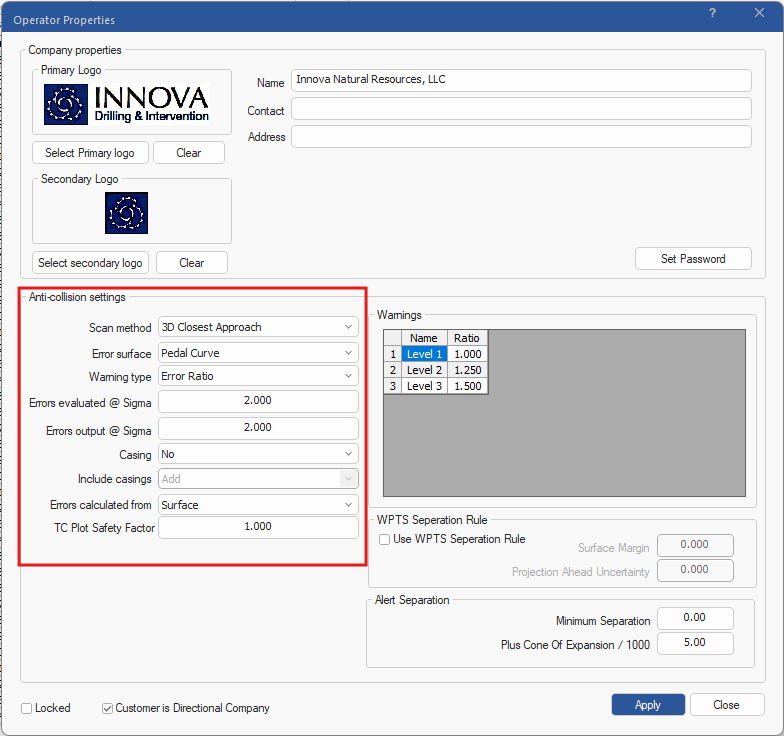 There are additional anti-collision settings that can be accessed from the **Home** menu (**Home – Real Time - Settings**)

There are additional anti-collision settings that can be accessed from the **Home** menu (**Home – Real Time - Settings**)

 ### 3) Facility / Well Location Uncertainty
The Facility and Well Properties dialog’s both contain location uncertainty inputs which have an effect on the size of the ellipse of uncertainty calculation and therefore the anti-collision. Check that the values entered here match what is being used in the other program.
 
### 4) Magnetics Data
Check that you are using the same magnetics data in both programs. Open the **Actual Wellbore/Plan Properties** window for your actual well/plan. In the Magnetics section, the **Declination, Dip** and **Total Field** values must match exactly with the values entered in the other program. If you have multiple rows in the Magnetics section, the one marked as **Active** is the one being used in the error ellipse calculation.

### 5) Survey Tool Error Models (IPMs)
In the **Actual Wellbore/Plan Properties** window, check that your actual well/plan is using the same survey tool error models in both Well Seeker and the other program. These error models are also known as IPMs (Instrument Performance Models). To check your IPMs in Well Seeker, check the IPM column in the survey program section of the Actual Wellbore/Plan Properties window.
You can change your IPMs for a well plan in the Plan Properties window, but for actual wells you need to change the IPMs for each survey individually via the Survey Properties window.

### 6) Error Model (IPM) Terms
If both programs are using the same IPMs i.e. they have the same name, check that the error terms contained in each IPM match. It is possible for two IPMs to have the same name, but contain different error terms. To view the IPMs in Well Seeker, open the **Tools** menu and select **Survey Tools**. For each IPM used, check that it matches exactly with the error model used in the other program. This is often the reason for the differences being seen.

Note that the .ipm files used in Well Seeker are compatible with Landmarks Compass. If a Compass edm file was used to import any of the well data into Well Seeker, then the user has the option to also import the ipm files (**Home –Import EDM–Settings**), ensuring that these match between programs.

The following document details some additional points the user should be aware of: [Compass IPM Issues](https://docs.innova-drilling.com/introduction/well-seeker-pro-guides/compass-ipm-issues)
You can quickly locate the physical **.ipm** files by clicking on the **Open IPM Folder** icon in the toolbar of the Survey Tool Editor.

### 7) BGGM Error Estimates
The [BGGM Error Estimate integration](https://docs.innova-drilling.com/introduction/technical-notes/low-priority/survey-tool-bgs-integration) is a feature that was added to Well Seeker in version 2.2.0.0.

Available via the survey tool editor, when turned on, this integration allows for real time updates to some of the values in the selected magnetic survey tools Instrument Performance Models (IPM’s). Depending on the selected IPM models, this option will have a direct influence on the error ellipse output and in turn the anti-collision results. Check if this is switched on and if so try turning it off.
### 8) Compass Diagnostic File
If the program you are comparing the anti-collision results against is Compass, and you have confirmed that the two programs are matching in the above steps, but the anti-collision results are still not tying in, then the next step is to supply Innova with a Compass Diagnostic file. This file contains all the information required to investigate the issue. To generate a compass diagnostic file, follow the below instructions:
**Select a reference well and ONE offset. Troubleshooting these issues is easier when we are only dealing with 2 wells. Sending reports that include data for lots of wells makes this process much more challenging so please limit this to just a reference well and a single offset.**
1. When in Compass, open the Survey tools dialog

2. Select to Enable the “Default Diagnostic” box
3. Open the **Reference** survey or plan, and then run an error ellipse report
* Don’t worry about the report, you can just close it once it has been generated.
4. Come back to the survey tool dialog and select Open to open the diagnostic file folder.
5. The generated file will be named ***se1.txt***
* Every time you create a new file, the number will increase by one, so copy the most recent file.
6. Now repeat steps 3 - 5 for the **Offset** survey or plan
### 9) Comparing Diagnostic Files
If the centre-to-centre distances and the inputs described in the previous sections match, but the anti-collision results are still different, compare the Compass Diagnostic file with the Well Seeker diagnostic information. This can help identify which error terms are causing the discrepancy.
For a useful comparison, use the diagnostic information for the same reference well and offset well in both programs. Start by comparing the bottom station of the well rather than the first station where the two reports can be compared.
1. Compare the key output terms. At the bottom station, focus on the following three values when comparing the error ellipse results between the two programs: sig H/S, sig LAT and sig A/H

Differences in the other diagnostic terms may be useful for identifying the source of the discrepancy, but these three are the primary values to compare.
2. Use differing terms to identify the source. If the values above do not match, look at which error terms differ significantly between the two diagnostic files.
Depth-related terms such as drfr, dsfs and dstg indicate that the discrepancy may be related to depth handling.

In some circumstances, the elevation is not applied correctly when recalling the survey. This can result in the TVD values being returned as negative rather than starting from the expected reference of 0, effectively leaving them as **TVD subsea**.
A quick way to identify this issue is to check the TVD values at the relevant survey stations and look at how the depth-related error terms change with depth. An unexpected negative starting value or offset may indicate that the datum/elevation has not been correctly applied.
3. Swon and swoff error model terms. Check w\_12, w\_34, xcly and xclx terms to identify if swon and swoff are included in the formula.
Swon and swoff are not supported in Well Seeker and are not part of the ISCWSA or OXY standards. Error models containing these terms should therefore not be used when comparing against Well Seeker.

If swon and swoff appear in an error model from the other software, this may explain a difference in the anti-collision results. Check the error model terms and confirm that the model being compared is supported and compliant.
### 10) Information to provide to Support
If the cause of the discrepancy cannot be identified from the comparison, please provide the following documents to
### 3) Facility / Well Location Uncertainty
The Facility and Well Properties dialog’s both contain location uncertainty inputs which have an effect on the size of the ellipse of uncertainty calculation and therefore the anti-collision. Check that the values entered here match what is being used in the other program.
 
### 4) Magnetics Data
Check that you are using the same magnetics data in both programs. Open the **Actual Wellbore/Plan Properties** window for your actual well/plan. In the Magnetics section, the **Declination, Dip** and **Total Field** values must match exactly with the values entered in the other program. If you have multiple rows in the Magnetics section, the one marked as **Active** is the one being used in the error ellipse calculation.

### 5) Survey Tool Error Models (IPMs)
In the **Actual Wellbore/Plan Properties** window, check that your actual well/plan is using the same survey tool error models in both Well Seeker and the other program. These error models are also known as IPMs (Instrument Performance Models). To check your IPMs in Well Seeker, check the IPM column in the survey program section of the Actual Wellbore/Plan Properties window.
You can change your IPMs for a well plan in the Plan Properties window, but for actual wells you need to change the IPMs for each survey individually via the Survey Properties window.

### 6) Error Model (IPM) Terms
If both programs are using the same IPMs i.e. they have the same name, check that the error terms contained in each IPM match. It is possible for two IPMs to have the same name, but contain different error terms. To view the IPMs in Well Seeker, open the **Tools** menu and select **Survey Tools**. For each IPM used, check that it matches exactly with the error model used in the other program. This is often the reason for the differences being seen.

Note that the .ipm files used in Well Seeker are compatible with Landmarks Compass. If a Compass edm file was used to import any of the well data into Well Seeker, then the user has the option to also import the ipm files (**Home –Import EDM–Settings**), ensuring that these match between programs.

The following document details some additional points the user should be aware of: [Compass IPM Issues](https://docs.innova-drilling.com/introduction/well-seeker-pro-guides/compass-ipm-issues)
You can quickly locate the physical **.ipm** files by clicking on the **Open IPM Folder** icon in the toolbar of the Survey Tool Editor.

### 7) BGGM Error Estimates
The [BGGM Error Estimate integration](https://docs.innova-drilling.com/introduction/technical-notes/low-priority/survey-tool-bgs-integration) is a feature that was added to Well Seeker in version 2.2.0.0.

Available via the survey tool editor, when turned on, this integration allows for real time updates to some of the values in the selected magnetic survey tools Instrument Performance Models (IPM’s). Depending on the selected IPM models, this option will have a direct influence on the error ellipse output and in turn the anti-collision results. Check if this is switched on and if so try turning it off.
### 8) Compass Diagnostic File
If the program you are comparing the anti-collision results against is Compass, and you have confirmed that the two programs are matching in the above steps, but the anti-collision results are still not tying in, then the next step is to supply Innova with a Compass Diagnostic file. This file contains all the information required to investigate the issue. To generate a compass diagnostic file, follow the below instructions:
**Select a reference well and ONE offset. Troubleshooting these issues is easier when we are only dealing with 2 wells. Sending reports that include data for lots of wells makes this process much more challenging so please limit this to just a reference well and a single offset.**
1. When in Compass, open the Survey tools dialog

2. Select to Enable the “Default Diagnostic” box
3. Open the **Reference** survey or plan, and then run an error ellipse report
* Don’t worry about the report, you can just close it once it has been generated.
4. Come back to the survey tool dialog and select Open to open the diagnostic file folder.
5. The generated file will be named ***se1.txt***
* Every time you create a new file, the number will increase by one, so copy the most recent file.
6. Now repeat steps 3 - 5 for the **Offset** survey or plan
### 9) Comparing Diagnostic Files
If the centre-to-centre distances and the inputs described in the previous sections match, but the anti-collision results are still different, compare the Compass Diagnostic file with the Well Seeker diagnostic information. This can help identify which error terms are causing the discrepancy.
For a useful comparison, use the diagnostic information for the same reference well and offset well in both programs. Start by comparing the bottom station of the well rather than the first station where the two reports can be compared.
1. Compare the key output terms. At the bottom station, focus on the following three values when comparing the error ellipse results between the two programs: sig H/S, sig LAT and sig A/H

Differences in the other diagnostic terms may be useful for identifying the source of the discrepancy, but these three are the primary values to compare.
2. Use differing terms to identify the source. If the values above do not match, look at which error terms differ significantly between the two diagnostic files.
Depth-related terms such as drfr, dsfs and dstg indicate that the discrepancy may be related to depth handling.

In some circumstances, the elevation is not applied correctly when recalling the survey. This can result in the TVD values being returned as negative rather than starting from the expected reference of 0, effectively leaving them as **TVD subsea**.
A quick way to identify this issue is to check the TVD values at the relevant survey stations and look at how the depth-related error terms change with depth. An unexpected negative starting value or offset may indicate that the datum/elevation has not been correctly applied.
3. Swon and swoff error model terms. Check w\_12, w\_34, xcly and xclx terms to identify if swon and swoff are included in the formula.
Swon and swoff are not supported in Well Seeker and are not part of the ISCWSA or OXY standards. Error models containing these terms should therefore not be used when comparing against Well Seeker.

If swon and swoff appear in an error model from the other software, this may explain a difference in the anti-collision results. Check the error model terms and confirm that the model being compared is supported and compliant.
### 10) Information to provide to Support
If the cause of the discrepancy cannot be identified from the comparison, please provide the following documents to