> For the complete documentation index, see [llms.txt](https://docs.innova-drilling.com/introduction/llms.txt). Markdown versions of documentation pages are available by appending `.md` to page URLs; this page is available as [Markdown](https://docs.innova-drilling.com/introduction/innova-engineering-manual/well-seeker-x-manual/8.0-menu-ribbons/8.4-settings.md).
# 8.4 - Settings
On the Settings ribbon the user can configure various aspects of Well Seeker X, such as unit sets, display options, logos, and default report colours. Settings chosen in this tab will be maintained even if the user closes and reopens Well Seeker X.

## 8.4.1 - View
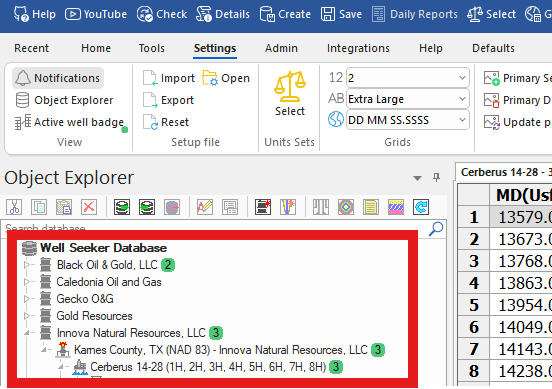
**Notifications:** Opens the Notifications panel on the right side of the main interface.

**Object Explorer:** Toggles the display of the Object Explorer on the left side of the main interface.
**Active well badge:** Toggling this option will display a green badge with a number inside to show how many active wells are contained under each level of the Object Explorer.
 ## 8.4.2 - Setup File
This section allows the user to manage their Well Seeker setup file. The setup file contains all the Well Seeker settings which the user has on their computer including Chart Defaults, Column Selections, Font Size etc. It also contains the toolbar and ribbon layout. It does not contain the unit set, to prevent units changing without the user’s knowledge.
**Import:** Allows the user to import a **Setup.ini\_** file. This will allow the user to instantly set up a new computer with the same settings being used on another machine. This import will not change the units the user had selected before the import and it will also not affect the database which they are working in. i.e., it will not cause them to switch databases. The user will also be asked if they want to import Toolbar Layout information. The user can import any .ini file. If Well Seeker does not recognize it as a valid setup file, it will give a warning message. Note that setup files exported from obsolete versions of Well Seeker may not be recognised by the latest version.
**Export:** Exports the users ***Setup.ini*** file. the user is referencing at the time of export. The exported file does not need to be named ‘setup.ini’, the user can give it any name for easier identification later. It will also export the user’s toolbar and ribbon layout.
**Reset**: Resets the setup file back to its original install settings.
**Open:** Opens the setup file folder, where the **setupWS.ini**file is stored. By default the address of this folder is *C:\Users\[YOUR USERNAME]\AppData\Roaming\Well Seeker Pro*
## 8.4.3 - Unit Sets
This option opens the Units Sets dialog. The unit set defines the units which Well Seeker X uses to display data. US Feet is the default unit set when Well Seeker is first installed. The user can change unit sets by selecting from the **Select Unit Set**dropdown box. When a unit set is selected, it applies to the entire database.
**Note:** Changing unit sets will convert the values in your database. For example, if the user enters a MD of 1000 feet while using the API unit, and then switches to the SI unit set, that MD will be converted to 304.8 to show the same value but in metres. This means that it is important to have the correct unit set selected when entering your data.

A unit set is a specifically formatted text file which is stored in the Units Sets folder in the Setup File directory. This directory can be opened by clicking on the **Open**button in the Settings ribbon. Unit set files can be copied from computer to computer, and if they are placed in the Unit Sets folder will become visible to Well Seeker X. By default, Well Seeker X comes with six unit set files: **API**, **CAD,** **ND, SI, US** **– TQ FTLBS** and **US**.
A unit sets file contains sixteen parameters. Some are related to the planning, survey and anti-collision portions of the program and other relate to the daily reporting and engineering sections:
1. **Depth**: Current units for measured depth and TVD. Options are Feet, US Feet and Meters.
2. **Diameter**: This defines the units used to display Casing OD and ID as well as hole size. Options are mm and inches.
3. **Dogleg Base**: The current units DLS, BR and TR are displayed in. Options are Deg/100ft (or 30m), Deg/30ft (or 10m), Deg/10ft (or 5m) and user defined. If user defined is selected, the Value column becomes active, and the units value becomes degrees per unit length based on the parameter entered.
4. **Flow Rate**: Current units for flow rate. User can choose between GPM, LPM, BBL/min and M3/min.
5. **Pressure**: Current units for Pressure. User can choose between Bar, psi, Kpa and Kg/cm2.
6. **Volume**: Current units for Volume. User can choose between BBLS and m3.
7. **Mud**: Current units for Mud Weight. User can choose between PPG, SG, psi/ft3, lbs/ft3and kg/m3.
8. **Weight**: Current units for Weight. User can choose between klbs, tons and kdaN.
9. **Unit weight**: Current units for Unit Weight. User can choose between lb/ft and kg/m.
10. **Torque**: Current units for Torque. User can choose between kftlb, kNm and ftlbs.
11. **Temperature**: Current units for Temperature. User can choose between degC and degF.
12. **Cost**: Current units for Cost. User can choose between $, EUR, GBP and KWD.
13. **Jets**: Current units for Jet size. User can choose between in2 and mm2.
14. **Magnetics:** Current units for Magnetics: User can choose between Geolink / Tensor (mv), SSP / SUCOP (uT), nT, nT no XY inversion, uT (XY Inversion) and EVO / Applied Physics.
15. **Accelerometer:** Current units for Accelerometer. User can choose between G, mG, G Invert Z Axis and mG Invert Z Axis2.
16. **Energy:** Current units for Energy. User can choose kJ.
A new unit set file can be created by clicking the **Create New** button and can be edited by clicking the **Edit** button. To save changes, including changing the unit set currently selected, click the **Apply** button. To delete a unit set, click on **Delete** button.
## 8.4.4 - Grids
The options in this section control how text is displayed in grids – such as the survey/plan/wellbore display, daily activities and the slide sheet.
**12: Decimal Places** – Defines how many decimal places values will display.
**AB: Font Size** – Sets the size of text displayed in grids.
: **Lat Long Units** – Set whether latitude and longitude is displayed in decimal degrees or DD MM SS.SSSS format.
## 8.4.5 - Default Logos
**Primary Select:** Selects a default primary logo from a file on the user’s local computer. Newly created operators will have this logo automatically assigned as their primary logo. Well Seeker X supports bmp, png and jpg formats. The logo file size must be less than 2 MB.
**Primary Delete:** Deletes the currently set default primary logo.
**Update Primary:** Updates all operators to use the current default primary logo.
**Secondary Select:** Selects a default secondary logo from a file on the user’s local computer. Newly created operators will have this logo automatically assigned as their secondary logo. Well Seeker X supports bmp, png and jpg formats. The logo file size must be less than 2 MB.
**Secondary Delete:** Deletes the currently set default secondary logo.
**Update Secondary:** Updates all operators to use the current default secondary logo.
## 8.4.6 - WITS Mapping
Opens the WITS Mapping dialog. The WITS Mapping is where the user defines which WITS channel corresponds to which internal mnemonic used by Well Seeker X. Setting up the correct mapping is required if the user wishes to use serial or ethernet (UDP/TCP) WITS to receive data from the rig’s EDR system. It is not necessary if the user is using WITSML or MQTT WITS.
## 8.4.2 - Setup File
This section allows the user to manage their Well Seeker setup file. The setup file contains all the Well Seeker settings which the user has on their computer including Chart Defaults, Column Selections, Font Size etc. It also contains the toolbar and ribbon layout. It does not contain the unit set, to prevent units changing without the user’s knowledge.
**Import:** Allows the user to import a **Setup.ini\_** file. This will allow the user to instantly set up a new computer with the same settings being used on another machine. This import will not change the units the user had selected before the import and it will also not affect the database which they are working in. i.e., it will not cause them to switch databases. The user will also be asked if they want to import Toolbar Layout information. The user can import any .ini file. If Well Seeker does not recognize it as a valid setup file, it will give a warning message. Note that setup files exported from obsolete versions of Well Seeker may not be recognised by the latest version.
**Export:** Exports the users ***Setup.ini*** file. the user is referencing at the time of export. The exported file does not need to be named ‘setup.ini’, the user can give it any name for easier identification later. It will also export the user’s toolbar and ribbon layout.
**Reset**: Resets the setup file back to its original install settings.
**Open:** Opens the setup file folder, where the **setupWS.ini**file is stored. By default the address of this folder is *C:\Users\[YOUR USERNAME]\AppData\Roaming\Well Seeker Pro*
## 8.4.3 - Unit Sets
This option opens the Units Sets dialog. The unit set defines the units which Well Seeker X uses to display data. US Feet is the default unit set when Well Seeker is first installed. The user can change unit sets by selecting from the **Select Unit Set**dropdown box. When a unit set is selected, it applies to the entire database.
**Note:** Changing unit sets will convert the values in your database. For example, if the user enters a MD of 1000 feet while using the API unit, and then switches to the SI unit set, that MD will be converted to 304.8 to show the same value but in metres. This means that it is important to have the correct unit set selected when entering your data.

A unit set is a specifically formatted text file which is stored in the Units Sets folder in the Setup File directory. This directory can be opened by clicking on the **Open**button in the Settings ribbon. Unit set files can be copied from computer to computer, and if they are placed in the Unit Sets folder will become visible to Well Seeker X. By default, Well Seeker X comes with six unit set files: **API**, **CAD,** **ND, SI, US** **– TQ FTLBS** and **US**.
A unit sets file contains sixteen parameters. Some are related to the planning, survey and anti-collision portions of the program and other relate to the daily reporting and engineering sections:
1. **Depth**: Current units for measured depth and TVD. Options are Feet, US Feet and Meters.
2. **Diameter**: This defines the units used to display Casing OD and ID as well as hole size. Options are mm and inches.
3. **Dogleg Base**: The current units DLS, BR and TR are displayed in. Options are Deg/100ft (or 30m), Deg/30ft (or 10m), Deg/10ft (or 5m) and user defined. If user defined is selected, the Value column becomes active, and the units value becomes degrees per unit length based on the parameter entered.
4. **Flow Rate**: Current units for flow rate. User can choose between GPM, LPM, BBL/min and M3/min.
5. **Pressure**: Current units for Pressure. User can choose between Bar, psi, Kpa and Kg/cm2.
6. **Volume**: Current units for Volume. User can choose between BBLS and m3.
7. **Mud**: Current units for Mud Weight. User can choose between PPG, SG, psi/ft3, lbs/ft3and kg/m3.
8. **Weight**: Current units for Weight. User can choose between klbs, tons and kdaN.
9. **Unit weight**: Current units for Unit Weight. User can choose between lb/ft and kg/m.
10. **Torque**: Current units for Torque. User can choose between kftlb, kNm and ftlbs.
11. **Temperature**: Current units for Temperature. User can choose between degC and degF.
12. **Cost**: Current units for Cost. User can choose between $, EUR, GBP and KWD.
13. **Jets**: Current units for Jet size. User can choose between in2 and mm2.
14. **Magnetics:** Current units for Magnetics: User can choose between Geolink / Tensor (mv), SSP / SUCOP (uT), nT, nT no XY inversion, uT (XY Inversion) and EVO / Applied Physics.
15. **Accelerometer:** Current units for Accelerometer. User can choose between G, mG, G Invert Z Axis and mG Invert Z Axis2.
16. **Energy:** Current units for Energy. User can choose kJ.
A new unit set file can be created by clicking the **Create New** button and can be edited by clicking the **Edit** button. To save changes, including changing the unit set currently selected, click the **Apply** button. To delete a unit set, click on **Delete** button.
## 8.4.4 - Grids
The options in this section control how text is displayed in grids – such as the survey/plan/wellbore display, daily activities and the slide sheet.
**12: Decimal Places** – Defines how many decimal places values will display.
**AB: Font Size** – Sets the size of text displayed in grids.
: **Lat Long Units** – Set whether latitude and longitude is displayed in decimal degrees or DD MM SS.SSSS format.
## 8.4.5 - Default Logos
**Primary Select:** Selects a default primary logo from a file on the user’s local computer. Newly created operators will have this logo automatically assigned as their primary logo. Well Seeker X supports bmp, png and jpg formats. The logo file size must be less than 2 MB.
**Primary Delete:** Deletes the currently set default primary logo.
**Update Primary:** Updates all operators to use the current default primary logo.
**Secondary Select:** Selects a default secondary logo from a file on the user’s local computer. Newly created operators will have this logo automatically assigned as their secondary logo. Well Seeker X supports bmp, png and jpg formats. The logo file size must be less than 2 MB.
**Secondary Delete:** Deletes the currently set default secondary logo.
**Update Secondary:** Updates all operators to use the current default secondary logo.
## 8.4.6 - WITS Mapping
Opens the WITS Mapping dialog. The WITS Mapping is where the user defines which WITS channel corresponds to which internal mnemonic used by Well Seeker X. Setting up the correct mapping is required if the user wishes to use serial or ethernet (UDP/TCP) WITS to receive data from the rig’s EDR system. It is not necessary if the user is using WITSML or MQTT WITS.
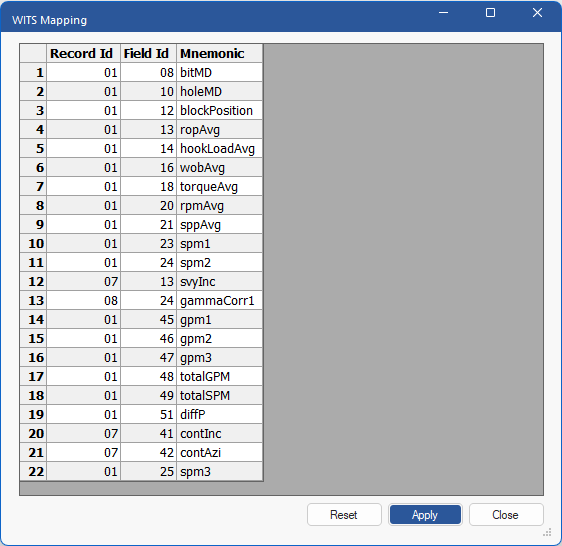 The table contains each of the **Mnemonics** used in Well Seeker X and the corresponding channel **Record** and **Field ID**. The default Record and Field ID values come from [WITS zero standard](http://home.sprynet.com/~carob/).
The user should configure the Record and Field ID for each Mnemonic so that they match with the Record and Field that is being output by the rig EDR system (e.g. PASON or TOTCO). Click on the **Mnemonic** cell to choose from the available options in the dropdown menu:
* For example, the EDR system is outputting the **bit measured depth** on **record ID 01**, **field ID 08**. We must have the WITS mapping set to the same record and field for the **bitMD** mnemonic.
* Note that EDR systems often output the hookload average and WOB average values on the hookload max and WOB max channels. Be aware of this and prepare to change the WITS mapping if required.
* Hookload MAX is what is used when populating the PU/SO/ROT weights in the slide sheet.
* There is no standard mapping for RAW survey values BX BY BZ, so this is something which will need to be double checked with rig personnel/
Editing the last row in the table will cause a blank row to be created at the bottom, allowing the user to add more mnemonics if they wish. Once the user is happy with the setup, click **Apply** and then **Close**.
## 8.4.7 - Show/Hide Columns
The Show/Hide Columns dialog allows the user to define which columns are displayed, and in what order, in the survey, plan and wellbore grids. Checking the **Enabled** checkbox beside each column name will display it.
The “Method” and “Target” columns are only applicable when in a **plan**.
The “TC X” “TC Y” “TFO Highside” “TFO + Azi”, “Distance to Plan”, “Up Down”, “Left Right”, “Closure Azimuth” & “BR to Land” columns are only available when in a **survey**.
The table contains each of the **Mnemonics** used in Well Seeker X and the corresponding channel **Record** and **Field ID**. The default Record and Field ID values come from [WITS zero standard](http://home.sprynet.com/~carob/).
The user should configure the Record and Field ID for each Mnemonic so that they match with the Record and Field that is being output by the rig EDR system (e.g. PASON or TOTCO). Click on the **Mnemonic** cell to choose from the available options in the dropdown menu:
* For example, the EDR system is outputting the **bit measured depth** on **record ID 01**, **field ID 08**. We must have the WITS mapping set to the same record and field for the **bitMD** mnemonic.
* Note that EDR systems often output the hookload average and WOB average values on the hookload max and WOB max channels. Be aware of this and prepare to change the WITS mapping if required.
* Hookload MAX is what is used when populating the PU/SO/ROT weights in the slide sheet.
* There is no standard mapping for RAW survey values BX BY BZ, so this is something which will need to be double checked with rig personnel/
Editing the last row in the table will cause a blank row to be created at the bottom, allowing the user to add more mnemonics if they wish. Once the user is happy with the setup, click **Apply** and then **Close**.
## 8.4.7 - Show/Hide Columns
The Show/Hide Columns dialog allows the user to define which columns are displayed, and in what order, in the survey, plan and wellbore grids. Checking the **Enabled** checkbox beside each column name will display it.
The “Method” and “Target” columns are only applicable when in a **plan**.
The “TC X” “TC Y” “TFO Highside” “TFO + Azi”, “Distance to Plan”, “Up Down”, “Left Right”, “Closure Azimuth” & “BR to Land” columns are only available when in a **survey**.
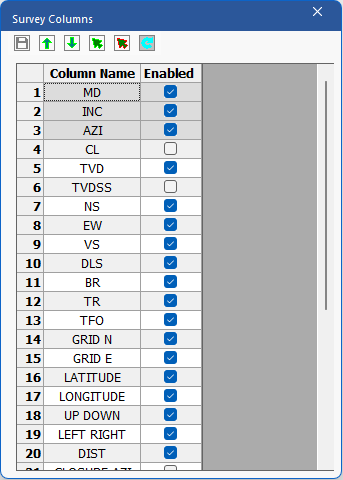 The toolbar at the top has the following options:
**Save:** Saves any changes made.
**Move up:** Moves the selected column up in the order.
**Move down:** Moves the selected column down in the order.
**Select all**: Enables all columns to be displayed.
**Uncheck all:** Hides all columns.
**Reset:** Reset the displayed columns to the default.
## 8.4.8 - PDF Font Size
**PDF Font Size:** Allows the user to set the font size for PDF reports. Default size is 12
## 8.4.9 - Reports
**PDF Back Colour:** Selects the colour of the header sections in PDF format reports.
**PDF Inset Colour:** Selects the colour for PDF report insets.
**Excel Colour:** Selects the colour of the header sections in Excel format reports.
## 8.4.10 - Geosteering
**Adjusts Dip on Azi:** Toggling this checkbox on will recalculate the dip angle value incrementally on the Create Offset Plan tool as the azimuth changes. This keeps the plan and target line in the same plane as geologically intended.
For more information check this technical note: [Target Line Dip Angle Adjusted For Azimuth Changes - Technical Note](https://docs.innova-drilling.com/introduction/technical-notes/low-priority/target-line-dip-angle-adjusted-for-azimuth-changes#adjust-dip-as-azimuth-changes-check-box-checked)
## 8.4.11 - Surveys
**Auto Save:** When this option is toggled on, if a survey is added to the survey grid via WITS or a survey integration feature, the survey grid will automatically save.
---
# Agent Instructions
This documentation is published with GitBook. GitBook is the documentation platform designed so that both humans and AI agents can read, navigate, and reason over technical content effectively. Learn more at gitbook.com.
## Querying This Documentation
If you need additional information that is not directly available in this page, you can query the documentation by asking a question.
Perform an HTTP GET request on the following URL with the `ask` and `goal` query parameters:
```
GET https://docs.innova-drilling.com/introduction/innova-engineering-manual/well-seeker-x-manual/8.0-menu-ribbons/8.4-settings.md?ask=&goal=
```
`ask` is the immediate question: it should be specific, self-contained, and written in natural language.
`goal` is what the user is ultimately trying to achieve, the reason they need the answer. Sharing it helps GitBook give you a better, more relevant answer. A goal is most helpful when it describes the outcome the user wants rather than restating the question. For example, with `ask=how do I create an API token`, a goal like `automate deployments from our CI pipeline` lets GitBook tailor the answer to that use case.
The response will contain a direct answer to the question and relevant excerpts and sources from the documentation.
Use this mechanism when the answer is not explicitly present in the current page, you need clarification or additional context, or you want to retrieve related documentation sections.
The toolbar at the top has the following options:
**Save:** Saves any changes made.
**Move up:** Moves the selected column up in the order.
**Move down:** Moves the selected column down in the order.
**Select all**: Enables all columns to be displayed.
**Uncheck all:** Hides all columns.
**Reset:** Reset the displayed columns to the default.
## 8.4.8 - PDF Font Size
**PDF Font Size:** Allows the user to set the font size for PDF reports. Default size is 12
## 8.4.9 - Reports
**PDF Back Colour:** Selects the colour of the header sections in PDF format reports.
**PDF Inset Colour:** Selects the colour for PDF report insets.
**Excel Colour:** Selects the colour of the header sections in Excel format reports.
## 8.4.10 - Geosteering
**Adjusts Dip on Azi:** Toggling this checkbox on will recalculate the dip angle value incrementally on the Create Offset Plan tool as the azimuth changes. This keeps the plan and target line in the same plane as geologically intended.
For more information check this technical note: [Target Line Dip Angle Adjusted For Azimuth Changes - Technical Note](https://docs.innova-drilling.com/introduction/technical-notes/low-priority/target-line-dip-angle-adjusted-for-azimuth-changes#adjust-dip-as-azimuth-changes-check-box-checked)
## 8.4.11 - Surveys
**Auto Save:** When this option is toggled on, if a survey is added to the survey grid via WITS or a survey integration feature, the survey grid will automatically save.
---
# Agent Instructions
This documentation is published with GitBook. GitBook is the documentation platform designed so that both humans and AI agents can read, navigate, and reason over technical content effectively. Learn more at gitbook.com.
## Querying This Documentation
If you need additional information that is not directly available in this page, you can query the documentation by asking a question.
Perform an HTTP GET request on the following URL with the `ask` and `goal` query parameters:
```
GET https://docs.innova-drilling.com/introduction/innova-engineering-manual/well-seeker-x-manual/8.0-menu-ribbons/8.4-settings.md?ask=&goal=
```
`ask` is the immediate question: it should be specific, self-contained, and written in natural language.
`goal` is what the user is ultimately trying to achieve, the reason they need the answer. Sharing it helps GitBook give you a better, more relevant answer. A goal is most helpful when it describes the outcome the user wants rather than restating the question. For example, with `ask=how do I create an API token`, a goal like `automate deployments from our CI pipeline` lets GitBook tailor the answer to that use case.
The response will contain a direct answer to the question and relevant excerpts and sources from the documentation.
Use this mechanism when the answer is not explicitly present in the current page, you need clarification or additional context, or you want to retrieve related documentation sections.