> For the complete documentation index, see [llms.txt](https://docs.innova-drilling.com/introduction/llms.txt). Markdown versions of documentation pages are available by appending `.md` to page URLs; this page is available as [Markdown](https://docs.innova-drilling.com/introduction/innova-engineering-manual/well-seeker-x-manual/8.0-menu-ribbons/8.3-tools/8.3.6-catalogs.md).
# 8.3.6 - Catalogs
## 8.3.6.1 - Components
The Component Catalogue contains a list of generic drill string components with pre-defined properties. When building a BHA in the Drill String Editor, the user can insert components from the catalog by right-clicking in the Assembly Details section and selecting ‘Insert from Catalogue’.
The list can be filtered using the dropdown menus at the top, or using the Search box. If the catalog has been accessed via the Drill String Editor, the user can select a component and then click **Insert** to add it to their BHA.
Custom components can be added, removed and edited using the **Add**, **Delete** and **Edit** buttons. The **Reset** button will revert the catalogue back to its originally installed state.
The Component Catalog can be also be accessed when logged into an organisation’s server database, either via Well Seeker or Vantage. In this case, the Catalog can act as a company wide standardised catalog – If a user on a local database clicks on the **Fetch** button, Well Seeker will download the Component Catalog from the server database to their machine.
## 8.3.6.2 - Material Grades
The Material Grades Catalogue provides a list of material grades, and their associated yields, for casing and drill pipe. When constructing a BHA in the Drill String Editor, these grades can be selected in the component properties section of casing, liner and drill pipe components.
Custom grades can be added, removed and edited using the **Add**, **Delete** and **Edit** buttons. The **Reset** button will revert the catalogue back to its originally installed state.
## 8.3.6.3 - Pipe Class
The Pipe Class Catalogue provides a list of drill pipe classes and their associated wall thickness. When constructing a BHA in the Drill String Editor, these classes can be selected in the component properties section of drill pipe components.
Custom classes can be added, removed and edited using the **Add**, **Delete** and **Edit** buttons. The **Reset** button will revert the catalogue back to its originally installed state.
## 8.3.6.4 - MWD Probes
**If you have a corporate license, you will only be able to access the Probe Catalog dialog when logged into your organization’s server database. You will not be able to access the Catalog from a local database.**
The Probe Catalog is an organization level record of the exact probe measurements that are uniform to the specific probes available to your organization, which is stored on your organization’s server database. It is usually the responsibility of your organization’s MWD Coordinator / Manager to maintain the MWD Probe Catalog.
When a user in the field uses the [**Data Fetch**](https://docs.innova-drilling.com/introduction/innova-engineering-manual/well-seeker-x-manual/8.0-menu-ribbons/8.3-tools/pages/BscELisQNqe1MsU1Q5dz#id-8.2.3.2-fetch-data-fetch) tool to retrieve well info from their organization’s server database the Probe Catalog will also be downloaded, allowing them to use it in the MWD Config tool in the Drill String Editor.

The user should enter the probes owned by their organisation into the table, and then click on **Apply** to save their changes. The fields for each probe are defined as below:
**Description:** Enter a descriptive name for the probe.
**System:** Probes can be grouped into ‘systems’, which can then be filtered when picking probes to add into an MWD config.
**Type:** Select a probe type from the dropdown box. See the note on **Pulsers** below.
**Length**: The length of the probe. **This is always in inches.**
**Sensor 1 Type:** If there is an L/MWD sensor in the probe, select it’s type from the dropdown box. If there is no sensor in the probe, select ‘none’.
**Sensor 1 Distance from Bottom:** If you selected a sensor type for any given probe, you can then enter the distance of the sensor from the bottom of the probe. The bottom is the end of the probe pointing towards the bit. **This distance is always entered in inches.**

**Sensor 2 Type:** If there is a second L/MWD sensor in the probe, select it’s type from the dropdown box.
**Sensor 2 Distance from Bottom:** The distance of the second sensor from the bottom of the probe.
**Max number:** The maximum number of this probe that can be included in a MWD config.
**Required:** If this is checked then at least one of this probe must be included in a MWD config.
**Always on top:** If this option is checked, this probe will automatically always be placed at the top of the probe string when added into an MWD Config.
**Always on bottom:** If this option is checked, this probe will automatically always be placed at the bottom of the probe string when added into a MWD Config.
**Note on Pulsers:** If the transmitter is **bottom mounted** (i.e. a UBHO setup where the transmitter is the part of the probe string that is closest to the bit) the user should leave the Sensor 1 Type field as **None**.

If the pulser is top mounted (the transmitter is the farthest part of the probe string from the bit) the user should set the Senser 1 Type to **Top Mounted Pulser Ref**. In the **Sensor 1 Distance from Bottom**field, enter the distance from the bottom of the transmitter to the mounting point on the transmitter, where it is mounted to the drill collar. The program will place the probes inside the collars so that the mounting point lines up with the point defined by the “UBHO Pin to Set Screw (SS)” distance.
### 8.3.6.4.1 - MWD Probe Templates
An MWD probe template is a pre-configured arrangement of probes within the probe string. MWD probe templates are created and stored on your organization's server database, and are pulled down at the same time as the Probe Catalog when the field engineers do a data fetch. The field engineers can then use the probe template to quickly set up the probe string, rather than having to manually enter the string config every time.
Follow the below steps to set up a probe template:
1. Click on **Add** to create a new template. Enter a name for the template then click on **Save**.

2. The **Catalog** section contains the probes entered into the Probe Catalog. The dropdown box at the top can filter the list based on the system they were assigned to.

3. Use the **Add** and **Remove** buttons to add probes from the catalog to the template. Use the **Move Up** and **Move Down** buttons to re-arrange the order. Click on **Save** to save your changes.
1. **Note:** If a probe has the always on top or bottom cell checked then you will not be able to move this using the Move Up / Down buttons.
2. **Note:** Bit direction is down in the template, meaning that the bottom of the template should be the probe closest to the bit.

### 8.3.6.4.2 - MWD Probes Note 1: Sensor Offset in Bottom Mounted Config
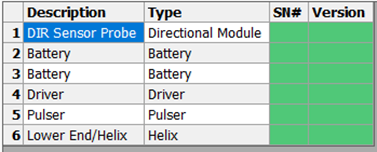
The below MWD config is an example of a standard probe configuration using a UBHO collar with a NMDC carrier above it.
The BHA for this example would look something like this:
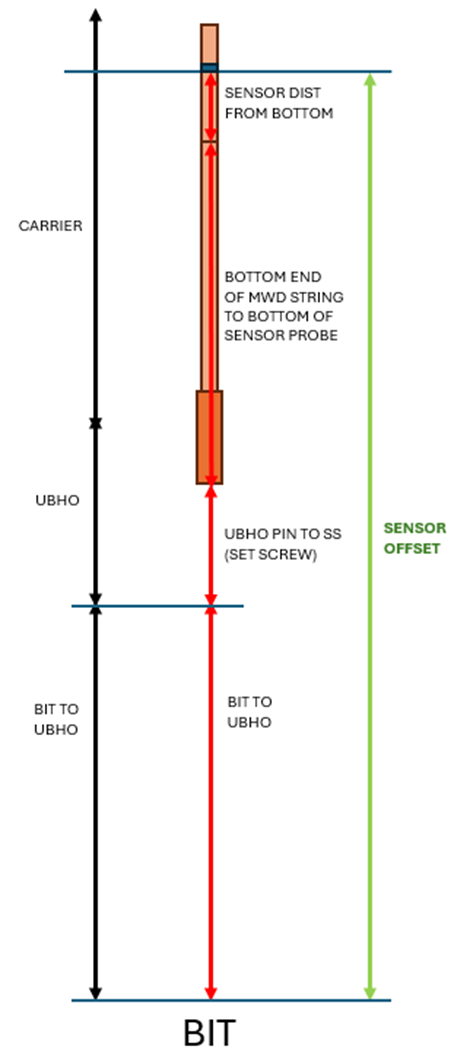
The equation for finding the sensor offset in this configuration is as follows:
The above equation has the following assumptions:
1. The **UBHO Pin to SS** measurement assumes that the lower end/helix probe is sitting on the set screw with no overlap.
2. The **Sensor distance from bottom** value for the sensor probe is measured from the end of the probe pointing towards the bit, to the sensor on the probe.
The diagram below illustrates the sensor offset calculation.
### 8.3.6.4.3 - MWD Probes Note 2: Insertion Gear Calculation
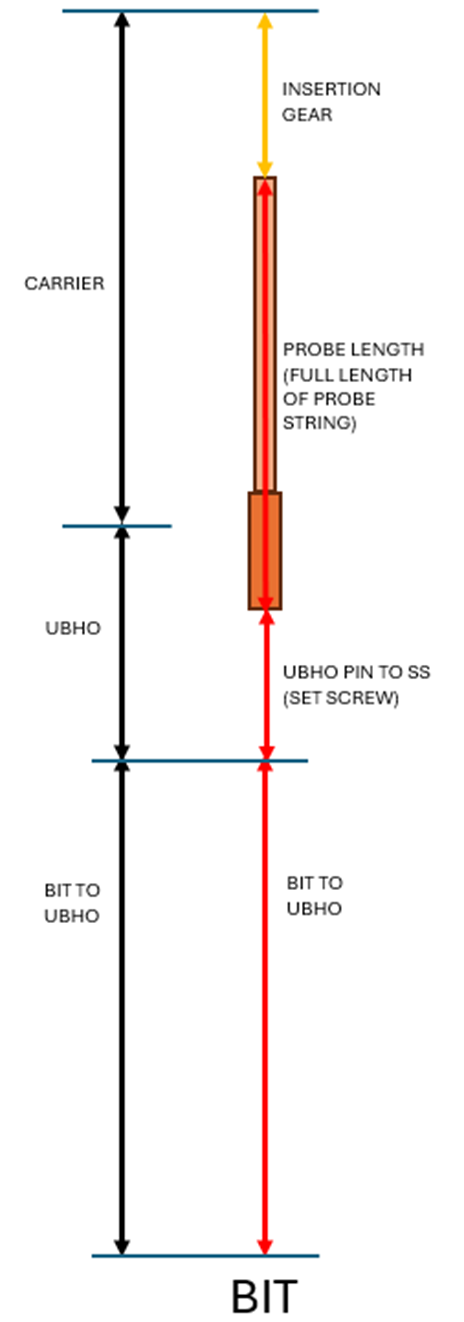
The insertion gear value represents how much space is left in the Carrier collar, in a standard MWD config. If the Insertion Gear value is negative, this means that your probe string is sticking out of the end of the carrier. The equation for the insertion gear calculation is as follows:
Where the **UBHO Pin to SS** measurement assumes that the lower end/helix probe is sitting on the set screw with no overlap.
The diagram below illustrates the insertion gear calculation.
### 8.3.6.4.4 - MWD Probes Note 3: Sensor Offset in Top Mounted Configuration
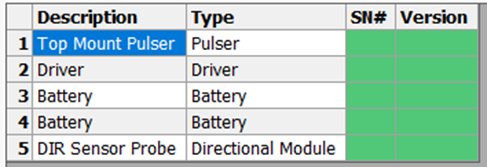
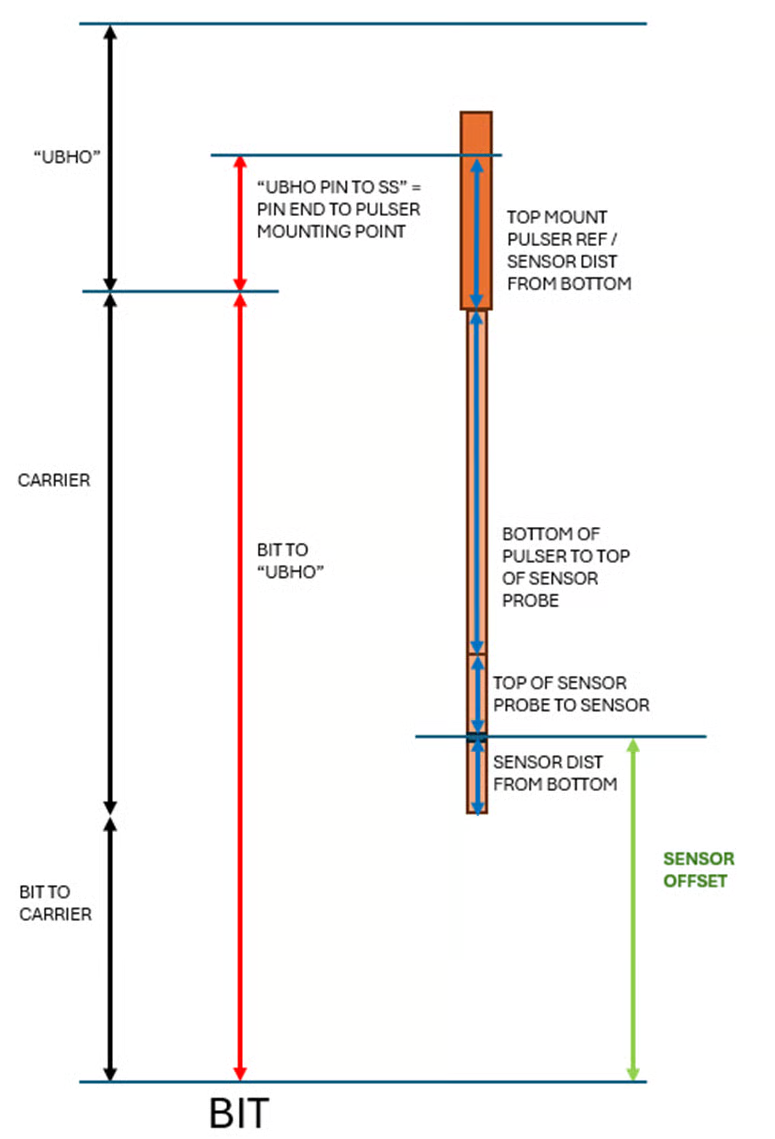
The below MWD config is an example of probe configuration using a top mounted pulser in a transmitter/pulser/gap sub, with a NMDC carrier below it. This configuration is activated by inserting a pulser that has **Top Mount Pulser Ref** selected in the Sensor Type column in the **Probe Catalog**.
The BHA for this example would look something like this:
In this configuration, the equation for finding the sensor offset is as follows:
The terminology used in the MWD Config dialog does not change, but when in a top mounted configuration, the following parts of the equation have different definitions:
**UBHO =** Although in reality the sub that the pulser is mounted in may have a different name, it is still referred to as the “UBHO” in the MWD Config.
**Bit to UBHO =** Bit to the Pulser Sub/Gap Sub. This collar is still referred to as the UBHO in the MWD Config dialog.
**UBHO Pin to SS** = Pulser Sub pin end to the mounting point on the Pulser Sub.
**Sensor dist from bottom** = The distance from the bottom of the pulser to the anchor point. The software will position the probe string inside the collars so that the anchor point on the pulser, and the mounting point on the pulser sub will line up. This is measured from the end of the pulser pointing towards the bit.
The diagram below illustrates the sensor offset calculation for a top mounted config:
---
# Agent Instructions
This documentation is published with GitBook. GitBook is the documentation platform designed so that both humans and AI agents can read, navigate, and reason over technical content effectively. Learn more at gitbook.com.
## Querying This Documentation
If you need additional information that is not directly available in this page, you can query the documentation by asking a question.
Perform an HTTP GET request on the following URL with the `ask` and `goal` query parameters:
```
GET https://docs.innova-drilling.com/introduction/innova-engineering-manual/well-seeker-x-manual/8.0-menu-ribbons/8.3-tools/8.3.6-catalogs.md?ask=&goal=
```
`ask` is the immediate question: it should be specific, self-contained, and written in natural language.
`goal` is what the user is ultimately trying to achieve, the reason they need the answer. Sharing it helps GitBook give you a better, more relevant answer. A goal is most helpful when it describes the outcome the user wants rather than restating the question. For example, with `ask=how do I create an API token`, a goal like `automate deployments from our CI pipeline` lets GitBook tailor the answer to that use case.
The response will contain a direct answer to the question and relevant excerpts and sources from the documentation.
Use this mechanism when the answer is not explicitly present in the current page, you need clarification or additional context, or you want to retrieve related documentation sections.