> For the complete documentation index, see [llms.txt](https://docs.innova-drilling.com/introduction/llms.txt). Markdown versions of documentation pages are available by appending `.md` to page URLs; this page is available as [Markdown](https://docs.innova-drilling.com/introduction/innova-engineering-manual/well-seeker-x-manual/11.0-reporting/11.11-slide-sheet.md).
# 11.11 - Slide Sheet
The slide sheet dialog will only be available to the user when they are in a survey. When in a Plan or Actual Wellbore, the slide sheet option will be greyed out and the user will be unable to open this feature.
The slide sheet is designed to minimize repeated entry of data and is the source of truth when it comes to drilling data. When the user saves the Slide Sheet, the slide/rotate activity is uploaded to the Daily Report as rotary or slide drilling activity. The drilling parameters recorded in the slide sheet are used to complete the activity descriptions. 24 hour & BHA run drilling parameters, drilling and circulating hours, etc. are all calculated from the slide sheet and stored in the background.
The slide sheet can be set up to be filled in either manually or automatically with sliding, rotation, and drilling parameters data from an incoming WITS or WITSML feed. Both raw and calculated surveys can also be received via WITS and WITSML. This information can also be pushed to the organizations server database, allowing for remote operation of directional drilling and surveying services.

Each BHA created in the Drill String Editor (see [**Drill String Editor**](/introduction/innova-engineering-manual/well-seeker-x-manual/11.0-reporting/11.6-drill-string-editor.md)) will have a slide sheet associated with it. When in the slide sheet window, the BHA can be selected from the drop-down box at the top of the window. If no BHAs have been created for the actual well, there will be no slide sheets available to edit and the drop-down box will be empty.

The user should fill in the slide sheet by entering data into the **Date**, **Start Time**, **End Time**, **Start** **Depth**, **End Depth**, **State** and **TF (Toolface) Type** rows if relevant. The Target Toolface (TTF), Effective Toolface (ETF) Motor Yield (MY) and drilling parameters columns are not required, but are strongly recommended to be filled in if possible. When selecting the state of each row, they will be highlighted as follows:
* The **Green Lines** indicate slides using **Magnetic** Tool Faces
* The **Blue Lines** indicate slides using **Gravity** Tool Faces
* The White Lines indicate **Rotation**
## 11.11.1 - Slide Sheet Menu Ribbon
The user can open see the main functions and tools in the ribbon menu. Each section will be described in details in the following sections.

### 11.11.1.1 - File
**Save:** Saves any changes to the slide sheet.
**Undo:** Undoes that last action.
**Redo:** Redoes the last undone action.
### 11.11.1.2 - Navigation
**First:** Go to the first BHA in the dropdown menu.
**Previous:** Go to previous BHA in the dropdown menu.
**Next:** Go to next BHA in the dropdown menu.
**Last:** Go to last BHA in the dropdown menu.
### 11.11.1.3 - Print
Click on the **V** symbols beside the **Print Slide Sheet** buttons for additional options.
**Print Slide Report Excel/PDF:** Prints the currently selected slide sheet in Excel or PDF format, with additional information and in a layout suitable for submission in a report.
**Print all Slide Sheets Excel/PDF:** Prints slide reports for all BHAs in a single document in Excel or PDF format.
**RVDS:** Print RVDS Report in Excel format. This report is not part of the standard slide sheet and requires a separate license to access.
**Field Slide Sheet:** Prints a report similar to the slide report above, but has a few columns removed to make it more compact and easier to read.
**Show Full Surveys/Short Surveys:** Selecting ‘Full Surveys’ will include TVD, NS, EW, VS, UD and LR to the Slide Sheet report and uncheck the ‘short surveys option. Selecting the short surveys option will not show these columns.
**Show Phases:** Marking this option will Include the phases in the comment section of the Slide Sheet report
**Reduced Params:** Marking this option will not show the columns SPP On Btm, SPP Off Btm, Diff, Temp, PU, ROT, SO and Comments
### 11.11.1.4 - Options
**Columns:** Opens the Survey Columns dialog, where the user can select the columns available to display in the Slide Sheet. For a description of the available columns, see [Appendix F: Slide Sheet Column Options](#_Appendix_F–Slide_Sheet). If the user toggles the **MD, INC** and **AZI** columns on, these columns can be used to fill in the survey listing from the slide sheet. Likewise, surveys entered into the survey listing will appear in the slide sheet if these columns are displayed.
**NOTE:** If the **MD, INC** and **AZI** columns are turned on, deleting a row in the slide sheet that contains MD, INC and AZI data will also delete the relevant survey from the survey table.
The toolbar at the top has the following options:
**Save:** Saves any changes made.
**Move up:** Moves the selected column up in the order.
**Move down:** Moves the selected column down in the order.
**Select all**: Enables all columns to be displayed.
**Uncheck all:** Hides all columns.
**Reset:** Reset the displayed columns to the default.
**Dropdown for comments:** Change the Comments column from free-text input to a dropdown menu.
**Autosave:** Toggling this option on will cause the slide sheet to automatically save any changes every three minutes.
### 11.11.1.5 - Tools
#### 11.11.1.5.1 - Motor Yields
Opens the Motor Yield analysis dialog. This displays every survey taken and the corresponding slide length between the surveys. Each section has a detailed analysis of slide and rotation percentages, the High, Low, and average motor yield and the average rotary DLS and TF.
In the ribbon menu the user has the following options:
* **Print:** Prints Motor Yield data in excel format.
* **Formation/BHA:** Groups the Motor Yield table by Formation or BHA.
Figure 312: Motor Yields dialog
#### 11.11.1.5.2 - Heat Map
Displays the Heat Map window. The heat map can be used to show how often two drilling parameters are recorded in the slide sheet. Green areas are values that record fewer times or not at all, while red areas are values used more often.
The available parameters are WOB, RPM and flow rate. The axis that these parameters are displayed on can be configured using the X Axis and Y Axis menus. In the Data menu, the user can select between all, Slide or Rotate states. The Heat Map can be exported as an image by right clicking on it and selecting **Export Dialog** from the context menu. For more information on the context menu see [**Charts**](/introduction/innova-engineering-manual/well-seeker-x-manual/9.0-charts.md).
#### 11.11.1.5.3 - Motor Stalls
This opens the Motor Stalls dialog from the Drill String Editor. See [**Motor Stalls**](https://docs.innova-drilling.com/introduction/innova-engineering-manual/well-seeker-x-manual/11.0-reporting/pages/4KBouErJdfGb3Mn7po7y#id-11.6.4.6.4-motor-stalls) for more information.
#### 11.11.1.5.4 - Survey Email
Opens the Survey Update tool, which allows the user to quickly send an email updating clients or other personnel on the details of the latest survey.
Figure 314: Survey Updates dialog
The user can add recipients to the update email by entering their email address (e.g., ****) to the box at the top of the window and then clicking on the **add** button. Multiple addresses can be added by delimiting them with a comma (e.g., **, **) before clicking the **add**button. Addresses can be removed from the email by selecting them in the list and clicking on the **delete** button. Well Seeker will save all emails entered into the recipient list after the window is closed.
Marking the ‘Include PVA’ checkbox will add a PVA attachment in PDF format to the email.
The email body contains the most recent survey along with the distance from plan, average motor yield and dogleg to land. The user can include a Curve Projection and a Bit Projection by clicking on the **Include** checkbox and then entering the TVD, Inc and Azi of their landing.
If the default email client on the user’s computer is Microsoft Outlook, then they can click on the **send mail** button to generate an email with the recipients, subject and email body set up as in the template. In the Settings > WITS Survey Options menu there is an option to include a survey listing as an attachment to the email. There is also an option to automatically send the email as soon as a survey is accepted via WITS surveys.
#### 11.11.1.5.5 - Connection Analysis
The Connections Analysis chart will display every connection recorded by WITS as a bar chart. Each connection will be coloured to show how much of the connection was spent reaming, taking a survey and performing the connection itself. The blue line represents the average time to make a connection. This chart can be used as a way of gauging which activities are taking the most time during connections, and therefore where timesaving improvements can be made.
The chart can be exported as an image by right clicking and selecting **Export Dialog** from the context menu. For more information on the context menu see [**Charts.**](/introduction/innova-engineering-manual/well-seeker-x-manual/9.0-charts.md)
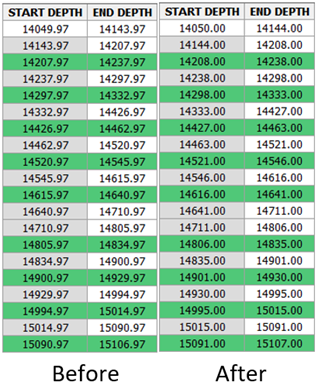
#### 11.11.1.5.6 - Round Depths
Clicking on this option will round all start and end depths in the currently opened slide sheet to the nearest whole number.
Figure 316: Round depths example
### 11.11.1.6 - Rig States
**Start:** Start Rigstates. Slide sheet will start auto-updating based upon incoming WITS/WITSML data and the Rig State Settings dialog selections. Users cannot manually edit cells in the slide sheet whilst this function is active.
**Stop:** Stop Rigstates. Slide sheet will stop auto-updating.
**Error logging:** Toggling this option will create a file called rigStateLog.txt in the Debug folder in the Setup File directory. The Setup File directory can be opened via the Help menu in the main Well Seeker interface and selecting the option *Open Folder*. This file records a log of incoming drilling parameter data and will record any errors in the data feed.
**Settings:** Opens the Rig States Settings dialog. The Rig States Settings is where the user configures how Well Seeker interprets incoming WITS data to decide what operation the rig is currently performing. It also allows the user to see what drilling parameter data is being sent through from WITS and is where the Motor Stall detection feature is housed. For more information on the Rig States Settings dialog see section [**11.11.2– Rig State Settings**](/introduction/innova-engineering-manual/well-seeker-x-manual/11.0-reporting/11.11-slide-sheet/11.11.2-rig-state-settings.md).
### 11.11.1.7 - WITS
This section of the Slide Sheet menu ribbon contains the three WITS data readers available in Well Seeker X. By receiving WITS data from the rig, the user can automate the Slide Sheet via the Rig States and Auto-Populate functions. WITS data can also be forwarded to your organisation’s server database to power the EDR feature in Vantage.
The data reader that you should use depends on the connection type:
* **Serial or Ethernet Cable:** Use the Serial/TCP WITS reader.
* **WITSML:** Use the WITSML reader.
* **Digidrill or KLX Wireless WITS:** Use MQTT WITS.
For more information on the features in this section, see section [**11.11.3 – WITS.**](/introduction/innova-engineering-manual/well-seeker-x-manual/11.0-reporting/11.11-slide-sheet/11.11.3-wits.md)
### 11.11.1.8 - WITS Surveys
The options in this section govern how Well Seeker handles survey received over WITS.
**QC Limits:** Opens the raw survey QC limit dialog. If required, the default values can be edited here by the user. This only applies to raw surveys.

The tolerances entered here are the amount the calculated field strength (HL), dip and gravity field strength (G) can vary from their reference values before being marked as out of tolerance. The reference values are defined in the Actual Well Properties dialog.
**Inc/Azi:** If selected, will use the survey inclination and azimuth values from the WITS/WITSML feed. The user will not be able to run the Short Collar Correction feature of the software as this requires the raw values.
**6 Axis**: If selected, will use the Bx, By, Bz, Gx, Gy, Gz values from the WITS/WITSML feed. The survey will automatically have a Short Collar Correction applied to the azimuth.
**Check for surveys**: If selected, Well Seeker will check for survey data transmission via WITS/WITSML.
**Bit depth as svy depth**: Survey depth will be set to the bit depth of the survey.
**Auto accept:** If selected, will automatically accept any surveys that are received via WITS/WITSML and add them to the open survey table. If not selected, the user will be presented with an Accept Survey dialog when a survey is received via WITS/WITSML.
**Auto sent email**: When a WITS/WITSML survey is accepted/auto-accepted the Survey Email Update is automatically sent.
### 11.11.1.9 - Downlinks
#### 11.11.1.9.1 - NOV DrillLink
The Downlink Control dialog allows Well Seeker to remotely send and monitor Rotary Steerable System (RSS) downlinks on a specified rig, utilizing the rig’s control system. Currently Well Seeker can communicate with NOV’s DrillLink software and downlink by either the mud pumps, or top drive on rigs utilizing the Amphion and Cyberbase rig control systems.

The Downlink Control can connect to the RSS locally, by being physically connected to the rig network at the rig site. It can also connect remotely, sending commands via the internet. This requires the Innova Remote Client software and access to the Innova API.
#### 11.11.1.9.1.1 - Drill Link section
**Connection:** User should select their connection type from the drop-down box. **Local connection** should be used when at the rig site and the PC is physically connected to the rig network. **Remote connection** should be used when the user is connected to the rig network over the internet using the Innova Cloud Portal API and the Innova Remote Client installed on a PC at the rig site.
If **local connection** is selected the Drill Link section will look like the below screenshot:

**IP Address:** The IP address of the DrillLink device, or the hardware forwarding commands to DrillLink. This will be provided by the rig.
**Port:** The port of the DrillLink device, or the hardware forwarding commands to DrillLink. This will always be **8080**.
**Connect/Disconnect:** After entering the IP address and port, the user can connect to the DrillLink device by clicking the Connect button. If successful, the connection status should turn green and change to ‘Connected’. The user can disconnect from the DrillLink device by clicking the Disconnect button.
**Connection:** Shows the status of the DrillLink connection. If successful, it will be green and display the message ‘Connected’.
**Switch:** Shows the status of the downlink control switch. This switch is operated by the driller at the rig site and gives them ultimate control over whether remote access to the DrillLink system is granted. The switch status must show ‘Enabled’ before any downlinks can be sent.
If **remote connection** is selected the Drill Link section will look like the below screenshot

**Username/Password:** User should enter the username and password for the Innova Cloud Portal API. These will be provided to the user’s company by Innova.
**Get rigs:** After entering the username and password, the user should click on the Get Rigs to populate the rig listing, displayed below:

* **Rig:** Displays the names of the rigs connected to the Innova API.
* **Online:** Displays the status of each rig – red for offline, and green for online.
* **Select:** The Downlink Control can only send commands to one rig at a time, so the user needs to select the rig that they want by clicking the checkbox next to their desired rig.
**Connect/Disconnect:** Once a username and password have been entered, and a rig has been selected in the rig listing, the user can connect to the DrillLink device by clicking the Connect button. If successful, the connection status should turn green and change to ‘Connected’. The user can disconnect from the DrillLink device by clicking the Disconnect button.
**Connection:** Shows the status of the DrillLink connection. If successful, it will be green and display the message ‘Connected’.
**Switch:** Shows the status of the downlink control switch. This switch is operated by the driller at the rig site and gives them ultimate control over whether remote access to the DrillLink system is granted. The switch status must show ‘Enabled’ before any downlinks can be sent.
**Online:** Shows the status of the selected rig in the rig listing. This must read ‘Yes’ before a downlink can be sent.
**Channels:** Before sending a downlink command, the user needs to map the top drive and each of the mud pumps to the correct channels. These must match up with the channel mapping at the rig site, so if unsure the user should verify with the rig.

* **Name:** The name of the item being mapped to the channel. The user has the choice of Mud Pump (MP) #1 - #4, and the Top Drive.
* **Active:** The user should ensure that all channels that will be used in downlink are selected as active. This is done by clicking in the checkboxes in the Active column.
* **RPM CH:** Any channel mapped to the top drive must have the corresponding checkbox in the RPM CH column checked on.
#### 11.11.1.9.1.2 - Downlink Setup Section

**Tool Type:** User should select the model of the Rotary Steerable System (RSS) tool that they are sending the downlink to.
**Software Version:** User should select the software version installed on the RSS that they are sending the downlink to. The Tool Type needs to be selected before this drop-down is populated.
**Tool Mode:** User should select the tool mode set for the RSS that they are sending the downlink to. The Tool Type and Software Version need to be selected before this drop-down is populated.
**Rotary DL:** Certain tool type, software version and tool mode combinations will allow the user to toggle Rotary Downlink (DL) on. This means that the downlink will be sent using the top drive instead of the mud pumps.
**Downlink:** The drop-down box contains all available downlink commands for the RSS tool. The user should select the action that they wish the RSS to perform. The Downlink Parameters section will populate depending on the command selected.
**Pump Strokes/Top Drive RPM Reduction:** This drop-down box allows the user to set the percentage difference between the high pump rate and low pump rate when transmitting the downlink. This also applies to the high rpm and low rpm if Rotary DL is turned on.
**Preview:** Once the user has selected their downlink from the Downlink drop-down box, they can preview it by clicking on the Preview Button. This will display the selected downlink in the Downlink Sequence section.
**Send:** Once the Drill Link and Downlink Setup sections have been filled in, the user can click the Send button to send the selected downlink to the RSS tool.
**Abort:** Aborts transmission of the downlink sequence.
**Elapsed Time:** Records the time elapsed since the user started the downlink sequence by clicking on the Send button.
**Average Flow:** If Well Seeker is recording WITS or WITSML data from the rig, the current flow rate will be displayed here.
**Average RPM:** If Well Seeker is recording WITS or WITSML data from the rig, the current RPM will be displayed here.
#### 11.11.1.9.1.3 - Downlink Sequence Section
The Downlink Sequence section consists of two parts – the Downlink Sequence Chart and the Downlink Sequence Table.

The Downlink Sequence Chart displays the elapsed time along the X-Axis and the pump flow rate along the Y-Axis. If **Rotary DL** is selected in the **Downlink Setup** section, then the Y-Axis will display the top drive RPM. The red line displays the selected downlink sequence. When the **Send** button is clicked, a green line will move across the chart, showing the progress of the downlink transmission. The elapsed time in seconds and minutes:seconds will also be displayed.
If Well Seeker is recording WITS or WITSML data from the rig, the rig flow rate will be recorded on the chart as a blue line. If Rotary DL is selected, this will show the top drive RPM.
The Downlink Sequence Table breaks down the selected downlink sequence into its constituent states, either Pumps Up/Pumps Down or RPM Up/RPM Down. The Time columns show the cumulative elapsed time of the sequence in minutes:seconds and seconds. When the **Send** button is clicked, the rows in the Table will be highlighted green as each part of the sequence is completed.
#### 11.11.1.9.2 - History
Opens the Downlink History dialog which displays a record of all downlinks sent using the Downlink Control dialog.
#### 11.11.1.9.3 - Add to comment
Opens the Select Downlink dialog. Any option selected here will be added to the Comments cell for the currently selected row in the slide sheet.

---
# Agent Instructions
This documentation is published with GitBook. GitBook is the documentation platform designed so that both humans and AI agents can read, navigate, and reason over technical content effectively. Learn more at gitbook.com.
## Querying This Documentation
If you need additional information that is not directly available in this page, you can query the documentation by asking a question.
Perform an HTTP GET request on the following URL with the `ask` and `goal` query parameters:
```
GET https://docs.innova-drilling.com/introduction/innova-engineering-manual/well-seeker-x-manual/11.0-reporting/11.11-slide-sheet.md?ask=&goal=
```
`ask` is the immediate question: it should be specific, self-contained, and written in natural language.
`goal` is what the user is ultimately trying to achieve, the reason they need the answer. Sharing it helps GitBook give you a better, more relevant answer. A goal is most helpful when it describes the outcome the user wants rather than restating the question. For example, with `ask=how do I create an API token`, a goal like `automate deployments from our CI pipeline` lets GitBook tailor the answer to that use case.
The response will contain a direct answer to the question and relevant excerpts and sources from the documentation.
Use this mechanism when the answer is not explicitly present in the current page, you need clarification or additional context, or you want to retrieve related documentation sections.