> For the complete documentation index, see [llms.txt](https://docs.innova-drilling.com/introduction/llms.txt). Markdown versions of documentation pages are available by appending `.md` to page URLs; this page is available as [Markdown](https://docs.innova-drilling.com/introduction/innova-engineering-manual/well-seeker-x-manual/11.0-reporting/11.7-inventory.md).
# 11.7 - Inventory
This option is available to select from the Actual Well level, or below. This is where the user can input the downhole and surface equipment for the well.

Components entered in the inventory will be available for the user to select within the [**Drill String Editor**](/introduction/innova-engineering-manual/well-seeker-x-manual/11.0-reporting/11.6-drill-string-editor.md) and [**Shipping Ticket**](/introduction/innova-engineering-manual/well-seeker-x-manual/11.0-reporting/11.9-shipping-ticket.md) dialogs.
Double-clicking a column header will sort the items by that column, and the selected sort order will be retained even after the Inventory dialog is closed. This updates the column sort feature detailed below.
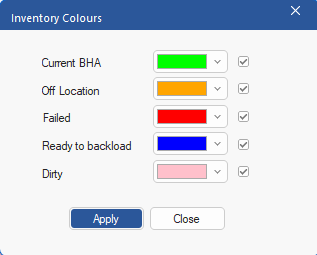
For ease of identification the inventory can highlight rows based on the status in the On Location, Failed, Ready for Backload, In Hole and Dirty Columns:
* **On/off location**: Designates whether the tool is at the rig site or not. When check on location the tool is not highlighted. If the user unchecks the On Location column, to mark a tool that is not at the rig site, but still in the inventory, the tool will be Off Location and highlighted **orange** by default.

* **Failed**: If the tool has failed, the user can check the Failed column, and the tool will be highlighted in **red** by default. This can then be used as a reference to make sure that the failed tool is not used in another drill string.

* **Ready For Backload:** Tools that are ready to be delivered off site are highlighted in blueby default.

* **In Hole:** This status is handled automatically, and changes made by the user will not be saved. Well Seeker will check the latest daily activity entered in the Daily Report for the well. If there is a BHA selected for that activity, Well Seeker will highlight all tools in that BHA in **green** by default in the inventory.

* **Dirty:** This status is also handled automatically, and changes made by the user will not be saved. The Daily Report will record the circulating hours for each BHA and then apply those hours to tools in the Inventory in the D\&C Hrs Well column. If the tool already had circulating hours accumulated when it arrived on the rig site, the user can enter them in the Prev D\&C Hrs column. Total D\&C Hrs column is simply the sum of the other two columns. Any tools with more than zero hours in the Total D\&C Hrs column will be marked as dirty and highlighted in **pink**.

## 11.7.1 - Tool Inventory Ribbon

#### **File**
**Save:** Saves any changes made to the Tool Inventory.
**Undo:** Reverses the last action performed
**Redo:** Reverses the last undo action performed.
**Print PDF:** Prints the Tool Inventory to a PDF format file.
**Print Excel:** Prints the Tool Inventory to a excel format file.
#### **Options**
**Highlight Rows:** Marking this option will highlight the rows with the colour assigned to the relative option as described above.
**Show DD tools:** Marking this option will include in the list the item types that correspond to DD operations. E.g., Motor, Drill Collar, Stabilizer etc.
**Shows MWD tools:** Marking this option will include in the list the item types that correspond to MWD operations. E.g., MWD/LWD, Shock Absorber, Pulser, etc.
**Show off location:** When this option is marked, it shows in the list the items that are off location.
**Select Colours:** Opens the ‘Inventory Colours’ dialog, where the user can change the default colours for Current BHA, Off Location, Failed, Ready to Backload and Dirty:
 **Columns:** Opens the Survey Columns dialog, where the user can select the columns available to display and their order.
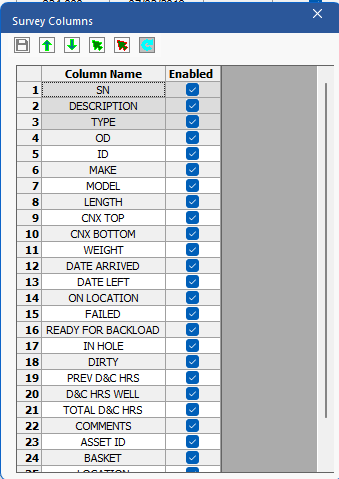 **Save:** Saves changes made to the column configuration.
**Move up**: It moves up the column name selected.
**Move down:** It moves down the column name selected.
**Select all:** Select all checkboxes to enable all columns.
**Uncheck all:** Uncheck all checkboxes to disable all columns.
**Reset:** Reset the Survey Columns to the default options.
#### **Mark All**
**On/Off Location:** Mark all tools in the inventory as ‘On Location’.
**Backload:** Mark all tools in the inventory as ‘ Ready for Backload’.
#### **Tools**
**Component Catalog:** Opens [Component Catalogue](https://docs.innova-drilling.com/introduction/innova-engineering-manual/well-seeker-x-manual/11.0-reporting/pages/29d967f3b5cbb4ee878fb1555275c8e5f8e3f111#id-8.3.6.1-components) dialog.
**Import from Oasis:** Give user the ability to import tools from Oasis system.
**Import from TurboTrax:** Give user the ability to import tools from TurboTrax system.
**Transfer Tools:** Opens a dialog where the user can transfer selected tools to another actual well in their database.
**Save:** Saves changes made to the column configuration.
**Move up**: It moves up the column name selected.
**Move down:** It moves down the column name selected.
**Select all:** Select all checkboxes to enable all columns.
**Uncheck all:** Uncheck all checkboxes to disable all columns.
**Reset:** Reset the Survey Columns to the default options.
#### **Mark All**
**On/Off Location:** Mark all tools in the inventory as ‘On Location’.
**Backload:** Mark all tools in the inventory as ‘ Ready for Backload’.
#### **Tools**
**Component Catalog:** Opens [Component Catalogue](https://docs.innova-drilling.com/introduction/innova-engineering-manual/well-seeker-x-manual/11.0-reporting/pages/29d967f3b5cbb4ee878fb1555275c8e5f8e3f111#id-8.3.6.1-components) dialog.
**Import from Oasis:** Give user the ability to import tools from Oasis system.
**Import from TurboTrax:** Give user the ability to import tools from TurboTrax system.
**Transfer Tools:** Opens a dialog where the user can transfer selected tools to another actual well in their database.
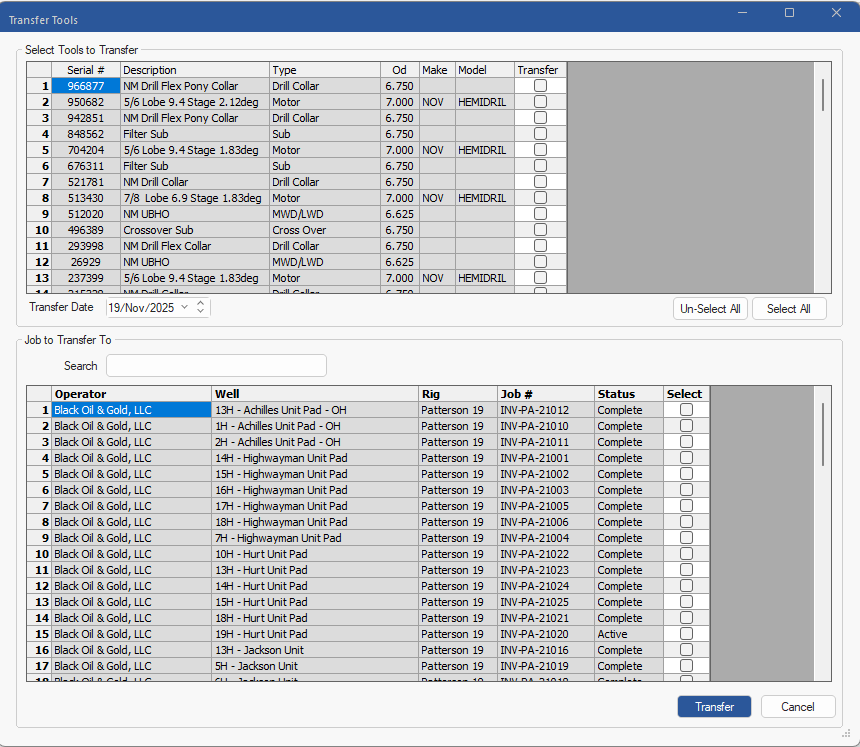 The user should choose the tools they wish to transfer by checking the **Transfer** checkbox in the top section. Note that only tools marked as **On Location** will be available. In the bottom section, the user should select the new well that they wish to transfer to by checking the **Select** checkbox. Lastly, choose a **Transfer Date**. This will be the date that will appear in **Date Left** column in the old well and the **Date Arrived** column in the new well. Click **On Transfer** to perform the transfer. The Total D\&C HRS for each transferred item will be entered into the Prev D\&C Hours column in the new well.
#### **Sort**
This section allows the user to configure how the Tool Inventory is sorted. Choose the desired columns, in order of priority, in the **Col 1, 2 & 3** dropdowns. In the **Order** dropdowns, choose if the sorting of each columns is ascending or descending.
---
# Agent Instructions
This documentation is published with GitBook. GitBook is the documentation platform designed so that both humans and AI agents can read, navigate, and reason over technical content effectively. Learn more at gitbook.com.
## Querying This Documentation
If you need additional information that is not directly available in this page, you can query the documentation by asking a question.
Perform an HTTP GET request on the following URL with the `ask` and `goal` query parameters:
```
GET https://docs.innova-drilling.com/introduction/innova-engineering-manual/well-seeker-x-manual/11.0-reporting/11.7-inventory.md?ask=&goal=
```
`ask` is the immediate question: it should be specific, self-contained, and written in natural language.
`goal` is what the user is ultimately trying to achieve, the reason they need the answer. Sharing it helps GitBook give you a better, more relevant answer. A goal is most helpful when it describes the outcome the user wants rather than restating the question. For example, with `ask=how do I create an API token`, a goal like `automate deployments from our CI pipeline` lets GitBook tailor the answer to that use case.
The response will contain a direct answer to the question and relevant excerpts and sources from the documentation.
Use this mechanism when the answer is not explicitly present in the current page, you need clarification or additional context, or you want to retrieve related documentation sections.
The user should choose the tools they wish to transfer by checking the **Transfer** checkbox in the top section. Note that only tools marked as **On Location** will be available. In the bottom section, the user should select the new well that they wish to transfer to by checking the **Select** checkbox. Lastly, choose a **Transfer Date**. This will be the date that will appear in **Date Left** column in the old well and the **Date Arrived** column in the new well. Click **On Transfer** to perform the transfer. The Total D\&C HRS for each transferred item will be entered into the Prev D\&C Hours column in the new well.
#### **Sort**
This section allows the user to configure how the Tool Inventory is sorted. Choose the desired columns, in order of priority, in the **Col 1, 2 & 3** dropdowns. In the **Order** dropdowns, choose if the sorting of each columns is ascending or descending.
---
# Agent Instructions
This documentation is published with GitBook. GitBook is the documentation platform designed so that both humans and AI agents can read, navigate, and reason over technical content effectively. Learn more at gitbook.com.
## Querying This Documentation
If you need additional information that is not directly available in this page, you can query the documentation by asking a question.
Perform an HTTP GET request on the following URL with the `ask` and `goal` query parameters:
```
GET https://docs.innova-drilling.com/introduction/innova-engineering-manual/well-seeker-x-manual/11.0-reporting/11.7-inventory.md?ask=&goal=
```
`ask` is the immediate question: it should be specific, self-contained, and written in natural language.
`goal` is what the user is ultimately trying to achieve, the reason they need the answer. Sharing it helps GitBook give you a better, more relevant answer. A goal is most helpful when it describes the outcome the user wants rather than restating the question. For example, with `ask=how do I create an API token`, a goal like `automate deployments from our CI pipeline` lets GitBook tailor the answer to that use case.
The response will contain a direct answer to the question and relevant excerpts and sources from the documentation.
Use this mechanism when the answer is not explicitly present in the current page, you need clarification or additional context, or you want to retrieve related documentation sections.