> For the complete documentation index, see [llms.txt](https://docs.innova-drilling.com/introduction/llms.txt). Markdown versions of documentation pages are available by appending `.md` to page URLs; this page is available as [Markdown](https://docs.innova-drilling.com/introduction/innova-engineering-manual/well-seeker-x-manual/11.0-reporting/11.14-create-bid-sheet.md).
# 11.14 - Create Bid Sheet
Accessible at Operator level or below, or from the Home ribbon menu. The Bid Sheet tool allows the user to generate a quote for services to a client. If the bid is approved, the Bid Sheet tool can be used to quickly convert the quote into cost codes for a well.
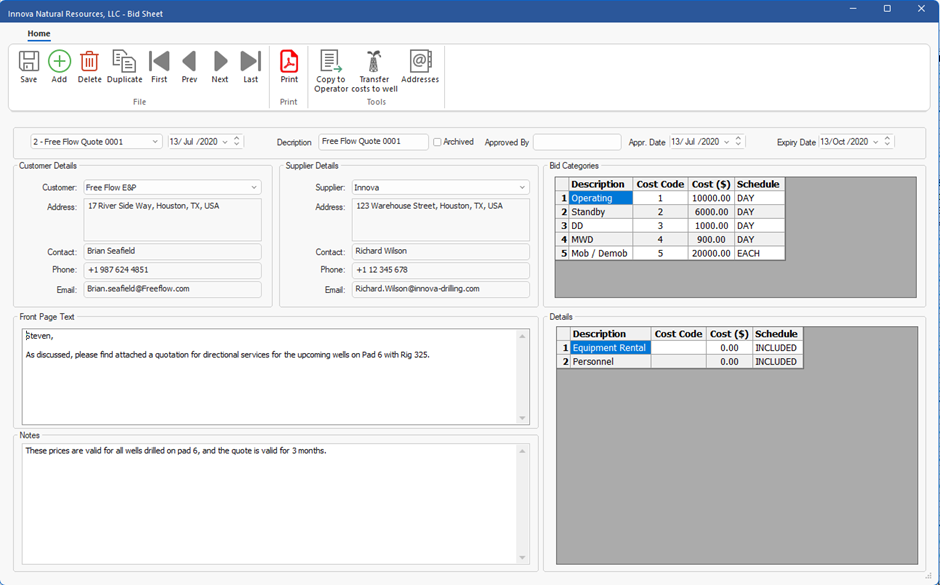
Figure 334: Bid Sheet dialog
The user can create a new bid sheet by clicking on the **Add** icon in the ribbon. In the top section of the Bid Sheet dialog the user can select existing bids from the dropdown box. The box beside the dropdown box contains the date that the bid sheet was created. This can be edited if the user wishes. In the Description box the user should give the bid sheet a name. On the far right of the top section, the user can enter an expiry date for the bid.
In the **Bid Categories** section, the user can enter prices for the quote. In the Description field they should enter a name for each item. In the Cost Code field, they should give each item a unique code. The Cost field should contain the price for one unit of the item. In the Schedule field the user should choose how the item is charged from the dropdown box. For example, if the item is a day rate for DD services, the user should choose the DAY schedule. The items will appear as a price listing in the quote.
For each item entered in the Bid Categories section, the user can add additional costs or items in the **Details** section. These costs will be listed beneath each parent item in the price listing in the quote. If the item is included in the list of its parent, the user should select INCLUDED from the Cost Schedule dropdown. If the item has additional costs, the user should give it a Cost Code and a Cost for one unit.
In the **Customer Details** and **Supplier Details** sections, the user should pick the desired customer and supplier from the dropdown boxes. The information in the Customer Details and Supplier Details section is entered in the Shipping Addresses Addresses dialog, which can be accessed by clicking on Addresses in the ribbon. See [**Shipping Addresses**](/introduction/innova-engineering-manual/well-seeker-x-manual/11.0-reporting/11.8-shipping-addresses.md)**.**
In the **Front Page Text** section the user should write a cover letter for their quote. The signature for the Front Page Text will be taken from the Supplier Details. In the **Notes** section the user can add any additional information. This will appear below the price listing in the quote.
Once the above sections have been completed, the user can generate a quote in PDF format by clicking on the **Print** icon on the ribbon.
If the bid is approved by the client, the user should enter the date it was approved in the **Appr. Date** box in the top section. The user approving the bid should also enter their name in the **Approved By** box. Note that if connected to a server database, the user must have Approver user permission assigned to their role to do this. This will be assigned by your organizations admin in the Innova Vantage User Management feature.
If the user has the Approver permission set, they can also archive bids by clicking on the Archived checkbox. This will make the bid invisible to users on a remote server database that do not have Approver permission. Archiving bids on a local database has no effect.
Once a bid has been approved by entering a name into the Approved By box, the cost codes in the Bid Categories and Details sections can be sent to a well as cost codes. The user should click on the **Transfer Costs to Well** button on the ribbon. Well Seeker will ask the user which well under the current operator they would like to send them to. Any items in the Bid Categories and Details section with a Cost Code and a Cost entered will be added to that wells Cost Code table. See [**Cost Codes**](/introduction/innova-engineering-manual/well-seeker-x-manual/11.0-reporting/11.3-cost-codes.md) for more information.
Lastly, the **Copy to Operator** option allows the user to send a copy of the bid to another operator on their database.
---
# Agent Instructions
This documentation is published with GitBook. GitBook is the documentation platform designed so that both humans and AI agents can read, navigate, and reason over technical content effectively. Learn more at gitbook.com.
## Querying This Documentation
If you need additional information that is not directly available in this page, you can query the documentation by asking a question.
Perform an HTTP GET request on the following URL with the `ask` and `goal` query parameters:
```
GET https://docs.innova-drilling.com/introduction/innova-engineering-manual/well-seeker-x-manual/11.0-reporting/11.14-create-bid-sheet.md?ask=&goal=
```
`ask` is the immediate question: it should be specific, self-contained, and written in natural language.
`goal` is what the user is ultimately trying to achieve, the reason they need the answer. Sharing it helps GitBook give you a better, more relevant answer. A goal is most helpful when it describes the outcome the user wants rather than restating the question. For example, with `ask=how do I create an API token`, a goal like `automate deployments from our CI pipeline` lets GitBook tailor the answer to that use case.
The response will contain a direct answer to the question and relevant excerpts and sources from the documentation.
Use this mechanism when the answer is not explicitly present in the current page, you need clarification or additional context, or you want to retrieve related documentation sections.