> For the complete documentation index, see [llms.txt](https://docs.innova-drilling.com/introduction/llms.txt). Markdown versions of documentation pages are available by appending `.md` to page URLs; this page is available as [Markdown](https://docs.innova-drilling.com/introduction/innova-engineering-manual/well-seeker-x-manual/8.0-menu-ribbons/8.2-home/8.2.1-controls.md).
# 8.2.1 - Controls
**Save:** Save the currently opened survey or plan to the database and update any associated survey programs. This option is only available if a survey or plan is open in the Survey, Plan & Chart Viewing Area.
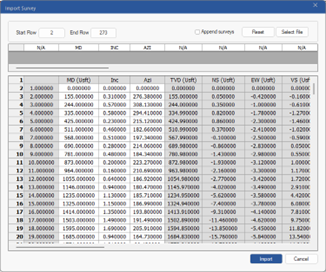
**Import:** Allows the user to import survey data from another file. This option is only available if a survey is open in the main Viewing Area. This option is **NOT** available when in a plan. When the option is clicked the Import Survey dialog will display:
Figure 105: Import Survey dialog
To import a survey:
1. Click on **Select File** in the top right. You will be prompted to select a file on your PC. Use the dropdown in the bottom right to display a different file type. Supported file types are tab delimited text, space delimited text, comma delimited text, Excel 2003 files and Excel 2007 files. The survey file can contain column headers and must contain the measured depth in a column, inclinations in a column and azimuths in a column. The columns do not have to be in any order and the file can contain other data columns.
2. Once a data file has been selected, a preview of the survey file will be displayed in the main grid with the row numbers down the left-hand side of the lower grid. Select the **Start Row** and the **End Row** of the surveys you wish to import and select which column is which from the combo boxes in the upper grid. MD INC and AZI must be selected and if the column is not to be imported select NA from the combo box.
3. Check the **Append Surveys** option if you wish to add the imported surveys to the end of the current survey listing. If this option is left unchecked, importing the surveys will **overwrite** anything currently in the survey listing.
4. Click on **Import** to import the survey data.
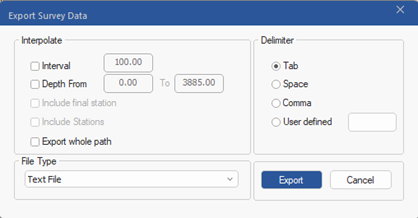
**Export:** This option is only available if a survey or plan is selected in the Survey, Plan & Chart Viewing Area. Selecting this option will bring up the survey export dialog which allows the currently active survey / plan to be exported either as a text or an Excel file.
Figure 106: Export survey dialog
If text file is selected from the drop-down menu, the delimiter can be selected from the radio buttons to the right of the dialog. If the results are to be interpolated, click the **Interval** check box and enter the interval required. Clicking the **Depth From** check box allows the user to specify a depth range to export. Clicking the **Include Stations** check box will include all survey/plan stations as well as interpolated points. Clicking the **Include Final Station** will include only the final survey/plan point. If a plan or survey file is selected, the **Export Whole Path** option becomes available. This exports the current survey / plan as well as any surveys or plans which the current view is tied to.
**Search:** Opens the Search Database dialog. This dialog allows the user to search their database for actual wells using various criteria.
Figure 107: Search Database
The database can be searched by **Job Number, Well Name, Rig Name, Job Status** and **Date Range**. Enter a string into each search criteria, or use the drop down list below each one to choose from the available options. Click on the **Search** option in the top left to search the database for actual wells that match with ALL of the entered criteria.
The Job Status criteria can be further refined by the job co-ordinator. The job number, rig name, job status and co-ordinator for a well are all assigned in the Job Data dialog, which can be accessed via the Daily Reporting section of the Home ribbon.
Click on the **Print** icon to print the daily cost information for all displayed results. Double click on a result to close the dialog and display the well in the Object Explorer.
**Undo**: Undoes the previous action. Only available in survey listings or plans.
**Redo:** Redoes the previously undone action. Only available in survey listings or plans.
---
# Agent Instructions
This documentation is published with GitBook. GitBook is the documentation platform designed so that both humans and AI agents can read, navigate, and reason over technical content effectively. Learn more at gitbook.com.
## Querying This Documentation
If you need additional information that is not directly available in this page, you can query the documentation by asking a question.
Perform an HTTP GET request on the following URL with the `ask` and `goal` query parameters:
```
GET https://docs.innova-drilling.com/introduction/innova-engineering-manual/well-seeker-x-manual/8.0-menu-ribbons/8.2-home/8.2.1-controls.md?ask=&goal=
```
`ask` is the immediate question: it should be specific, self-contained, and written in natural language.
`goal` is what the user is ultimately trying to achieve, the reason they need the answer. Sharing it helps GitBook give you a better, more relevant answer. A goal is most helpful when it describes the outcome the user wants rather than restating the question. For example, with `ask=how do I create an API token`, a goal like `automate deployments from our CI pipeline` lets GitBook tailor the answer to that use case.
The response will contain a direct answer to the question and relevant excerpts and sources from the documentation.
Use this mechanism when the answer is not explicitly present in the current page, you need clarification or additional context, or you want to retrieve related documentation sections.