> For the complete documentation index, see [llms.txt](https://docs.innova-drilling.com/introduction/llms.txt). Markdown versions of documentation pages are available by appending `.md` to page URLs; this page is available as [Markdown](https://docs.innova-drilling.com/introduction/innova-engineering-manual/well-seeker-x-manual/8.0-menu-ribbons/8.2-home/8.2.5-anti-collision.md).
# 8.2.5 - Anti-Collision
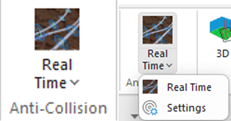
This section contains the Real Time Anti-Collision feature and its settings.
Figure 123: Real Time Anti-Collision
## 8.2.5.1 - Real Time Anti-Collision
The Real Time Anti-Collision tool allows the user to monitor the proximity of offset wells in real time while drilling and will alert the user if the selected anti-collision warning levels are breached. It can also be used to monitor the deviation of the wellbore from its well plan and alert the user if the trajectory of the well strays beyond a specified distance from the plan. Finally, it can be used to monitor the distance between the well and the edge of the lease.
Figure 124: Real time anti-collision dialog
The Real Time Anti-Collision Tool can only be run when viewing a survey. Each offset well needs to be created in Well Seeker as a planned or actual well, and then selected using the Offset Selector tool.
The well plan referenced in the RT AC dialog is whichever plan is selected as the **Principal Plan** for that well. To set a plan as the principal plan, open the Plan Properties window for the plan check the ‘**Set as principal plan**’ checkbox.
Any lease lines that are assigned to the well in the **Targets** window will also be included in the results.
#### **8.2.5.1.1 - Point of Interest**
This section displays the last survey for the reference well. All results in the anti-collision results section are relative to this point. This point is updated automatically when a new survey or projection is added to the survey listing.
If the user opens a 3D plot and centres on a survey, the point of interest will update as the user moves up and down the wellbore.
#### **8.2.5.1.2 - Anti-Collision Results**
This section displays the anti-collision results, relative to the reference point, for the selected offsets, principal plan and lease lines. For each result it will display the **Centre-to-Centre** (C2C) **distance,** **High Side Gravity Toolface** (TFO HS), **North Referenced Magnetic Toolface** (TFO NORTH), **Up/Down** (UD) **distance** and **Left/Right** (LR) **distance**. The toolfaces displayed are the toolfaces from the reference well point of interest to the closest point of the offset well in question.
If the **Calc SF** checkbox in the Options section is ticked the results section will also show the **Ellipse Separation** (ES), **Reference Ellipse semi-major radius**, **Offset Ellipse semi-major radius**, **Separation Factor** (SF). The reference well and all offsets must have an error model assigned for these results to display.
The **Warning** column will display a warning if any of the limits in the Warning Levels section are violated. The limits for the Separation Factor result are set in the Operator Properties window of the operator that the reference well belongs to.
#### **8.2.5.1.3 - Warning Levels**
Allows the user to specify the centre-to-centre (C2C) limits for the anti-collision results section. If one of these thresholds is violated, then the offending result will be highlighted in red and an error message will appear in the warnings column.
#### **8.2.5.1.4 - Sorting**
Allows the user to sort the Anti-Collision Results. Three options are available: None, C2C and SF.
#### **8.2.5.1.5 - Send Email**
Allows the user to generate an **anti-collision update email**, which can be configured using settings in the Options, Survey Report and Projections sections. The email body contains the last recorded survey and/or bit projection, along with its anti-collision output for the principal plan, offset wells and lease lines. The email will also have a full Survey Report and Anti-Collision Report attached.
Note that these reports use the template that is at the top of the list in the Survey Reports Manager and the Anti-Collision Reports Manager. The user should rename the template that they want to use so that it is first alphabetically. See section [**8.2.8 – Survey Reports**](/introduction/innova-engineering-manual/well-seeker-x-manual/8.0-menu-ribbons/8.2-home/8.2.8-survey-reports.md) for more information on the reports manager.
#### **8.2.5.1.6 - Options**
This section contains options for configuring the anti-collision results and the AC email.
**Open Email:** If this option is toggled on, the **Send Email** function will generate an email in Microsoft Outlook, with the Survey Report and Anti-Collision Report attached. If toggled off, selecting **Send Email** will open an html file in the user’s default browser containing the email body.
**Proj on Last Line:** Signifies that the last line in the survey tab of the reference well is a bit projection instead of a proper survey. If toggled on, the AC Update Email will list the second to last survey as the final survey, and the last survey as a bit projection.
**Interp long CL:** If this is toggled on, the real time AC will interpolate wellbores with large CL between each survey station, to improve the accuracy of the AC results.
**Calc SF:** This option needs to be toggled on in order to see separation factor related results in the Anti-Collision Results section.
#### **8.2.5.1.7 - Survey Report**
Toggling on any of these options will add a survey report, in the selected format, as an attachment to the AC Update Email.
#### **8.2.5.1.8 - AC Report**
Toggling on any of these options will add a full anti-collision report, in the selected format, as an attachment to the AC Update Email.
#### **8.2.5.1.9 - Projections**
Toggling on any of these options will add projections to the Survey Information section of the AC Update Email. Projections will use the inclination and azimuth of the last line in the survey tab of the reference well.
## **8.2.5.2 - Anti-Collision Settings**
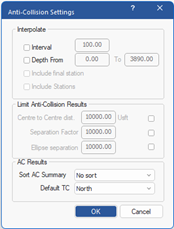
The anti-collision settings dialog allows the user to specify the details used when creating anti-collision reports and generating travelling cylinder, separation factor or ladder plots.
Figure 125: Anti-collision settings
The **Interpolate** section only affects the Travelling Cylinder, Ladder and Separation Factor Plots. If the “interval” check is selected, the reference well will be interpolated at the interval specified, and AC scans against offsets will be performed at these interpolated points. The “depth from” check box allows the user to specify a depth range to scan. The “include final station” and “include stations” options define whether actual survey stations are included in the interpolation and whether a final station is included at the end.
The **Limit Anti-Collision Results** section allows the user to define maximum values at which AC results will be displayed. It should be noted that these settings are global and do not change regardless of which well / wells are being scanned against and as such they should be checked before performing any anti-collision scan so that potential collisions are not missed.
Any selections made here will be saved and applied to any AC scans run while the program is open. When the program is closed, upon reopening, these selections will be reset.
The **AC Results** section of this dialog allows the user to select the following (note that these 2 options are defaults and once selected these will be remembered by the program and will **NOT** reset when the program is closed and reopened):
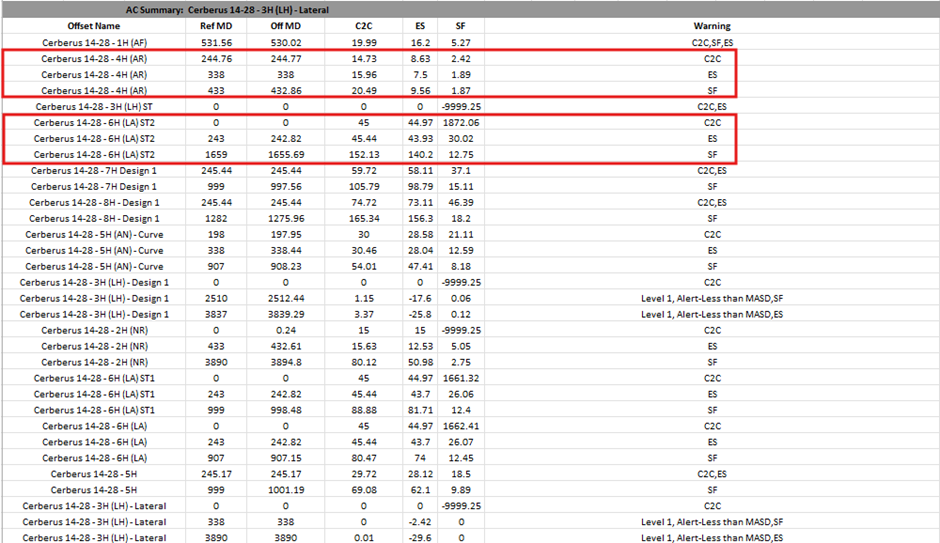
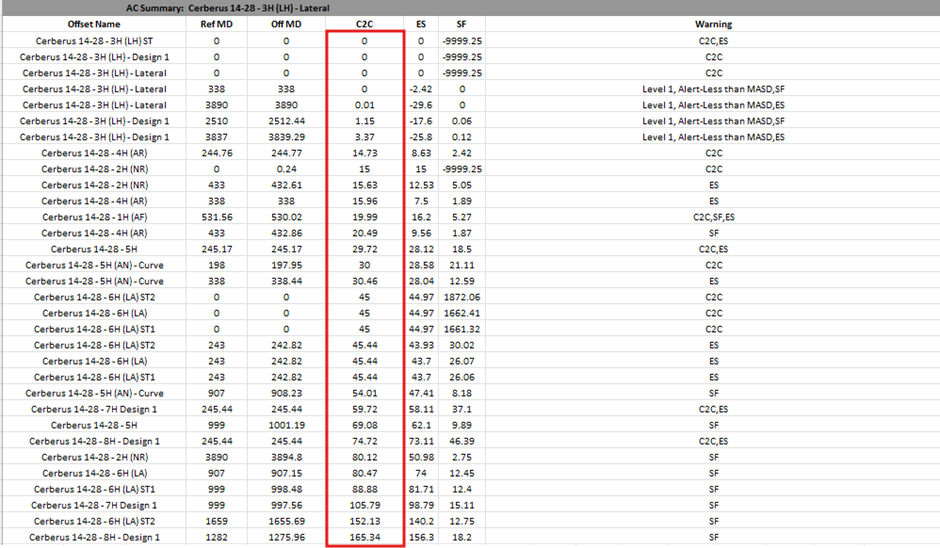
* **Sort AC Summary:** User can choose from the following: **No sort, C2C Dist, ES** and **SF**. This determines the way the AC summary in the AC report is displayed. Choosing C2C, ES or SF will order the summary with the smallest relevant value at the top and the largest at the bottom. No sort will keep the summary for each offset well together. See figures below.
Figure 126: No Sort AC Summary
Figure 127: C2C Dist selected for AC summary
* **Default TC:** Choose the default Traveling Cylinder Plot reference. User can choose between North and High Side.
---
# Agent Instructions
This documentation is published with GitBook. GitBook is the documentation platform designed so that both humans and AI agents can read, navigate, and reason over technical content effectively. Learn more at gitbook.com.
## Querying This Documentation
If you need additional information that is not directly available in this page, you can query the documentation by asking a question.
Perform an HTTP GET request on the following URL with the `ask` and `goal` query parameters:
```
GET https://docs.innova-drilling.com/introduction/innova-engineering-manual/well-seeker-x-manual/8.0-menu-ribbons/8.2-home/8.2.5-anti-collision.md?ask=&goal=
```
`ask` is the immediate question: it should be specific, self-contained, and written in natural language.
`goal` is what the user is ultimately trying to achieve, the reason they need the answer. Sharing it helps GitBook give you a better, more relevant answer. A goal is most helpful when it describes the outcome the user wants rather than restating the question. For example, with `ask=how do I create an API token`, a goal like `automate deployments from our CI pipeline` lets GitBook tailor the answer to that use case.
The response will contain a direct answer to the question and relevant excerpts and sources from the documentation.
Use this mechanism when the answer is not explicitly present in the current page, you need clarification or additional context, or you want to retrieve related documentation sections.