> For the complete documentation index, see [llms.txt](https://docs.innova-drilling.com/introduction/llms.txt). Markdown versions of documentation pages are available by appending `.md` to page URLs; this page is available as [Markdown](https://docs.innova-drilling.com/introduction/innova-engineering-manual/well-seeker-x-manual/11.0-reporting/11.6-drill-string-editor/11.6.4-drill-string-editor-menu-ribbon/11.6.4.6-run-data.md).
# 11.6.4.6 - Run Data
## 11.6.4.6.1 - Drilling Run Data
The Drilling Data dialog allows the user to enter additional information about the BHA run, as well as record any incidents or tools failures. This data will be printed in the performance report and available for analytics purposes. Drilling parameter data (e.g. drilling and circulating hours) is taken from the slide sheet and stored in the background.
#### **Run Data**
**Wash / Ream hrs:** The number of hours spent reaming while circulating.
**Dry Ream (hrs):** The number of hours spent reaming while not circulating.
**Num Stalls:** The number of motor stalls recorded during the BHA run. This will be greyed out if any data has been recorded in the Motor Stalls dialog.
**Stall Pressure:** The average standpipe pressure at the time of stalling. This will be greyed out if any data has been recorded in the Motor Stalls dialog.
#### **Performance**
**Reason:** Record the reason for pulling out of hole (POOH) in the dropdown box.
**Unplanned Trip:** Tick if the trip out of hole was unplanned.
**DLS Achieved:** Tick if the target dogleg was achieved during the run.
**Hole Problems:** Tick if there were any hole problems during the run.
**Incident:** Tick this box if there was a tool failure or incident during the run. This will activate the other sections below so that the user can enter details of the incident.
#### **Incident Type**
Only available if the user marked the **Incident** checkbox at the Performance section. Check the corresponding checkboxes to categorise the type of failure. Check the **LIH** checkbox if the BHA was lost in hole.
**Hrs to Fail:** Enter the number of hours between going below the rotary table and the incident.
**Motor failure type:** If the failure involved the motor, select the failure type here.
**BHA Component:** The BHA component that failed can be selected here. Note that components will only be available for selection if they have been given a serial in the Drill String Editor.
The Operations at Time of Failure, Trouble Shooting Performed, Surface Findings, Shop Findings, Evaluation and Chargeback fields can be used to make comments about the failure. These comments will be displayed in the Motor Failure Report and the Performance Report. In the Evaluation section, the **NPT** field can be used to record any non-productive time due to the incident.
#### **Formations & Faults**
In these sections, the user can record any comments they have about formations and faults that occurred during the run.
## 11.6.4.6.2 - MWD Run Data
If an MWD tool was run as part of the BHA, this dialog can be used to record MWD related information, as well as log any MWD failures. This information will appear in the MWD performance report.
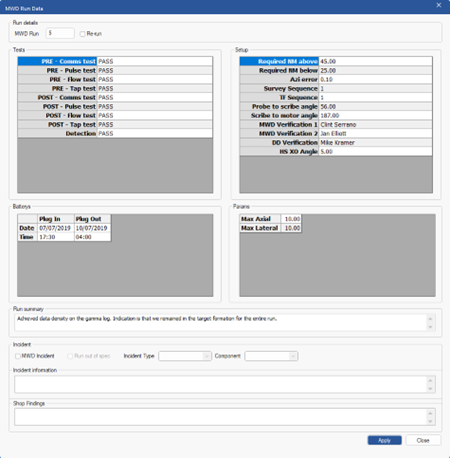
Figure 275: MWD Run Data dialog
**MWD Run:** User can enter the MWD Run number, and mark the checkbox ‘Re-run’ if needed.
**Tests:** Record the results of pre- and post-run MWD string tests.
**Setup:** Enter general setup information for the MWD string.
**Batteries:** Enter the plug in and plug out times for the MWD batteries.
**Params:** Enter the maximum axial and lateral vibration for the MWD string.
**Run Summary:** Enter general comments for the MWD run.
**Incident:** If there was an incident or failure during the run that involved the MWD string, check the **MWD Incident** checkbox. This will activate the other sections so that the user can enter additional information on the failure.
## 11.6.4.6.3 - Rental Data
If running a rental job, the user should check the **Is Rental** checkbox. This will signal to the software to ignore any run data from the slide sheet and daily reports. Instead, data entered in this dialog will be used for the performance report and analytics data. This negates the requirement to fill in the daily reports and slide sheet for rental jobs.
## 11.6.4.6.4 - Motor Stalls
The Motor Stall dialog displays all motor stalls detected (using WITS/WITSML data) and recorded during the BHA run. When stall data is entered here, the system automatically disables the # Stalls and Stall Pressure fields in the BHA Run Data dialog and instead uses the detailed values defined in this interface.
This feature is designed to capture the total energy and potential damage associated with each stall. Stall events are processed using the new Stall Detection Processor added to rig states, with corresponding diagnostics available in the Rig States dialog below the RPM thresholds.
A stall is recognized only when the pressure exceeds the average by the user defined Stall Pressure threshold, the system has at least 30 samples in both the pressure and flow buffers, the flow rate remains within 5% of its average, and no flow change greater than 10% of average occurs—such changes reset the buffer.
Additional rules include a minimum of 30 seconds between stalls and a maximum stall duration of 3 minutes. All validated stall data is saved to the Stall Data section available in the Drill String and Slide sheets and is included in the PDF and Excel motor reports. See [**Rig States**](https://docs.innova-drilling.com/introduction/innova-engineering-manual/well-seeker-x-manual/11.0-reporting/11.6-drill-string-editor/11.6.4-drill-string-editor-menu-ribbon/pages/0881d36bb788ae6975d4df247b5e142a7558ebc7#id-11.11.1.6-rig-states) for more information.
---
# Agent Instructions
This documentation is published with GitBook. GitBook is the documentation platform designed so that both humans and AI agents can read, navigate, and reason over technical content effectively. Learn more at gitbook.com.
## Querying This Documentation
If you need additional information that is not directly available in this page, you can query the documentation by asking a question.
Perform an HTTP GET request on the following URL with the `ask` and `goal` query parameters:
```
GET https://docs.innova-drilling.com/introduction/innova-engineering-manual/well-seeker-x-manual/11.0-reporting/11.6-drill-string-editor/11.6.4-drill-string-editor-menu-ribbon/11.6.4.6-run-data.md?ask=&goal=
```
`ask` is the immediate question: it should be specific, self-contained, and written in natural language.
`goal` is what the user is ultimately trying to achieve, the reason they need the answer. Sharing it helps GitBook give you a better, more relevant answer. A goal is most helpful when it describes the outcome the user wants rather than restating the question. For example, with `ask=how do I create an API token`, a goal like `automate deployments from our CI pipeline` lets GitBook tailor the answer to that use case.
The response will contain a direct answer to the question and relevant excerpts and sources from the documentation.
Use this mechanism when the answer is not explicitly present in the current page, you need clarification or additional context, or you want to retrieve related documentation sections.